Most problems people blame on TamRank turn out to be a plugin conflict: two SEO plugins running at once, or a caching plugin serving old pages. This page shows how to spot a plugin conflict and fix it, so TamRank has a clean run of your site’s SEO.
In short
- Run only one SEO plugin. Two produce duplicate meta and schema.
- After migrating, deactivate Yoast or Rank Math.
- If a change does not show, clear your caching plugin.
- Turn off any overlapping TamRank feature under Settings.
The big one: two SEO plugins at once
By far the most common conflict is running TamRank next to Yoast or Rank Math. Both try to write your title, meta description, and schema into the page, so search engines see two sets and your output looks doubled or contradictory.
The fix is simple: run one SEO plugin. It is fine to keep the old one active while you migrate and check your pages, but once you are happy, deactivate it. Moving your data across first is covered in Migrating from Yoast or Rank Math.
To confirm it, open your page source and search for two title tags or two blocks of schema. If you see doubles, two plugins are both writing them.
Caching plugins showing old data
If you change a title, a meta description, or the sitemap and it does not update on the live site, a caching plugin is usually serving an older copy. Clear the cache in your caching plugin, such as WP Rocket, LiteSpeed, or W3 Total Cache, and if you use a CDN like Cloudflare, purge that too. TamRank’s changes are live the moment you save; caching just delays when visitors and crawlers see them.
Turning off overlapping features
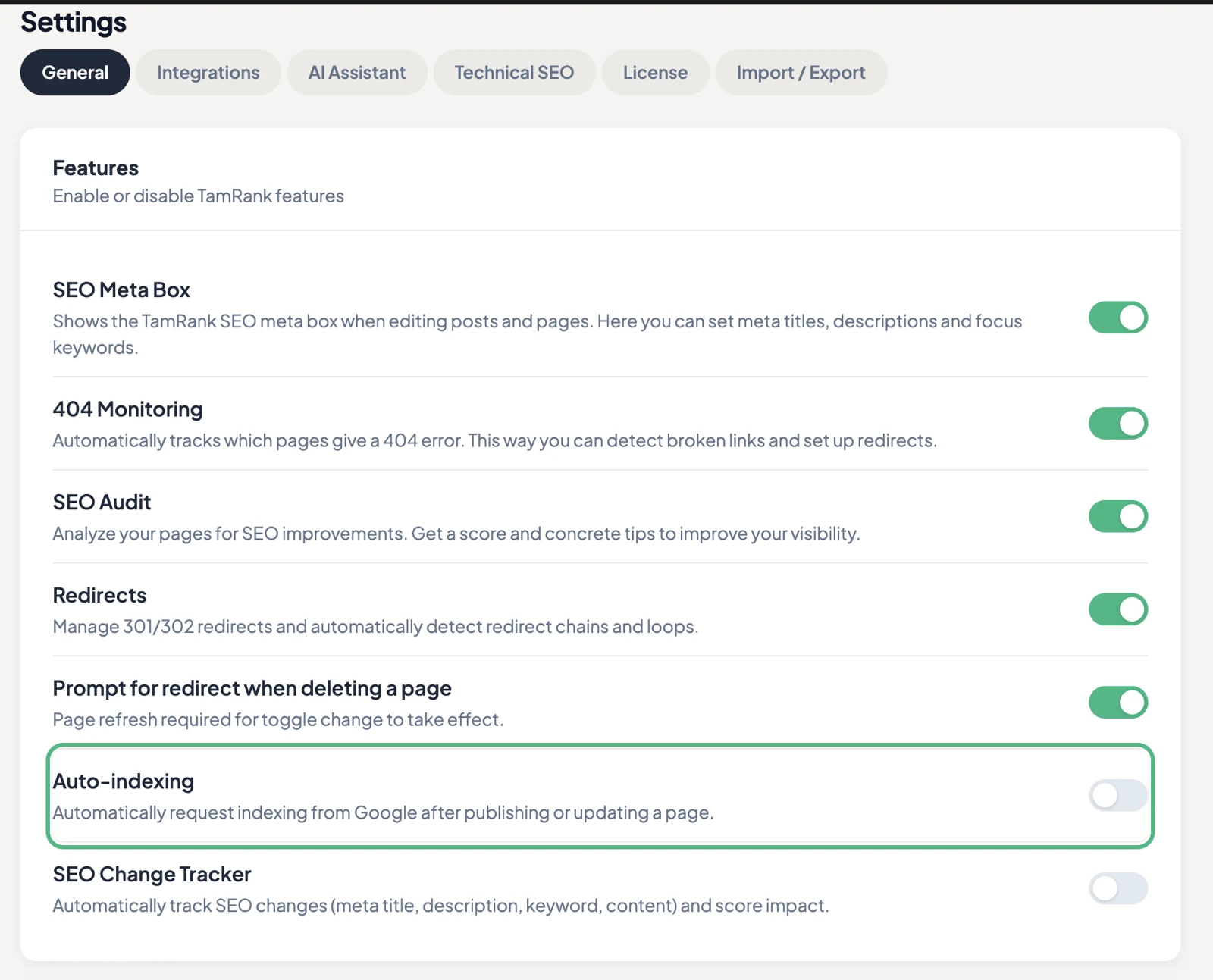
If another plugin owns a job you would rather it kept, you can switch off the matching part of TamRank instead of the two fighting over it. Under TamRank → Settings → General, the feature toggles let you turn individual features on or off, for example the SEO meta box, and Settings → Features covers tools like redirects and 404 monitoring. Switch off whatever overlaps, and TamRank steps aside for that piece.
Other things that look like conflicts
- Two plugins generating sitemaps. WordPress and some plugins each make their own. Submit TamRank’s at /sitemap.xml and ignore the rest, as covered in The XML sitemap in TamRank.
- A theme or page builder adding its own meta tags. Some themes and builders output their own title or Open Graph tags. If you see duplicates that are not from another SEO plugin, check the theme or builder’s SEO settings.
- A security plugin blocking connections. A security or firewall plugin can stop TamRank verifying your site for Search Console. That shows up as a connection problem, covered in When Search Console will not connect.
Tip: change one thing at a time
When you are chasing a conflict, deactivate or clear one plugin, then recheck, before touching the next. Flipping several things at once makes it impossible to tell which one was the culprit. Start with the most likely, a second SEO plugin, then caching, then the theme.
Troubleshooting
My titles or schema appear twice. Two SEO plugins are both writing them. Keep one and deactivate the other.
My change is not showing on the live page. A caching plugin or CDN is serving an old copy. Clear the cache and purge the CDN.
A page builder is overriding my title. Some builders set their own title and Open Graph tags. Check the builder’s SEO settings, or turn its meta output off.
I want another plugin to handle one part. Turn off the matching TamRank feature under Settings, rather than running two of everything.
Frequently asked questions
Can I run TamRank alongside Yoast or Rank Math?
Only briefly, while you migrate and check your pages. Running two SEO plugins for the long term produces duplicate meta and schema, so deactivate the old one once you are set.
My changes are not showing. Why?
A caching plugin or CDN is almost always the cause. Clear the cache; TamRank saves changes instantly.
How do I know two plugins are conflicting?
Open your page source and look for duplicate title tags, meta descriptions, or schema blocks.
Can I turn off part of TamRank?
Yes. Settings has feature toggles to switch individual features on or off.
Does a caching plugin break TamRank?
No. It only delays when your changes appear. Clear the cache and they show up.
Related
- Move your data first: Migrating from Yoast or Rank Math
- Start clean: Installing TamRank
- Sitemap questions: The XML sitemap in TamRank
- Connection problems: When Search Console will not connect
- Back to Documentation

