You can install TamRank on WordPress in about two minutes, either straight from the plugin directory or by uploading the ZIP from your account. Both routes are below, along with what happens the moment you activate.
In short
- Go to Plugins → Add New in your WordPress admin.
- Search for TamRank, or upload the ZIP from your account.
- Click Install Now, then Activate.
- Look for the new TamRank item in your sidebar. That is it, you are ready for the first-time setup.
Before you start
TamRank runs on almost any modern WordPress site. It needs:
- WordPress 6.0 or higher
- PHP 7.4 or higher
There is no separate database requirement. TamRank uses whatever your WordPress install already runs on, so if your site meets WordPress’ own baseline (MySQL 5.6 or higher, or the MariaDB equivalent), you are covered.
Most hosts already meet these. If you are not sure, open Tools → Site Health → Info in your WordPress admin and check the Server section. If your host is below these versions, ask them to update PHP, as an older PHP version is the most common reason a plugin fails to activate.
Method 1: install from the WordPress dashboard
This is the route most people use.
- Log in to your WordPress admin.
- Go to Plugins → Add New.
- Type TamRank in the search box.
- Click Install Now next to TamRank.
- When the button changes, click Activate.
Method 2: install manually from a ZIP file
Use this route if you downloaded the plugin from your account, or if your host does not allow directory installs.
- Download the TamRank ZIP file from your account.
- In your WordPress admin, go to Plugins → Add New → Upload Plugin.
- Click Choose File and select the ZIP you downloaded.
- Click Install Now, then Activate.
You do not need to unzip the file first. WordPress handles that for you.
What happens when you activate
Activation is not just switching the plugin on. TamRank sets up everything it needs in the background, so there is nothing else to configure before you start. On activation it will:
- create the database tables it uses for redirects, the 404 log, schema templates, and outdated-content tracking
- add the SEO meta box to your posts and pages, so you can edit titles, descriptions, and keywords per page
- generate your XML sitemap
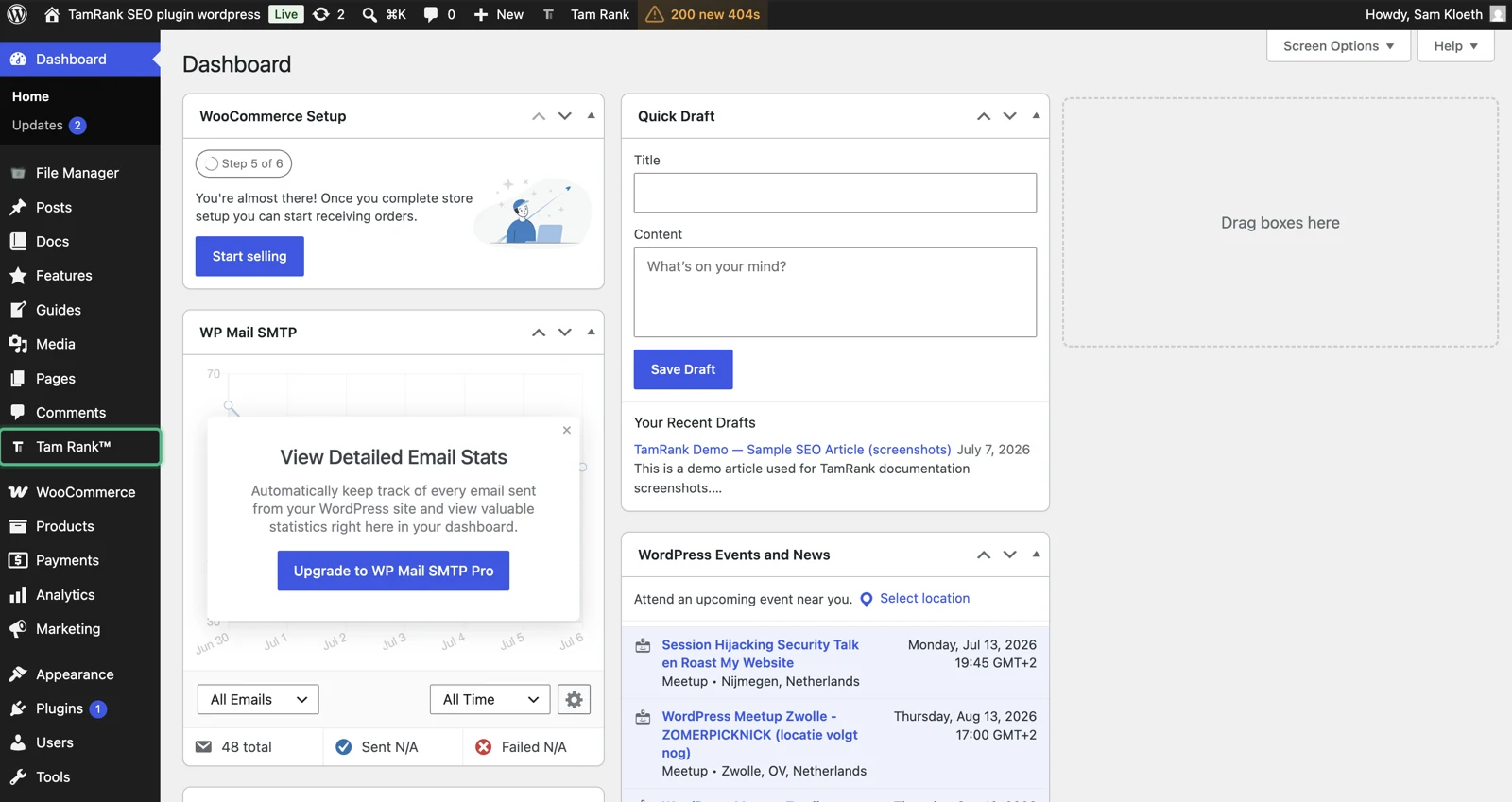
- add the TamRank menu to your admin sidebar
Tip: moving from Yoast or Rank Math? Do not deactivate it yet
If you already run Yoast or Rank Math, keep it active for now. TamRank can import your existing per-page SEO data, such as your titles, descriptions, focus keywords, and robots settings, but you want to run that migration first so nothing is lost. Install and activate TamRank alongside your current plugin, run the migration during the first-time setup, then deactivate the old one. Running two SEO plugins at the same time only becomes a problem once both are outputting meta tags, so treat the overlap as a short, deliberate step, not a permanent state.
Troubleshooting
TamRank does not appear in the search results. Check that your WordPress version is 6.0 or higher, and that your site can reach the plugin directory. On a locked-down or offline install, use Method 2 with the ZIP instead.
The upload fails or times out. This is almost always the server upload limit. Ask your host to raise the maximum upload size, or use Method 1 to install from the directory.
A blank screen after activation. This points to an old PHP version or a low memory limit. Check Tools → Site Health, and if you are locked out, rename the plugin folder over FTP to deactivate it, then fix the PHP version before trying again.
Frequently asked questions
Is TamRank really free?
Yes. The free plugin includes more than 50 features with no time limit. PRO is an optional add-on for teams and agencies that need the extra reporting and automation.
Will it conflict with Yoast or Rank Math?
Not if you follow the tip above. Import your data first, then run a single SEO plugin. Two active SEO plugins both writing meta tags is what causes duplicate output.
Will it slow my site down?
No. TamRank does its analysis inside the admin, not on the pages your visitors load. The front-end additions are lightweight, such as your sitemap and structured data.
Can I install it on more than one site?
Yes. Install the free plugin on as many sites as you like. Your PRO plan sets how many sites you can activate: Solo covers 1 site, Studio covers 5 sites and Agency covers 20 sites.
Related
- Next: First-time setup wizard
- Moving over: Migrating from Yoast or Rank Math
- Compare plans: TamRank pricing
- Back to Documentation

