The first-time setup wizard is a full-screen walkthrough that opens once, right after you activate TamRank. It detects your current SEO plugin, runs a quick scan of your site, and offers to import your existing SEO data, so you start with everything in place. All of it is free.
In short
- Detection: TamRank checks whether Yoast or Rank Math is active.
- Site Scan: a quick scan shows your SEO status at a glance.
- Selection: choose which data to import, or start clean.
- Migration: TamRank moves your data across, with a rollback if you need it.
- Done: you land on your dashboard, ready to go.
Getting to the wizard
The wizard opens on its own the first time you visit the admin after activation. You can also reach it from two places at any time:
- the green Welcome to TamRank banner on the dashboard, with its Start Setup Wizard button
- TamRank → Settings → Import / Export, under the SEO Data Migration card
Finishing the wizard does not lock anything, and running it again never overwrites data you already have, so there is no risk in going through it more than once.
Choosing your language
The language switcher sits in the wizard header, with Nederlands, English, Deutsch, and Français. Click a flag and it applies straight away, at any step. There is also a Skip link in the top right if you would rather go straight to the dashboard. Your choice only changes the plugin’s own screens, not your site or your content.
Step 1: Detection
The first screen checks whether an SEO plugin is already active. It detects Yoast and Rank Math, and it still finds them even if you have deactivated the plugin, because it also reads the data left in your database. You then pick one of two cards: migrate from the plugin it found, or Clean start if you would rather begin fresh.
Step 2: Site Scan
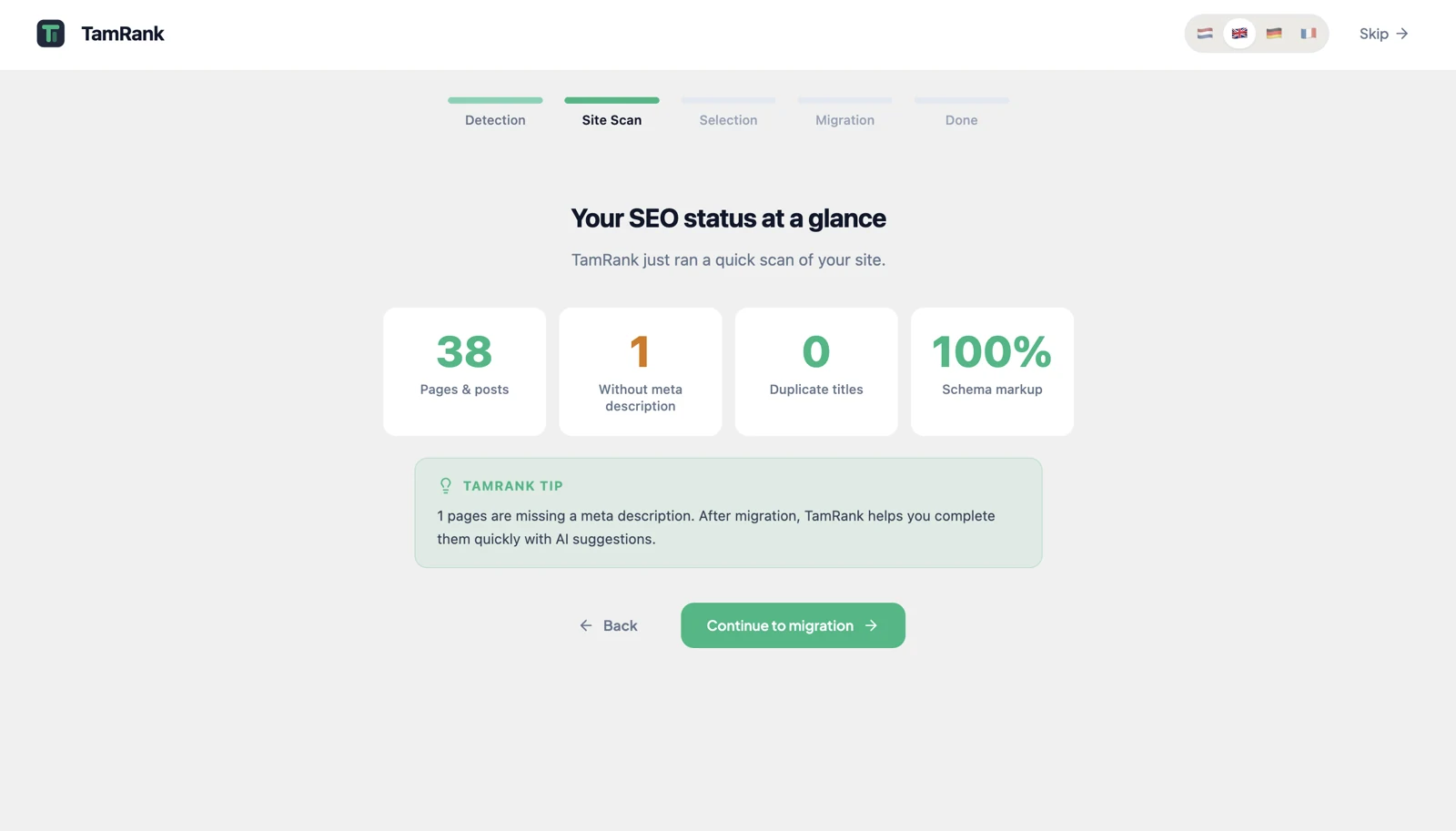
Next, TamRank runs a quick scan and shows four numbers: your total pages and posts, how many are missing a meta description, how many have duplicate titles, and what share of your pages have schema markup. It is a snapshot of where you stand before you change anything, and you will often see a short tip based on what it found.
Step 3: Selection
If a plugin was detected, this step asks what you want to import. You get a checkbox for each type of data, with a count next to it, and everything is ticked by default. Untick anything you would rather leave behind. TamRank imports your per-page SEO data:
- meta titles and descriptions
- focus keywords
- canonical URLs
- social and Open Graph tags
- robots settings (noindex and nofollow)
- schema markup
Your redirects come across too, as their own category in the wizard, so you can bring them along or leave them behind. They come from Yoast Premium and Rank Math; Yoast’s free version has no redirects to move. Existing TamRank data is never overwritten either: if a field already has a value, that item is skipped for that page.
Step 4: Migration
TamRank then moves your data across in batches, with a progress bar and a per-item count. If anything fails, you get a clear Retry or Skip rather than a dead end. A backup of your original values is saved as it goes, which is what makes the rollback possible.
Step 5: Done
The final screen confirms everything is in place and drops you on your dashboard. There is an optional card to get a few setup tips by email, which is five emails over fourteen days with one-click unsubscribe, and nothing if you leave it unticked.
After the wizard
Everything the wizard sets can be changed later under TamRank → Settings, and you can switch individual features on or off under Settings → General. If you imported data and want to undo it, go to TamRank → Settings → Import / Export and use the Rollback Migration card, which restores every page to its original state.
Tip: keep your old plugin active until you have checked a few pages
The safest order is to install TamRank next to Yoast or Rank Math, let the wizard detect it and import your data, then open a few of your pages to confirm the titles and descriptions look right before you deactivate the old plugin. The import is quick, but that quick check is what gives you the confidence to switch off.
Troubleshooting
You want to run the wizard again. Go to TamRank → Settings → Import / Export and start it from the SEO Data Migration card. Running it again never overwrites data you already have.
Your old plugin is deactivated. You can still migrate. Detection reads the SEO data left in your database, so it works even after you switch Yoast or Rank Math off.
You want to undo the migration. Use TamRank → Settings → Import / Export → Rollback Migration. It restores every page to how it was before, and clears fields that were empty to begin with.
A title shows a strange code or looks empty. During import, TamRank converts supported Yoast and Rank Math template variables to its own placeholders and strips the ones it does not support, so raw codes never leak into your live titles.
Frequently asked questions
Are my redirects migrated?
Yes, if you had them in Rank Math or Yoast Premium. They come across as their own category in the wizard, alongside your per-page SEO meta: titles, descriptions, focus keywords, canonical URLs, social tags, robots settings, and schema.
Do I have to migrate during setup?
No. Pick Clean start in the detection step and TamRank sets up fresh. You can always migrate later from Settings, Import / Export.
Will it overwrite my existing TamRank data?
No. If a field already has a value, that item is skipped for that page, so anything you have already set stays as it is.
Can I run the wizard again?
Yes, from TamRank → Settings → Import / Export. There is no separate state to reset, so it simply reopens.
Which languages does the wizard support?
Nederlands, English, Deutsch, and Français. This is the language of the plugin screens, not your site.
Related
- Next: Connecting Google Search Console
- Then: Understanding your dashboard
- Moving over: Migrating from Yoast or Rank Math
- Back to Documentation

