Connecting Google Search Console brings your real search data, your clicks, impressions, and positions, straight into your TamRank dashboard. It is free, takes about a minute, and this page walks you through it.
In short
- Go to TamRank → Settings → Integrations.
- Click Connect with Google and sign in.
- Pick the property that matches your site, and confirm.
- Open your dashboard to see clicks, impressions, and positions.
What you get, for free
Once connected, your TamRank → Dashboard shows a Search Console section with your clicks, impressions, CTR, and average position over the last 7 or 28 days, with a trend chart. Connecting and this dashboard are free. Longer periods of 3 to 16 months and per-page keyword data are part of PRO.
Before you connect
You need to be an admin, and your site needs to be verified in Google Search Console already. TamRank connects to a property you own there; it does not verify your site with Google for you.
How to connect
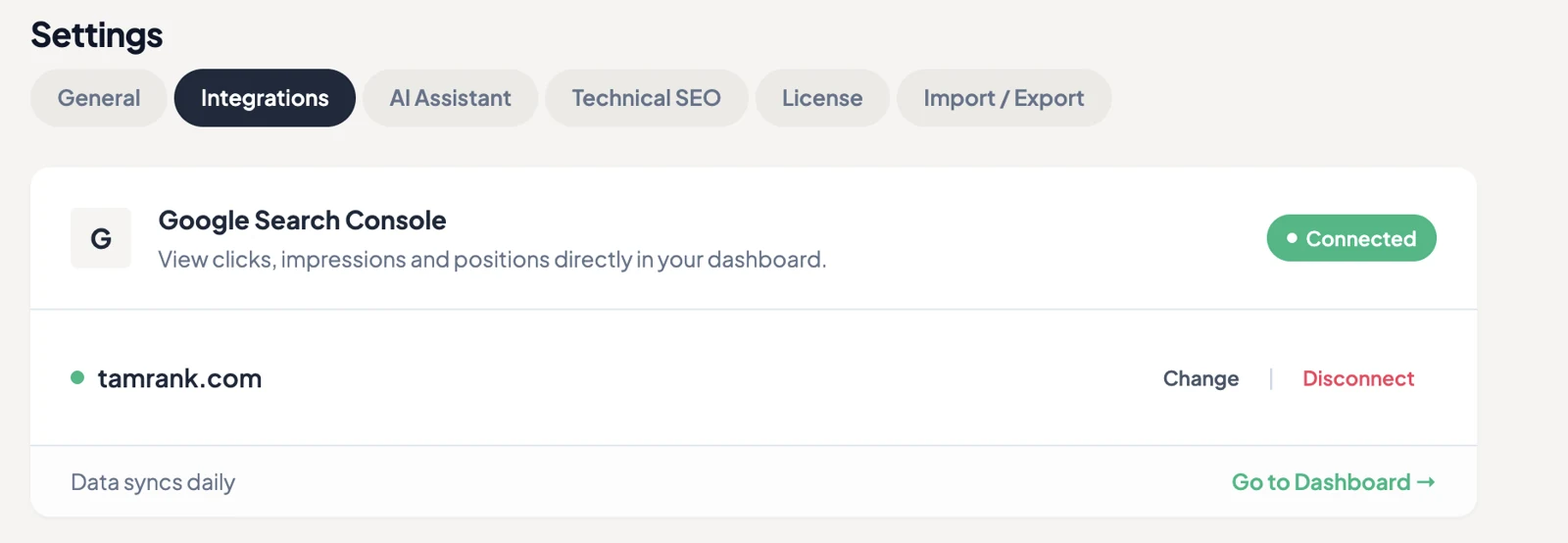
- Go to TamRank → Settings → Integrations and find the Google Search Console card.
- Click Connect with Google. TamRank first places a small, one-time verification file on your site and checks it from its own servers, to confirm you own the site. Then it sends you to Google to sign in and approve access.
- Choose your property. If your Google account has more than one property, pick the one that matches this site’s domain, then click Confirm. If you have only one, TamRank selects it for you.
- Done. The card shows a green Connected badge and your property. Use Go to Dashboard to see your data.
Domain property or URL-prefix property
In Search Console you can have two kinds of property for the same site: a domain property (example.com) and a URL-prefix property (https://example.com). Pick the one that matches how your site is set up. If you choose the wrong one, TamRank shows a Mismatch badge and your data stays off until you select the right property.
After connecting
Your data appears on the dashboard and refreshes daily. Search Console data runs about two days behind, so the most recent day you see is usually the day before yesterday. That is normal, and it comes from Google, not from TamRank.
Switching property or reconnecting
- To switch to a different property, use Change on the card.
- To reconnect after a problem, click Disconnect first, then Connect with Google again.
Tip: your login stays with Google
Your Google sign-in is handled by Google, and your account details are never stored in WordPress. TamRank only keeps track of the connection itself, so disconnecting cleanly removes it whenever you want.
Troubleshooting
“We couldn’t verify your site.” Before connecting, TamRank places a one-time file on your site and checks it from outside. If a firewall, security plugin, or staging setup blocks that request, the check fails. The message tells you the reason, such as a timeout. Lift the block and click Try again, or contact support to connect your site manually. There is a fuller guide in When Search Console will not connect.
The badge says Mismatch. The connected property does not match your site domain. Pick the correct one in the dropdown, watching for the domain and URL-prefix versions of the same site.
“No Search Console properties found for this Google account.” That account has no verified property, so either you picked the wrong Google account or the site is not in Search Console yet. Verify the site in Search Console first, then connect.
My numbers are a day or two behind. That is normal. Search Console data is delayed about two days, so TamRank shows up to the previous day.
Frequently asked questions
Is connecting Search Console free?
Yes. Connecting and the 7 and 28 day dashboard are free. Longer periods and per-page keyword data are PRO.
Do I need to verify my site with Google first?
Yes. You connect to a property you already own in Search Console.
Why is my data a couple of days old?
Search Console itself runs about two days behind, so TamRank shows the most recent data Google has.
Can I connect more than one property?
You connect one property per site, the one that matches this site’s domain. Use Change to switch to another.
Where are my Google login details stored?
Not in WordPress. Google handles the sign-in, and TamRank only keeps the connection status.
Related
- Get started: First-time setup wizard
- Read your dashboard: Understanding your dashboard
- Fix connection problems: When Search Console will not connect
- Back to Documentation
Feature overview: Page Insights: queries, position and CTR per page

