Technical SEO for WordPress: Everything You Need to Know (2026)
The complete guide to technical SEO for WordPress in 2026. Crawlability, indexation, Core Web Vitals, redirects, robots.txt, schema markup, and how to audit a site and fix issues in the right order.
- Technical SEO is the foundation below content: crawlability, indexation, clean URLs, speed, and structured data. Content cannot rank on a broken foundation.
- WordPress handles some of this automatically, but the defaults were chosen for publishing, not for search. Several common settings quietly hold rankings back.
- Fix in order: access first (can Google reach your pages?), then indexation, then URL integrity, then performance, then structured signals. Wrong order wastes effort.
- Core Web Vitals are a confirmed Google ranking factor in 2026. INP replaced FID in March 2024. WordPress sites fail LCP most often through unoptimised images and render-blocking scripts.
- A single misconfigured robots.txt or stale noindex tag can negate months of content work. These faults are invisible without active monitoring.
What is technical SEO for WordPress?
Most WordPress sites we look at carry at least one technical fault serious enough to cap their rankings, and it is rarely anything exotic. A robots.txt file still pointing at the staging server it was copied from. A noindex tag switched on during a redesign and never switched back. A redirect chain four hops deep, left behind by a migration nobody wrote down. Faults like these sit quietly in the background, doing damage that never surfaces unless you go looking for it.
Technical SEO is the infrastructure underneath your content. It decides whether a search engine can reach your pages, render them properly, work out how they are put together, trust their URLs, and load them fast enough to keep a real person from leaving. A technically clean site with ordinary writing usually out-ranks a technically broken site with brilliant writing, for a blunt reason: the broken site’s brilliance never gets evaluated. A page Google cannot crawl ranks for nothing, however well it is written.
There is a lot of WordPress to get right. It powers over 43% of all websites, according to W3Techs’s running census of content management systems, and that scale cuts both ways. Google has spent years learning to crawl and render WordPress dependably, and the platform hands you XML sitemaps, clean URL structures and valid HTML straight out of the box. As a starting point, it is genuinely strong.
The catch is that the defaults were chosen for people publishing posts, not for the search engines reading them. The stock permalink (/?p=123) is machine-readable but tells Google nothing about the page. Category and tag archives quietly spin up overlapping content unless you configure them. One reading setting, meant for a site still under construction, will block all indexing if it survives launch. None of these announce themselves. A site can look and behave perfectly for every human visitor while being close to invisible to Google.
Treat this guide as a plumbing diagram, not a decorating manual. It works through the five layers that decide technical SEO on WordPress, in the order Google meets them: access, indexation, URL integrity, performance, and structured signals. Each layer rests on the one beneath it, so fixing them in sequence is both faster and steadier than fixing them at random.
What is the difference between technical SEO and content SEO?
Content SEO is what your pages say: the topics they cover, how deep the explanation runs, the keywords, the headings, the internal links tying related articles together. It is what a reader actually experiences, and what tells a search engine the page is relevant once it has arrived.
Technical SEO is everything that happens before that. The server response, the robots.txt instructions, the XML sitemap, the redirect structure, the load speed, the schema markup declaring what kind of content the page holds. A search engine runs into all of it before it reads a single word of your body text.
The two layers lean on each other, but neither one covers for the other. Expanding an article from 800 to 2,500 words does nothing for a canonical tag aimed at the wrong URL. Trimming your load time does not make thin content any more relevant to a query. Each layer has its own faults and its own repairs. The classic mistake is to pour energy into content while the technical layer goes unwatched, and it happens for two very human reasons: content work gives you something to look at, and technical faults fail in silence. A broken sitemap still looks fine to a visitor. A page wearing an accidental noindex tag still collects comments. The damage shows up in Search Console and in your organic traffic graph, never in anything you would spot by loading the site in a browser. That gap between how a site looks and how it performs is the whole reason a scheduled audit beats a one-time setup.
The five-layer priority stack
Most technical SEO guides lay their topics out as a flat list of 15 to 25 items with no order of importance. As a catalogue that is accurate. As a plan it misleads, because the items do not carry equal weight, and taking them in the wrong sequence spends effort on things that cannot matter until an earlier layer is sorted.
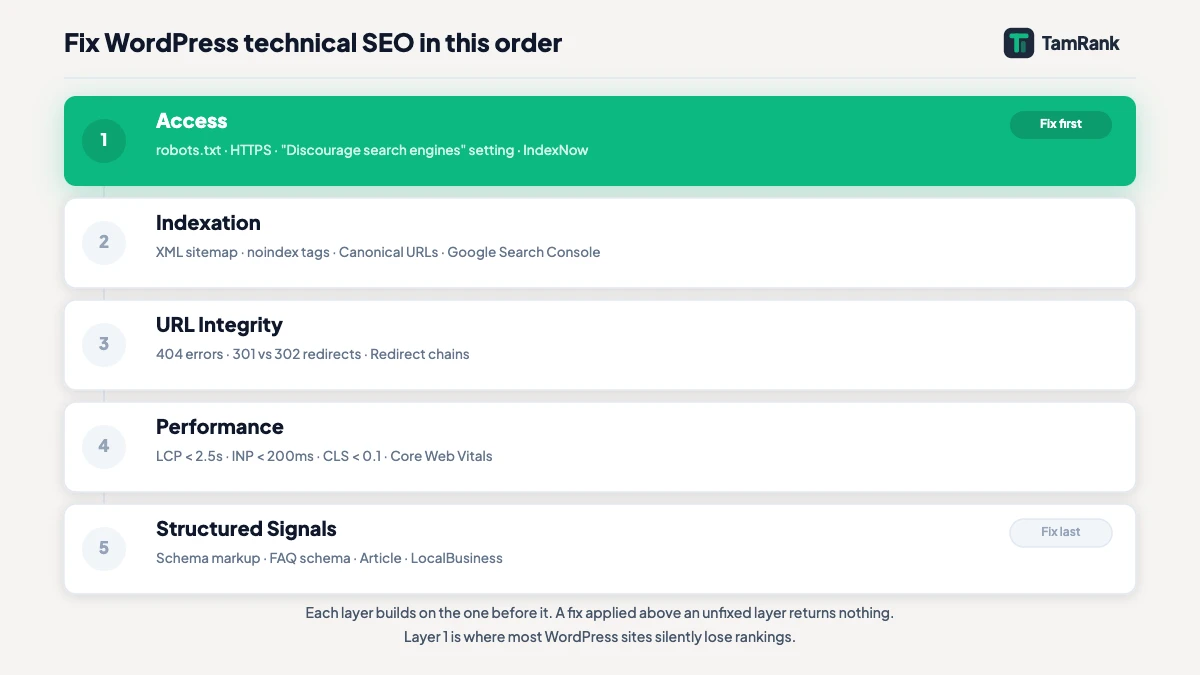
A more useful picture is five layers, stacked in the order a search engine meets them:
1. Access. Can Google reach your pages? Robots.txt rules, the WordPress “Discourage search engines” setting, HTTPS configuration, and server availability all sit here. A single Disallow rule in the wrong place can stop Google loading your CSS, which triggers mobile-first rendering failures across every page on the site, whatever the content says.
2. Indexation. Which pages does Google know about and want in its index? XML sitemaps, noindex tags, canonical URLs, and IndexNow work together in this layer. A page that is not in Google’s index does not appear in results, regardless of its content quality or the number of links pointing at it.
3. URL integrity. Are your URLs stable, unique, and directly reachable? Broken links (404 errors), 301 and 302 redirects, and redirect chains live here. Every redirect passes a fraction less ranking signal than a direct link. A chain of three hops doubles that loss and adds measurable latency for real users.
4. Performance. Does the page load quickly enough to pass Core Web Vitals? LCP, INP, and CLS are the three metrics Google uses to judge real-user experience, and they are a confirmed ranking factor. WordPress sites fail LCP most often through unoptimised images and render-blocking third-party scripts loaded in the page head.
5. Signals. Does the page communicate its content type clearly through structured data? Schema markup at this layer does not change what a page contains; it tells search engines which category of content it is, which opens the door to rich results and a more accurate representation in search.
The order is not a formality; it decides what your effort is worth. A performance fix on a page Google cannot index returns exactly nothing. Schema markup on a URL buried in a four-hop redirect chain may never be read at all. Treat it as triage rather than a to-do list: the bleeding gets seen before the bruise. Start at Layer 1 and work up.
Layer 1: Access, Crawlability, and robots.txt
Before Google can index a page, it has to be able to get to it. Access failures are the most expensive problems in technical SEO, because for as long as they last they make every other optimisation beside the point. A locked front door does not care how good the furniture is. The guide to how Google crawls WordPress covers the discovery process this layer depends on.
The robots.txt file
Every WordPress site has a robots.txt file, reachable at yourdomain.com/robots.txt. By default WordPress serves a virtual one that usually reads like this:
User-agent: *
Disallow: /wp-admin/
Allow: /wp-admin/admin-ajax.php
Blocking /wp-admin/ is right: admin pages have no business in search results. Allowing the AJAX endpoint is right too, because some plugin features rely on it staying reachable for logged-out requests.
The trouble starts when this file gets overwritten. SEO plugins add their own rules. Staging environments carry their own configurations. A previous developer sometimes leaves restrictions in place for reasons nobody documented. The costliest mistake of all is blocking /wp-content/. That directory holds your theme’s CSS and JavaScript, so blocking it means Google’s renderer cannot load the site’s visual layout, which trips mobile-first indexing failures. Your pages then show up broken in Search Console coverage reports even while they look and work normally for every visitor. It is the online version of hanging a “closed” sign on a shop that is fully open inside.
Four things to verify in your robots.txt:
- /wp-content/ is not blocked in production
- The sitemap URL is declared:
Sitemap: https://yourdomain.com/sitemap.xml - No paths containing your live posts, landing pages, or product pages appear in Disallow rules
- The file is validated in Search Console under Settings, then Crawl stats, then Open Report
One point is worth stating without any hedging, because it trips people up constantly: Google’s own documentation is clear that a Disallow rule in robots.txt prevents crawling but does not prevent indexing. A page blocked by robots.txt but linked from an external site can still surface in Google’s results as a URL-only entry with no snippet. To keep a page out of results entirely, you need a noindex meta tag on the page itself. The two mechanisms are distinct, and they are not interchangeable. The dedicated guide on robots.txt in this cluster covers syntax, WordPress-specific rules, and how to handle AI crawler access separately.
The “Discourage search engines” trap
WordPress has a native setting under Settings, then Reading, labelled “Discourage search engines from indexing this site”. Tick it and WordPress adds this to your robots.txt:
User-agent: *
Disallow: /
That blocks every crawler from every URL on the site. It exists for sites under construction, and it gets left on after launch more often than any other technical setting in WordPress. The admin shows no warning while it is active. Search Console takes several days to reflect the full damage. By the time the data lands, a site may already have dropped out of results it used to hold comfortably.
After any launch, migration, or handover from a developer, check this box first, before anything else. It takes five seconds to verify, and it is the single most common cause of a complete collapse in organic visibility on a site that is otherwise working fine.
HTTPS
Google confirmed HTTPS as a ranking signal back in 2014. In 2026 it is table stakes rather than an edge: Chrome marks any non-HTTPS site as “Not secure”, which drags down click-through rates whatever your position. SSL sits at the hosting level, not inside WordPress. Most hosts issue Let’s Encrypt certificates at no cost and renew them automatically before they lapse. When a certificate does lapse, browsers block access outright and Search Console flags it within hours. Keep an eye on certificate expiry dates, especially on sites where a third party manages the hosting, because that is exactly where a silent renewal failure goes unnoticed longest.
IndexNow
IndexNow is an open protocol supported by Bing, Yandex, and several other engines, though not yet Google, that lets a site ping search engines the moment a page is published or updated. Instead of waiting for the next scheduled crawl, you send the URL to the protocol’s API and supported engines process it within minutes. WordPress plugins, TamRank among them, can fire IndexNow notifications automatically on publish. It does not touch Google directly, but it noticeably shortens the delay before new content shows up in Bing, which matters for anyone publishing time-sensitive work. The full setup lives in the dedicated article in this cluster.
Layer 2: Indexation, Sitemaps, and Canonicals
Getting Google through the door is Layer 1. Layer 2 is about which pages Google actually invites into its index, and which it leaves standing outside. Several of the defaults involved live in the WordPress SEO settings, which is where most of this gets configured.
XML sitemaps
A sitemap is a structured file listing every URL you want Google to consider for indexing, grouped by content type. With an SEO plugin active, WordPress generates one at yourdomain.com/sitemap.xml. Three things to verify:
- The sitemap includes your posts, pages, and any important custom post types (products, events, portfolio items, depending on the site)
- It excludes pages you don’t want indexed: login pages, checkout confirmation pages, thin tag archives, internal search results, and pagination pages beyond the first
- It is submitted to Search Console under the Sitemaps report, and Google reports no fetch errors on it
A sitemap is a map, not a mandate. Submitting a URL does not force Google to index it; that call stays with Google, based on quality signals. What the sitemap does is make sure Google knows every URL exists in the first place. Without one, a new page is only discoverable once it picks up an inbound link, which on a low-authority site can take weeks. The full guide on XML sitemaps covers format, update frequency, and when splitting into multiple sitemaps makes sense.
Noindex tags
A noindex meta tag tells Google to keep a page out of its index, even after crawling it:
<meta name="robots" content="noindex">Pages that benefit from noindex: login pages, checkout confirmations, internal search results, tag archives with fewer than five posts, and pages duplicated by URL parameters. Pages that should never carry it: posts, landing pages, pillar guides, product pages, and category pages with real content on them.
The danger is the noindex tag applied during development and quietly forgotten. Check your SEO plugin’s settings for any sitewide noindex rules, then use the URL Inspection tool in Search Console to confirm specific pages that should be indexed but are not turning up in results. One stray tag here can bury a page that deserves to rank, and nothing about the page itself will look wrong.
Canonical URLs
A canonical tag tells Google which version of a page is the authoritative one when the same content lives at more than one URL. WordPress creates that situation on its own. The same post can resolve at:
- yourdomain.com/blog/post-title/
- yourdomain.com/blog/post-title (without trailing slash)
- yourdomain.com/blog/post-title/?utm_source=newsletter
- yourdomain.com/category/name/post-title/ (if category base is in the URL)
Most SEO plugins set the canonical automatically to the clean permalink. The exceptions are where it bites: WooCommerce product variations that should point at the parent product, pagination pages on tag archives that should not all canonicalise to page 1, and staging environments whose canonicals still aim at the live domain. Check yours by viewing the source of a representative post and searching for rel="canonical". The URL it names should match the permalink you use everywhere else, sitemap included. When several addresses point to the same content and each claims to be the original, Google has to guess, and a guess is not what you want deciding which of your URLs earns the ranking.
Layer 3: URL Integrity, 404 Errors, and Redirects
Crawlable, indexed pages sitting on broken or redirect-heavy URLs leak ranking signal and irritate users. This layer is about keeping your URL structure clean and stable as the site changes underneath you, which it always does.
Finding and fixing 404 errors
A 404 response means there is no longer a page at that URL. Not every 404 matters: a URL nothing ever linked to, with no indexing history, costs you nothing when it vanishes. The ones that hurt are 404s on pages with inbound links, historical traffic, or a standing position in Google’s index, because those are direct losses that do not come back on their own. Think of an externally linked URL returning 404 as a cheque made out to your site that nobody has cashed.
How to find the 404s that matter:
- Search Console, under Indexing then Pages: look for “Not found (404)” in the coverage report. URLs listed there are ones Google has tried and failed to reach.
- Your SEO plugin’s 404 monitor: logs errors from real traffic as they occur, catching URLs that may not be in Google’s index yet but are receiving inbound links from other sites.
- The Links report in Search Console: cross-reference externally linked URLs against your 404 log to identify which broken URLs are actively losing inbound PageRank.
The fix for a 404 with inbound links or historical traffic is almost always a 301 redirect to the nearest relevant URL. If the content moved, redirect to its new home. If the page was deleted with nothing to replace it, redirect to the parent category, and only fall back to the homepage as a last resort. Every day that linked URL sits on a 404 is ranking signal going unclaimed.
301 vs 302 redirects
A 301 is a permanent redirect. It tells search engines to update their records: this URL has moved for good, and the destination is its replacement. Google passes most of the original page’s ranking signal to the destination. Reach for a 301 whenever you are moving or deleting content permanently.
A 302 is a temporary redirect. It tells crawlers to follow the redirect for now but keep the original URL in the index, because the move is only temporary. A 302 fits A/B tests, seasonal pages, and maintenance redirects you fully intend to reverse.
Using a 302 for a permanent move is a common slip. Google usually reads the intent correctly after a few months, but through that window the ranking signal does not fully transfer and the original URL lingers in the index in a weakened state. When you are unsure, a 301 is the safe call for anything you are not planning to undo. The dedicated guide in this cluster works through the edge cases, including the times a 302 is genuinely the right tool and how to migrate from one to the other cleanly.
Redirect chains
A redirect chain is what you get when URL A redirects to URL B, which redirects to URL C. Every hop passes a little less ranking signal and adds a little more latency for the person waiting. Three hops or more is worth resolving whatever the URLs happen to be. Each hop is a game of telephone, and the message arrives quieter at every step.
Chains build up naturally over migrations. URL A was the original permalink. B was the canonical after the first move. C is where things landed after a second restructure. The fix is simple to describe: repoint A’s redirect straight at C and cut B out of the loop. On a site with hundreds of redirects that is tedious to do by hand, and chains are easy to overlook without tooling that follows every hop for you.
TamRank’s redirect system spots chains automatically during the technical audit and shows exactly which intermediate URLs to collapse. The repair is a target update in the redirect manager, not a manual trace of every chain. The dedicated guide on redirect chains covers diagnosis and resolution in detail.
Layer 4: Performance and Core Web Vitals
Core Web Vitals are Google’s three official metrics for measuring the real-user experience of a web page. They became a confirmed ranking factor in 2021 and are still one in 2026. INP (Interaction to Next Paint) replaced FID (First Input Delay) as the responsiveness metric in March 2024. The current three, with their thresholds from Google’s web.dev documentation, are:
- LCP (Largest Contentful Paint): How long it takes for the main content element to become visible. Good: under 2.5 seconds. Poor: over 4.0 seconds. Measured from when the user begins navigating to the page.
- INP (Interaction to Next Paint): How quickly the page responds to user input: clicks, taps, key presses. Good: under 200 milliseconds. Poor: over 500 milliseconds. INP measures the entire interaction lifecycle, not just the initial delay that FID measured.
- CLS (Cumulative Layout Shift): How much the layout shifts unexpectedly as the page loads. Good: under 0.1. Poor: over 0.25. The score is dimensionless, derived from the size of the shifted element and the distance it moved.
These thresholds apply at the 75th percentile of real-user sessions, measured through the Chrome User Experience Report (CrUX). That detail matters more than it looks: a quarter of your visitors can have a worse experience than the threshold before a page registers as “Poor”. A site that sails through on desktop can fail on mobile. One that passes on fibre can fail on 4G. Lab tools like Lighthouse and PageSpeed Insights measure performance under controlled conditions, the equivalent of a car’s advertised fuel economy; CrUX measures what your actual visitors get in real traffic, which can be a very different number.
Why WordPress sites fail LCP
LCP is the Core Web Vital WordPress sites flunk most often, and it fails for a small set of predictable reasons.
Unoptimised images. The largest content element on most WordPress pages is a hero image or the first image in a post. If that image is uncompressed, served as JPEG or PNG rather than WebP, or not preloaded with a <link rel="preload"> hint in the head, it becomes the LCP bottleneck all by itself. WordPress has supported WebP natively since version 5.8, released in July 2021. Serving WebP instead of JPEG typically cuts image file sizes by 25 to 34% at the same quality, which feeds straight into faster LCP with no visible loss.
Render-blocking resources. Third-party scripts loaded in the page head, chat widgets, analytics libraries, tag managers, hold up rendering until they finish downloading. The browser cannot paint the first useful content until every head script has run. Moving the non-critical ones to load after the main content, with the defer or async attributes, drops LCP without removing a single feature. It is one of the highest-return, lowest-drama changes available on WordPress.
Slow server response (TTFB). If the server takes more than 600ms to start sending HTML, LCP cannot pass no matter what the page holds. Time to First Byte is mostly a hosting and caching problem. Shared hosting with no page cache will hand you a high TTFB under ordinary traffic. A WordPress page cache plugin, WP Rocket, W3 Total Cache, or LiteSpeed Cache depending on your environment, brings TTFB down by serving pre-rendered HTML instead of running PHP on every request. Managed WordPress hosting that includes page caching at the server level removes the problem outright.
INP failures on WordPress
INP failures are more a matter of how a specific site is built. On WordPress the usual culprits are JavaScript-heavy themes, page builders such as Elementor, Divi, and Beaver Builder that load big JS bundles on every page regardless of which features that page actually uses, and plugins that register event listeners at the document level and fire them on every interaction. The fix is trimming the JavaScript that executes while the page is becoming interactive. Chrome DevTools’ Performance panel shows precisely which scripts are dragging INP down, and the dedicated guide on Core Web Vitals in this cluster walks through the diagnostic process.
CLS on WordPress
Layout shift on WordPress is nearly always about images. An image dropped into a post without explicit width and height attributes gives the browser no space to reserve, so everything around it jumps the moment the image loads. Recent WordPress versions set explicit dimensions automatically when images are inserted through the block editor. Images added through the classic editor, through page builders, or through custom code often slip past that, so set dimensions on every image in your content and leave nothing to chance.
Ads and embeds are the second common source. An ad unit that arrives 800ms after the page renders shoves everything below it down by however many pixels it occupies. Reserve space for ad containers in the layout up front, before the ad has loaded, and the shift never happens.
Measuring Core Web Vitals on a WordPress site
Start with the Core Web Vitals report in Search Console, under Experience. It shows CrUX data broken down by URL group, sorted into Pass, Needs Improvement, and Poor from real visitor data. Pages in “Poor” come before pages in “Needs Improvement”: they are the ones actively falling short against live traffic.
For page-level diagnosis, use PageSpeed Insights (pagespeed.web.dev). Enter any URL to see Lighthouse lab scores next to CrUX field data for that specific page. The two numbers can part ways by a wide margin. If your lab score is good but CrUX shows Poor, something the lab never sees is hurting real users, often a third-party script that loads asynchronously after the clean lab run has finished.
TamRank’s PRO add-on pulls CrUX data straight into the WordPress admin and shows LCP, INP, and CLS per URL, flagging the underperformers in the Priority Actions dashboard. The difference from Lighthouse-only tooling is that CrUX reflects your real visitors across the full spread of their devices and connections, not a single simulated run from a Google data centre.
Layer 5: Structured Signals and Schema Markup
Schema markup is a vocabulary, maintained at schema.org, that gives search engines extra context about what a page contains. Rather than leaving Google to infer whether a page is an article, a recipe, a product listing, or a local business, schema states it outright, in a machine-readable format embedded in the page HTML. It is the difference between letting a librarian guess where a book belongs and handing them the catalogue card.
WordPress SEO plugins generate schema automatically for the standard content types. A blog post gets Article schema. A WooCommerce product page gets Product schema. A page with an explicit author bio may get Person schema tied to the article. Most of the time you will not need to write schema by hand; the plugin has the common types covered.
Where manual additions earn their keep:
- FAQ schema: Pages with explicit question-and-answer sections can carry FAQ markup, which can produce expandable FAQ blocks in search results
- HowTo schema: Step-by-step guides with numbered instructions qualify, and can produce rich formats with steps visible in the SERP without clicking through
- LocalBusiness schema: Sites with a physical location should declare address, hours, and contact details in schema explicitly, not rely on the page text alone for this information
- BreadcrumbList schema: Declares how a page fits within the site’s hierarchy, which can produce breadcrumb trails in search results below the page title
Schema does not guarantee rich results. Google treats it as a quality signal, not an instruction. A page with valid FAQ schema may or may not get expandable FAQ results, depending on the query type, the page’s authority, and Google’s own read on whether the format helps users for that particular search.
The more common risk is invalid schema: a required field missing, a type mismatch, a property set to the wrong value. Search Console’s Enhancements report lists validation errors by schema type. Clear the existing errors before you add new markup, because a single error in a schema block can invalidate the whole block. TamRank’s schema builder, part of the free plugin, validates markup right in the dashboard, so errors surface without a separate trip to Search Console. The full treatment of schema, with templates for each common type, is in the schema cluster.
How to run a technical SEO audit on WordPress
An audit is a structured pass through each layer, looking for what has crept in since the last check. Here is a practical sequence, using tools that cost nothing.
The tools
Google Search Console (free) is the main instrument. The Coverage report shows which pages Google has indexed, which it tried and failed to index, and the reason for each failure. The Core Web Vitals report shows performance by URL group from real CrUX data. The Enhancements report surfaces schema errors. The Crawl stats section shows how often Googlebot visits and what response codes it meets. The Search Console guide walks through connecting it to WordPress and reading each report.
PageSpeed Insights (free, at pagespeed.web.dev) diagnoses individual URLs. Enter your homepage, one representative post, and one category page, because different page types stumble on different things: a homepage may pass LCP comfortably while a post with a large embedded video fails it.
URL Inspection in Search Console (free) shows exactly what Google fetched, rendered, and decided about a single URL. Use it on pages that should be indexed but are not showing up, and on pages that are showing up but should not be.
Audit checklist by layer
| Layer | Check | Where to look |
|---|---|---|
| Access | robots.txt is not blocking /wp-content/ | yourdomain.com/robots.txt, Search Console Crawl stats |
| Access | “Discourage search engines” is unticked | WordPress Settings > Reading |
| Access | HTTPS certificate is valid and not near expiry | Browser address bar, hosting control panel |
| Indexation | Sitemap is submitted and Search Console reports no errors | Search Console > Sitemaps |
| Indexation | No wanted pages carry noindex tags | URL Inspection, SEO plugin settings |
| Indexation | Canonicals point to the correct permalink version | Page source, search for rel=”canonical” |
| URL integrity | No high-traffic or externally linked URLs returning 404 | Search Console > Coverage > Not found (404) |
| URL integrity | No redirect chains of three or more hops | SEO plugin redirect log, TamRank redirect audit |
| Performance | Core Web Vitals report shows mostly Pass | Search Console > Core Web Vitals |
| Performance | LCP under 2.5 seconds on representative pages | PageSpeed Insights field data tab |
| Signals | No schema validation errors | Search Console > Enhancements |
Run a full pass through this table after any major site change: a theme switch, a plugin update that touches URLs or redirects, a content migration, or a bulk page deletion. For routine upkeep, the Coverage and Core Web Vitals reports in Search Console are the minimum monthly check. If either one slides into “Poor”, that deserves a look the same week, not next quarter. For the recurring version of this pass, see the WordPress SEO checklist and the guide to measuring SEO performance.
Technical SEO and AI search in 2026
The question comes up in almost every conversation now: does technical SEO still matter if more searches resolve inside AI Overviews, ChatGPT, or Perplexity than on a traditional results page?
Yes, and the reason is refreshingly simple. AI search systems draw on indexed web content. Google’s AI Overviews cite pages that already sit in Google’s index. Perplexity’s answers link to crawled and indexed sources. ChatGPT’s web search mode pulls from Bing’s index. If your page cannot be crawled, rendered cleanly, and indexed, none of these systems can cite it. The technical foundation decides your access to traditional organic results and to AI-generated answers in exactly the same way. We take that question apart properly in does SEO still work in 2026. If anything the bar is higher for AI: a system stitching one answer from several sources will favour pages it can fully render and parse over pages with broken structure, blocked assets, or an ambiguous content type. The plumbing did not stop mattering when the taps changed shape.
AI crawler access. GPTBot (OpenAI), ClaudeBot (Anthropic), PerplexityBot, and other AI crawlers make up a growing share of crawl traffic. Your current robots.txt lets them in by default, because a wildcard User-agent rule applies to every bot unless you name specific agents. Whether to allow or block them is a deliberate policy call: allowing them lets your content appear in AI-generated answers; blocking them stops that, and also stops your content being used for model training. The two goals get conflated, but technically they are separate levers. The robots.txt guide in this cluster covers how to handle each case.
llms.txt. A proposed open standard defines a machine-readable file at yourdomain.com/llms.txt that describes a site’s content in a format tuned for language model consumption: a structured summary of the available resources, their types, and their purpose. It sounds sensible, and the evidence is now in: it does nothing. Ahrefs checked all 137,210 domains in its web analytics data for a live llms.txt, then looked at who actually requested the files it found: 97% received zero requests in May 2026, and no AI search bot fetched them at all. Google’s AI-features guidance is blunt about the whole category: “You don’t need to create new machine readable files, AI text files, or markup to appear in these features.” TamRank shipped an llms.txt generator and removed it in version 1.3.7, because a file nothing reads is not a feature, it is maintenance. If an AI crawler you care about ever documents that it fetches the file, that is the moment to revisit it. Until then the AI-readiness work that pays is the item above and the item below: let the crawlers in, and mark the page up so a parser gets the content type right.
Structured data for AI parsing. The same schema markup that helps Google understand a page also helps AI parsers categorise it accurately. FAQ, HowTo, and Article schema in particular are read well by language model systems. A page with clear, valid schema stands a better chance of being cited accurately than one where the parser has to infer the content type from HTML structure and surrounding text. This is not a new idea; it is the original point of schema.org, and it carries more weight as AI intermediaries become a larger part of how content reaches readers.
Work the five layers in order and most WordPress technical problems resolve themselves before they cost you anything. Access first, then indexation, then URL integrity, then performance, then structured signals. For where the discipline is heading, see WordPress SEO in 2026. For the fundamentals that sit above this foundation, the complete WordPress SEO guide is the place to start.
Sources
- Introduction to robots.txt, Google Search Central, 2026
- Core Web Vitals, web.dev (Google), 2026
- Usage statistics of content management systems, W3Techs, May 2026
- Mobile-first indexing best practices, Google Search Central, 2026
- AI features and your website, Google Search Central, 2026
- We Analyzed 137K Sites: 97% of llms.txt Files Never Get Read, Ahrefs, 2026
TamRank’s technical SEO tools surface crawl errors, 404s, redirect chains, Core Web Vitals failures, and schema errors in one dashboard, with Priority Actions telling you which to fix first. The core audit tools are part of the free plugin.

