You hit Publish on a WordPress post, and then, nothing. No traffic, no ranking, sometimes not even a sign that Google has noticed the thing exists. The reflex is to blame the writing, and now and then the writing really is the problem. But in the support messages we get at TamRank, the more common story is a perfectly decent article that fell into a gap somewhere in the machinery between Publish and search results.
That machinery has three distinct stages, and each one can break on its own without touching the others. This guide walks through how Google crawls and indexes a WordPress site: what the software handles for you, what quietly sabotages it, and how to tell which of the three stages your page is actually stuck at. It sits under the complete WordPress SEO guide. If you are brand new to all this, read WordPress SEO for beginners first and come back.
- Search works in three stages: crawling, indexing and serving. They are separate gates, so a page can be crawled and not indexed, or indexed and never ranked.
- Google finds WordPress pages through links and through your XML sitemap, which WordPress builds automatically. You never submit pages by hand.
- WordPress is crawlable out of the box, but a few settings quietly break it: the “discourage search engines” box, a stale robots.txt, or a stray noindex tag.
- “Crawled, currently not indexed” is the most common WordPress indexing problem, and it is usually a content-quality signal, not a technical bug.
- Crawl budget is real, but almost no normal WordPress site needs to think about it. Google’s own threshold starts around a million pages.
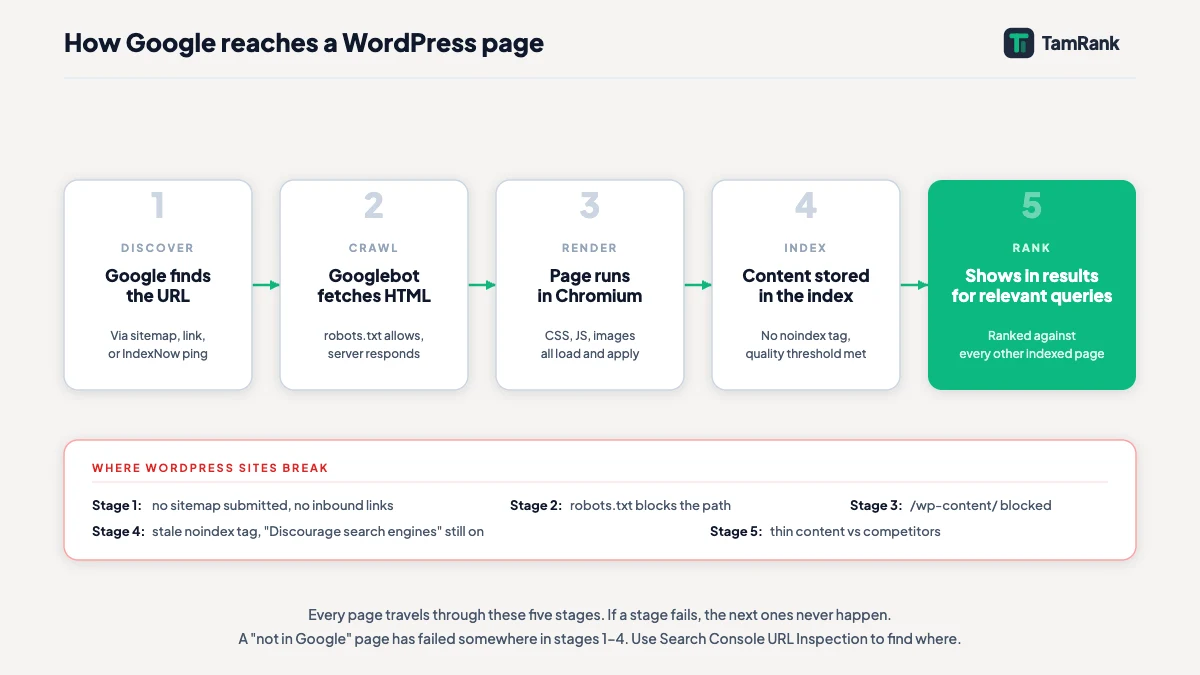
The three stages: crawling, indexing, serving
Google Search runs in three stages, and treating them as three separate steps rather than one blurry process is the single most useful mental model in technical SEO.
Crawling is discovery and download: an automated program called Googlebot fetches your page and reads its HTML. Indexing is analysis and filing: Google works out what the page is about, processes its text, images and layout, and decides whether the page earns a slot in the index, the vast database it searches the moment someone types a query. Serving is ranking: out of everything in the index, Google picks a handful and puts them in order.
Think of it as an airport. Crawling is check-in, indexing is security, serving is the gate, and clearing one does nothing to clear the next. You can be stopped at any of them for a completely different reason. A page can be crawled and never indexed. It can be indexed and never rank. So “my page is not ranking” is not one problem, it is three possible problems with three different fixes. Google is blunt about the lack of any promise here: it “doesn’t guarantee that it will crawl, index, or serve your page, even if your page follows the Google Search Essentials”. Which means the first question is never “how do I rank this”, but “which gate is this page stuck at”.
How Googlebot finds your WordPress pages
Before Google can crawl a page, it has to know the page is there in the first place. It finds WordPress pages in two main ways.
The first is links. In Google’s own words, “other pages are discovered when Google extracts a link from a known page to a new page”. Googlebot crawls a page it already knows, follows the links on it, and adds the new URLs to its queue. That is why internal linking is not just a ranking tactic: a page nothing points to is genuinely hard for Google to stumble on, like a room in your house with no door. The second route is the XML sitemap, a plain file that lists your URLs. Here WordPress does the work for you. Since version 5.5, it generates a basic sitemap automatically at /wp-sitemap.xml, and an SEO plugin swaps that for a fuller, better-organised one. Either way, you hand Google that single sitemap address once in Search Console, and it has a reliable map of the whole site. Submitting individual pages by hand is never necessary.
Two things about Googlebot are worth keeping in mind. It is mobile-first, meaning it crawls and renders the mobile version of your site, so anything hidden or broken on mobile is, as far as Google is concerned, hidden or broken everywhere. And it reads only the first 15MB of a page’s HTML. That is roomy for a normal article, but a genuinely bloated page can push real content past the cut-off, where Google never sees it.
What WordPress handles, and what trips it up
The good news: WordPress hands you a crawlable site for free. Clean HTML, an automatic sitemap, sensible URLs once permalinks are set, a working robots.txt. The bad news is a short list of settings that quietly undo every bit of that, and in my experience almost every crawling failure on a WordPress site traces back to one of them.
- The “discourage search engines” box. Under Settings, then Reading, sits a checkbox that asks search engines not to index the site. It exists for sites still under construction. Leave it ticked after launch and it stamps a site-wide noindex on everything, so nothing can rank, anywhere. It is the most destructive single switch in WordPress, and it gets left on by accident more than any other.
- A robots.txt that blocks /wp-content/. Old tutorials still tell you to block WordPress folders. Block the uploads folder and Googlebot cannot load your CSS, images or layout, which means it cannot render the page or trust what it sees.
- A stray noindex tag. A theme option, a second SEO plugin, or one wrong setting can slap a noindex on pages you very much want indexed. Google crawls the page, then follows your instruction and throws it out.
- Default permalinks. A URL like
/?p=123is crawlable, but it tells Google nothing about what the page is about. Switching permalinks to “Post name” fixes it in one click.
Notice the pattern: every one of these is a configuration failure, not a content failure. They are covered in full in the guide to WordPress SEO settings in this cluster. A page can be flawless and still be invisible because of a single checkbox someone forgot to untick.
Crawled, indexed, ranked: where WordPress sites get stuck
Once the settings are right, the spot where WordPress sites stall most often is the gate between crawling and indexing. Google Search Console labels these states precisely in its Pages report, and learning to read just two of them clears up most indexing confusion.
“Crawled, currently not indexed” means Googlebot fetched the page, had a look, and chose not to file it. This is not a technical bug, and here is the part that stings: it is usually a quality judgement. Google read the page and decided it did not earn a place in the index, often because it is thin, near-duplicate, or adds nothing to pages already ranking for the same thing. Resubmitting it accomplishes precisely nothing. The only fix is to make the page genuinely more useful, then request indexing again.
“Discovered, currently not indexed” is different. Google knows the URL exists but has not got round to crawling it. On a small site this usually sorts itself out. If it lingers, the page is sitting low in Google’s priority order, and a few stronger internal links pointing at it, from your pillar or from related posts, nudge it up the queue.
The lesson underneath both states is the same, and it is worth saying plainly. A large share of what people file under “indexing problems” are not technical at all. They are quality problems wearing a technical costume. The crawl went fine. Google just was not convinced the page was worth keeping.
Do you need to worry about crawl budget?
“Crawl budget” is a fashionable worry, and for almost every WordPress site it is a wasted one. Crawl budget is simply how much crawling Google is willing and able to do on your site, set by your server’s capacity and by how much Google wants your content. It is a real constraint. It just kicks in at a scale most sites will never see.
Google could hardly be clearer about who should care. Its own guidance opens with: “If your site doesn’t have a large number of pages that change rapidly, or if your pages seem to be crawled the same day that they are published, you don’t need to read this guide.” The thresholds it names are large sites of a million or more unique pages, or medium sites of ten thousand or more pages whose content changes daily. A WordPress blog with two hundred posts is not in the same postcode. Googlebot crawls it comfortably, often the very day you publish.
There is one honest exception, and it is not really about budget. WordPress can quietly spawn thousands of low-value URLs: tag archives, dated archives, attachment pages, paginated comment links. If Google is busy chewing through ten thousand junk URLs, that is a site-structure problem worth fixing. But the fix is removing or noindexing the junk, not “optimising crawl budget”. For a normal site, spend the worry on the content instead.
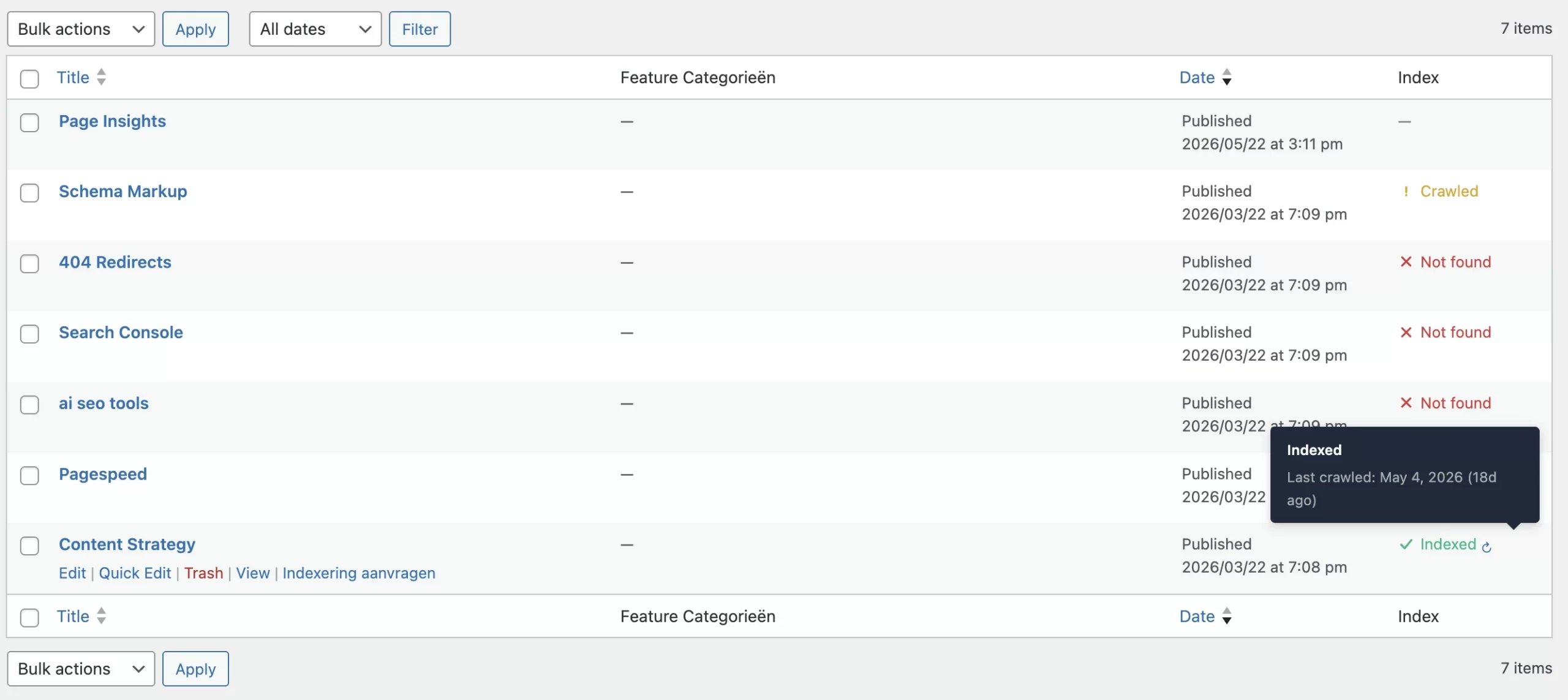
How to see what Google is doing with your site
You do not have to guess at any of this, which is the part I wish more site owners knew. Google Search Console shows you exactly what is happening at each of the three stages, for nothing.
The Pages report lists every URL Google knows about, grouped by status: indexed, or not indexed with the specific reason, including the two states above. The URL Inspection tool checks a single URL and tells you whether it is on Google, when it was last crawled, and whether it is indexable, and it lets you request a crawl of a new or updated page on the spot. Crawl stats, tucked in the settings, show how often Googlebot visits and whether it is running into errors.
Connecting Search Console is the first measurement step for any WordPress site, and the dedicated guide to setting it up is the next article in this cluster. The point for now is simpler: crawling and indexing are not a mystery you have to intuit. The data is sitting right there.
A worked example: diagnosing a page that will not rank
Here is the diagnosis in practice. A WordPress post has been live for three weeks and pulls in no traffic at all. Rather than guess, you run it through the three gates with the URL Inspection tool, one at a time.
Gate one, crawling. URL Inspection says the page was last crawled four days ago. So crawling is fine, Googlebot can reach it. Had it instead reported the URL as unknown to Google, the problem would be discovery, and the fix would be internal links and a sitemap check.
Gate two, indexing. The tool reports “Crawled, currently not indexed”. There it is, that is where the page is stuck. It is not a technical fault, so resubmitting, editing robots.txt or poking at settings will change nothing. Google crawled the page and declined to store it. The honest fix is to make the page genuinely better: more depth, a clearer angle, something the already-indexed pages on this topic do not give the reader, and then request indexing again.
What a different reading would mean. If gate two had instead said “Excluded by noindex tag”, the culprit would be a setting or plugin adding noindex, and the fix would be to hunt it down and remove it. If it said “Discovered, currently not indexed”, the page would be idling in a low-priority queue, and stronger internal links would help. One symptom, “not ranking”, and three completely different causes underneath it. The diagnosis is the whole job.
How TamRank helps
Most crawling and indexing failures stay invisible until you go looking for them, and knowing where to look is exactly the part a site owner who is not a developer does not have.
TamRank’s site audit checks the technical gates for you, directly. It flags a stray noindex tag, the “discourage search engines” box left on, a robots.txt blocking resources Google needs, and orphan pages that nothing links to. In plain language, it tells you whether a page is being held back by a setting, which is a two-minute fix, or whether the page itself needs work, which is the slower and more honest job. That one distinction, settings problem or content problem, is the whole point of this guide, and seeing it clearly saves you from the classic mistake of fixing the wrong thing for a week.
It is part of the free plugin. You can install TamRank free and run the audit, or look over the full feature list first.
Crawling and indexing FAQ
How long does Google take to crawl a new WordPress post?
Often within a few days, and sometimes the same day, provided your site is already known to Google and the new post is linked from pages Google already crawls. A brand-new site with no history takes longer. You can hurry a specific page along by requesting indexing in Search Console’s URL Inspection tool.
Why is my WordPress page “crawled but not indexed”?
It means Googlebot fetched the page but Google chose not to store it. This is usually a quality judgement rather than a technical fault: the page may be thin, near-duplicate, or add nothing over pages already ranking for the topic. The fix is to make the page genuinely more useful, then request indexing again.
Do I need to submit my WordPress pages to Google?
No. Google finds pages on its own by following links and by reading your XML sitemap. Submitting that sitemap once in Search Console is enough. You can manually request indexing for an important new or updated page, but you never need to submit pages one at a time as a routine.
Does WordPress create an XML sitemap automatically?
Yes. Since WordPress 5.5, the software generates a basic sitemap at /wp-sitemap.xml on its own. An SEO plugin replaces it with a more complete, better-organised version, and that is the one to submit to Search Console.
Should I worry about crawl budget on my WordPress site?
Almost certainly not. Google says that if your pages are crawled around the day they are published, crawl budget is not something you need to manage. It becomes relevant only for very large sites, roughly a million or more pages, or sites with tens of thousands of pages changing daily.
Why is my WordPress site not showing on Google?
The cause is almost always one of three things. First, the site is not being crawled: check that the “Discourage search engines from indexing this site” box under Settings, then Reading, is unchecked, and that your robots.txt is not quietly blocking Googlebot. Second, it is being crawled but not indexed: open the Pages report in Google Search Console and read the status on your URLs, where “Crawled, currently not indexed” means Google reached the page and decided not to store it, usually a content-quality issue. Third, it is indexed but not ranking, which is a separate question about relevance and competition, not a crawling problem. Work out which gate the page is stuck at before you try to fix anything.
Does Google prefer WordPress for SEO?
Google does not prefer any platform. It cares about content, speed, and crawlability, all of which are achievable on any CMS. What WordPress does well for SEO is hand you direct control over the elements that matter: title tags, meta descriptions, URL structure, canonical tags, schema and sitemaps, all manageable through a plugin. That control, plus a large plugin ecosystem, makes it competitive. A badly configured WordPress site is no advantage over a well-configured alternative.
The bottom line
The distance between publishing a WordPress page and ranking it runs through three gates: crawling, indexing and serving. They fail independently of each other, and the most common mistake is treating “not ranking” as one problem when it is really three stacked on top of each other.
So work it like a diagnosis, not a guess. Confirm Google can crawl the page. Check whether it is indexed, and read the Search Console status honestly, because “crawled, currently not indexed” is a verdict on your content, not a bug in the system. Only once a page is both crawled and indexed does ranking, the third gate, even enter the conversation. WordPress gives you a crawlable site by default, so your job is mostly to not break it with a stray setting, and to feed Google pages worth keeping.
For the settings that protect crawling, the next articles in the WordPress SEO guide cluster go deeper. And if you would rather have those gates checked for you, install TamRank free and let the audit show you where a page is stuck.
Sources
- Google Search Central, “In-depth guide to how Google Search works,” on the crawling, indexing and serving stages, page discovery through links, and the absence of any guarantee of indexing. Google developer documentation.
- Google Search Central, “Overview of Google crawlers and fetchers,” on what Googlebot is, distributed crawling, and the 15MB fetch limit. Google developer documentation.
- Google Search Central, “Large site owner’s guide to managing your crawl budget,” on which sites need to consider crawl budget and the size thresholds involved. Google developer documentation.

