Almost everyone sets up WordPress for SEO the same way. Change the permalinks, install a plugin, close the Settings menu, and never think about it again. That handles the one famous setting and walks straight past the quiet ones. WordPress scatters its SEO-relevant options across five separate screens plus whatever your plugin adds, and a couple of the ones nobody ever opens are quietly stamping out duplicate pages and weak URLs while you write. In the audits we run at TamRank, these overlooked toggles cause more index bloat than anything a beginner does on purpose.
What follows is the full list, with the exact value to pick for each one and a note on why it matters. Think of it as the settings-level companion to the complete WordPress SEO guide and to how Google crawls WordPress, which explains why a crawler cares about any of this in the first place. Still finding your feet? Start with WordPress SEO for beginners and come back.
- WordPress hides SEO-relevant settings across five screens: Permalinks, Reading, Discussion, Media and General, plus your SEO plugin.
- Set permalinks to “Post name” before you publish anything. Changing it later breaks every URL on the site.
- The most damaging settings are not the ones that do something wrong. They are the ones that generate pages you never decided to create.
- Attachment pages, author archives, date archives and tag archives are the usual source of dozens of thin, duplicate URLs on a WordPress site.
- Your SEO plugin’s noindex options matter more than most native settings. Use them to keep low-value archive pages out of the index.
Permalinks: get this right before anything else
Settings, then Permalinks, then “Post name”. This is the setting almost everyone already changes, so I will be quick about the what and spend the words on the why, because the timing on this one is unforgiving.
“Post name” turns the default yoursite.com/?p=123 into something a human can actually read, like yoursite.com/wordpress-seo-settings/. Google is blunt about why that helps: use “readable words rather than long ID numbers”, and split those words with hyphens rather than underscores, because doing so “helps users and search engines better identify concepts in the URL”. The “Post name” structure hands you both for free. Google also warns that a messy URL setup makes it “crawl your site inefficiently”, or skip parts of it altogether.
Now the timing, which is the entire reason this setting is stressful. Flip the permalink structure on a site that already has traffic and you rewrite every URL on it in a single click. Every inbound link, every ranking, every bookmark someone saved now lands on a 404. It is the digital equivalent of renaming every street in a city and forgetting to tell the postal service. On an established site you can still do it, but only after you have built a redirect from each old URL to its new one. On a fresh site you set “Post name” on day one and this entire problem never exists. No other WordPress setting punishes bad timing this hard.
Reading: the checkbox that can switch your whole site off
Settings, then Reading. This unassuming screen holds the single most dangerous checkbox in all of WordPress: “Discourage search engines from indexing this site”. It is there for sites still under construction. Tick it, and WordPress politely asks every search engine to ignore your entire site, which means you cannot rank for a single query no matter how good the content is. And it gets left on after launch constantly, usually because a staging or development setup switched it on and nobody switched it back. Confirm it is unchecked now, then check it again after any big site work. Staging environments love to flip it back on when you are not looking.
Two quieter settings share the screen. “Your homepage displays” decides whether your front page shows your latest posts or a fixed page. Either is fine for SEO; that one is an editorial call, not a ranking one. “Blog pages show at most” sets how many posts appear before pagination starts. Set it very low and you spin up a long chain of paginated archive URLs for no reason. The default of ten is sensible and rarely worth touching for SEO.
Discussion: comments and the URLs they create
Settings, then Discussion, is where comments live, and for SEO it is a minor character with one line worth hearing. WordPress already slaps a nofollow attribute on every link inside a comment, so comment spam cannot bleed ranking signals out of your site. That part needs no configuration from you at all. The setting worth a look is “Break comments into pages”. Switch it on and a popular post with a long comment thread gets sliced across several URLs, each one a near-copy of the original post. Unless you are genuinely fielding hundreds of comments per article, leave it off and let one post stay one URL.
Media: the attachment-page trap
Settings, then Media, looks like the most harmless screen in the list. It is also the source of the most overlooked SEO problem on the whole platform. The culprit is attachment pages. By default, every single image you upload can get its own separate web page: a bare URL holding one picture and absolutely nothing else. Upload five hundred images over a couple of years and your site can be quietly carrying five hundred of these hollow pages, none of which you ever meant to create.
Newer WordPress versions redirect attachment pages to the parent post on fresh installs, which quietly closes the trap going forward. Older sites, imported content and certain configurations still have them live and indexable. Check your indexed URLs, which is exactly what the worked example below walks through, and if attachment pages are sitting in there, your SEO plugin can either redirect them to the parent post or drop them from the index. While you are on this screen, the image sizes WordPress generates are worth a glance too: every registered size is another file created on upload, so switching off the sizes your theme never uses keeps the media library from ballooning. That one is housekeeping, though, not a ranking lever.
General settings and your site address
Settings, then General, is home to your site title and tagline. Both feed the fallback metadata for any page that has not been given its own, so write them to be clear and descriptive rather than cute. The same screen lists the WordPress Address and the Site Address, and the thing that matters for SEO there is consistency: your site should answer to exactly one version of its address. Pick https, pick either the www or the non-www form, and make every other variant redirect to that one. A site that happily loads on four slightly different addresses is splitting its signals four ways, and Google can read those variants as separate sites competing with each other.
Your SEO plugin’s settings: what to actually configure
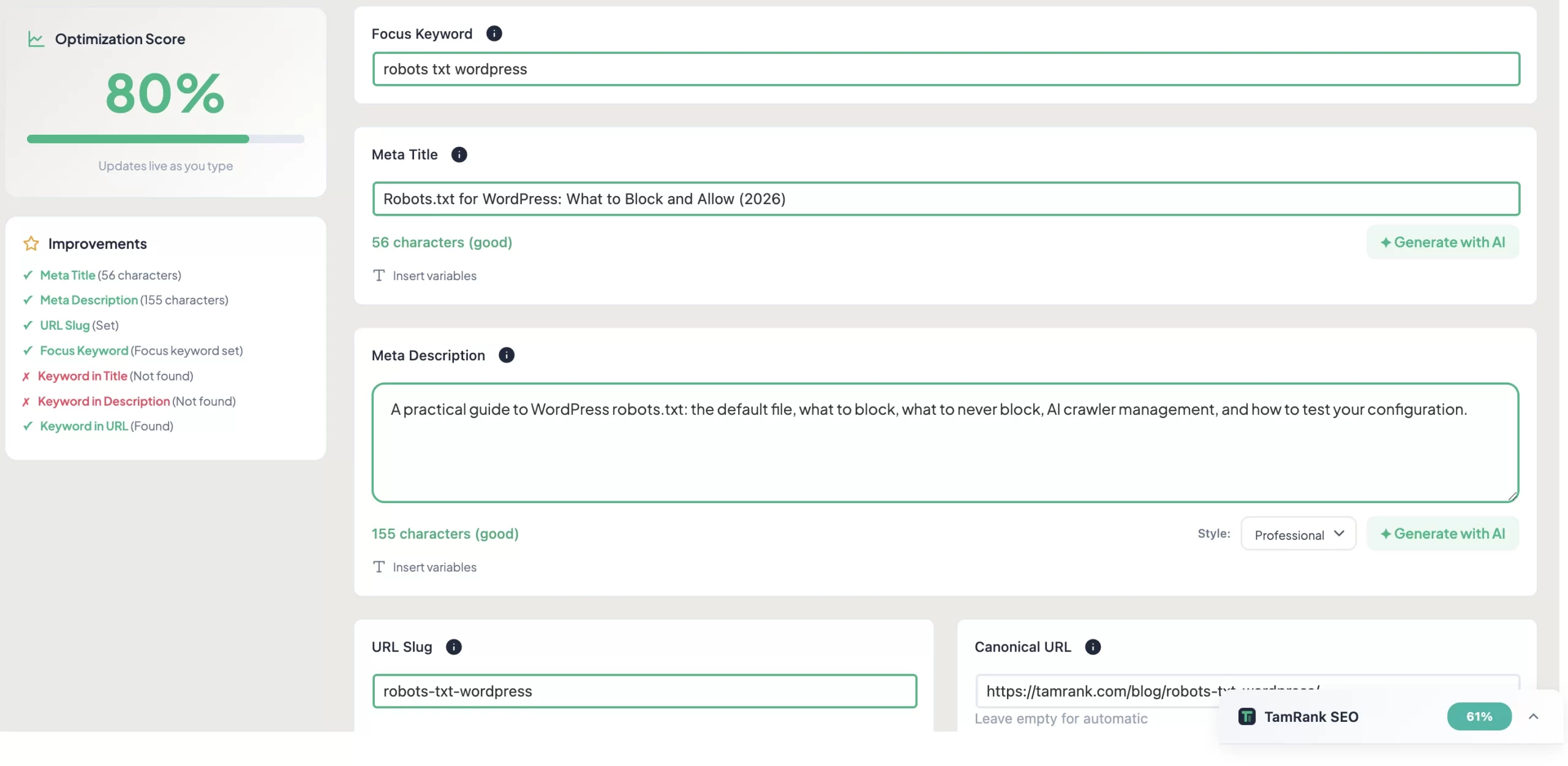
Once a plugin is active, its own settings quietly outweigh most of the native screens, and the heaviest decision it hands you is a single one: what to keep out of Google’s index. WordPress manufactures several kinds of archive page on its own, and most of them are thin or duplicated. Your plugin lets you noindex them one type at a time. Here is the default I would set on a normal, single-author site.
- Author archives: noindex on a single-author blog, where the author archive is just your post feed wearing a different hat. Keep them indexed only on a real multi-author site where each author has a genuine body of work.
- Date archives: noindex. A page that lists “everything published in March 2024” almost never earns a search visit, and it duplicates the posts it links to.
- Tag archives: noindex, unless you actually curate tags as topic hubs. Most sites sprinkle tags on loosely, which leaves behind dozens of near-empty pages.
- The internal search results page: always noindex. These are effectively infinite low-value URLs that Google should never be holding.
- Attachment pages: redirect to the parent or noindex, as covered above.
The one archive worth keeping indexed is the category page, because a well-used category is a real topic hub rather than filler. Past the noindex choices, set your title and meta-description templates so that any page you never hand-edit still comes out with sensible tags, and turn breadcrumbs on, since they help a reader and Google work out where a page sits in the structure.
The pattern: settings that multiply pages you never decided to create
Take a step back and the through-line of this whole guide comes into focus. The WordPress settings that damage your SEO are almost never the ones doing something loudly wrong. They are the ones quietly minting URLs you never chose to publish: a page per uploaded image, an archive per tag, per author, per month, a fresh URL for every page of comments. Each is thin on its own. Each duplicates something real. Stacked together, they can outnumber the actual articles you sat down and wrote.
That is the part that catches people out. You can publish genuinely excellent posts and still hand Google a site that is mostly padding, because the padding was generated by defaults while your attention was on the writing. Auditing what WordPress actually put live, rather than what you remember publishing, is the single settings check that pays off the most.
A worked example: auditing what WordPress actually published
Picture a blogger who has written 90 posts and a handful of pages. They reasonably expect Google to know about roughly 100 URLs. They open the Pages report in Google Search Console, and the number staring back is 340 indexed URLs. So where did the other 240 come from?
The breakdown is depressingly typical. Around 110 are attachment pages, one for most of the images ever uploaded. About 80 are tag archives, the residue of tags added loosely over the years. Roughly 30 are date archives. A dozen or so are paginated comment URLs hanging off the most popular posts, and one lonely author archive simply mirrors the blog homepage. Not one of these was a decision. Every one was a default.
The fix runs straight down this guide, top to bottom. The plugin noindexes the author, date and tag archives along with the search page. Attachment pages are redirected to their parent posts. Comment pagination gets switched off. Within a few weeks the indexed count drifts back toward the real number, and Google is suddenly spending its crawl budget on 100 genuine pages instead of sifting through 340, of which 240 said nothing at all. The site lost nothing it wanted to keep. It just stopped competing against itself.
How TamRank helps
The hard part here was never flipping the switches. It is knowing which thin pages your specific site has quietly generated, because not one of them is visible from the WordPress editor where you spend your time.
That is the job TamRank’s audit does. It reads your site the way a crawler does and surfaces the low-value URLs: attachment pages still live, archives that should be noindexed, and pages quietly competing with each other for the same query. It turns the nagging worry of “is my site bloated with junk pages?” into a concrete, finite list you can work through, and it explains each recommendation in plain language instead of leaving you to decode a status code on your own.
It ships as part of the free plugin. You can install TamRank free and run the audit yourself, or browse the feature list first if you would rather look before you install.
WordPress SEO settings FAQ
What permalink structure is best for WordPress SEO?
“Post name”, which builds your URLs out of readable words. Google recommends readable words over ID numbers and hyphens over underscores, and “Post name” delivers both in one setting. Choose it before you publish anything, because switching it later breaks every URL you already have.
Should I noindex tag and category pages in WordPress?
Noindex tag archives unless you genuinely curate tags as topic hubs, since loosely used tags spawn dozens of thin pages. Category pages are usually worth keeping indexed, because a well-organised category works as a real topic hub. The test is simple: would this page actually help someone who landed on it from search?
What are WordPress attachment pages and should I disable them?
An attachment page is a separate web page WordPress can spin up for each uploaded image, holding just that one image. They are thin, duplicate-style URLs with no search value. Recent WordPress versions redirect them automatically on new sites; on older ones, set your SEO plugin to redirect them to the parent post or pull them from the index.
Can I change my permalink structure after launch?
You can, but it rewrites every URL on the site at once, so each old URL has to redirect to its new version or it returns a 404 and drops its rankings. On an established site that is a careful migration, not a casual toggle. On a new site, set permalinks correctly on day one and the question never comes up.
Do comment settings affect SEO?
Only mildly. WordPress already adds nofollow to links in comments, so spam cannot leak ranking signals. The one setting worth checking is “Break comments into pages”: when it is on, a heavily commented post splits across several near-duplicate URLs, so leave it off unless your posts pull hundreds of comments.
Does WordPress have built-in SEO tools?
WordPress.org, the self-hosted software, ships the fundamentals out of the box: clean permalink structures, automatic XML sitemaps since version 5.5, a robots.txt file, and control over titles and meta through theme templates. What it leaves out is a proper interface for managing those things page by page, which is why an SEO plugin is the usual addition. WordPress.com, the hosted service, is a different product with its own SEO tools built in. Most guides, this one included, are written for self-hosted WordPress.org installs.
Can I improve WordPress SEO without a plugin?
Yes, up to a point. The native settings in this guide, permalinks, reading, discussion and media, all work with no plugin at all. You can even hand-write your own title tags and meta descriptions in your theme’s functions.php. What you give up is the per-page interface: setting a custom meta description on each post, managing redirects, controlling noindex for specific archive types, and seeing an on-page SEO score. On a very small site you can juggle all that manually; once the site grows, a plugin saves enough time that it becomes effectively non-optional.
The bottom line
WordPress SEO settings really come down to two jobs. The first is the small set of native settings you get right once and then forget: “Post name” permalinks, the “discourage search engines” box left unchecked, one consistent site address. The second job, the one most sites skip entirely, is keeping a grip on what WordPress publishes without ever asking your permission.
So open your Search Console Pages report and put the indexed count next to the number of posts and pages you can actually remember writing. If the indexed figure towers over it, the gap is almost always attachment pages and archive URLs, and your plugin’s noindex and redirect settings are the tools that close it. A WordPress site does its best SEO work when every indexed URL is one you chose to put there on purpose.
For the wider picture, the WordPress SEO guide ties this into the rest of the work. And to find out which thin pages your own site has quietly generated, install TamRank free and run the audit.
Sources
- Google Search Central, “Keep a simple URL structure,” on readable words over ID numbers, hyphens over underscores, and the crawl impact of poor URL structures. Google developer documentation.
- Google Search Central, “SEO Starter Guide: The Basics,” on Google finding sites automatically and site settings not getting in the way. Google developer documentation.
- Google Search Central, “In-depth guide to how Google Search works,” on indexing and how thin or duplicate pages compete with real content. Google developer documentation.

