If you do exactly one measurement task for your WordPress site, make it this: connect it to Google Search Console. Every other tool in your stack either talks about your visitors or guesses at your rankings from the outside. Search Console is Google itself telling you, directly and for free, what it actually does with your site: which pages it has indexed, which searches you show up for, and what is quietly broken.
Most WordPress owners get one of two things wrong here, and I have watched both play out plenty of times. Some never connect it at all, so they run their whole site blind. Others connect it, admire it once, and never open the tab again. This guide handles the setup properly, then spends most of its time on the part that actually pays off: how to read the four reports that turn Search Console from a dashboard you ignore into the instrument panel for your SEO. It sits under the complete WordPress SEO guide, and pairs with how Google crawls WordPress.
- Google Search Console is a free Google service that shows you what Google does with your site. It is the only first-party search data you can get, straight from the source.
- The easiest way to verify a WordPress site is through your SEO plugin, which handles the fiddly verification step for you.
- Submit your XML sitemap once, under the Sitemaps report, so Google has a reliable list of your URLs.
- Four reports do the real work: Performance, Pages, Sitemaps and Core Web Vitals. Learn those and you can diagnose almost anything.
- Connecting Search Console is not the finish line. Opening it on a regular schedule and acting on what it shows is.
What Google Search Console is, and why you need it
Google describes Search Console as “a free service offered by Google that helps you monitor, maintain, and troubleshoot your site’s presence in Google Search results”. Accurate, and a little dry, for what is the single most useful free tool in all of SEO.
What makes it matter is where the data comes from. Google Analytics only starts watching once a person has already landed on your site. Third-party rank trackers stand outside the fence and estimate your positions. Search Console is neither of those. It is first-party data piped straight from Google’s own systems, the actual record of how your site behaves in search. When it tells you a page is not indexed, that is not a guess or a trend line. It is Google’s verdict, handed back to you in writing.
Signing up is, strictly speaking, optional. Google indexes sites whether or not their owners ever log in. But skipping it means choosing to do SEO without the one honest scoreboard in the game: guessing at your indexing, guessing at your rankings, and missing the alerts Google fires off when something breaks. On a WordPress site this is not an advanced move you graduate to later. It is step one.
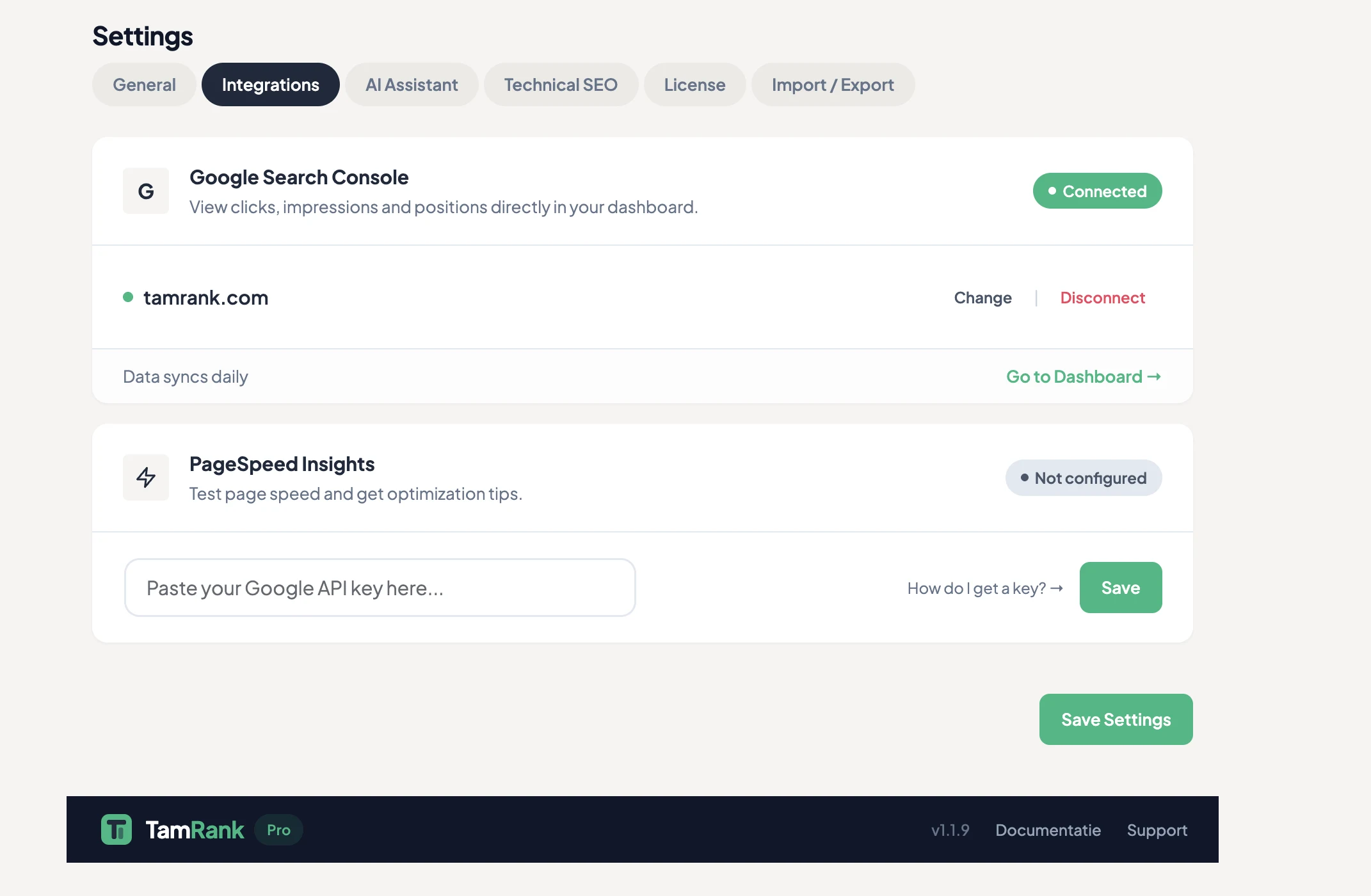
How to connect Search Console to WordPress
Connecting Search Console comes down to proving to Google that the site is yours, a step it calls verification. You have a Google account and a few spare minutes, so here is the route that runs most smoothly on WordPress.
Start by choosing which type of property to add. A Domain property covers every version of your site in one go, http and https, www and non-www, which keeps things tidy. You verify it by adding a DNS record at your domain registrar. If you can reach your DNS settings, take this option. If DNS makes your palms sweat, or your host keeps you locked out of it, add a URL-prefix property instead, tied to the exact address your site runs on, for example https://yoursite.com.
For a URL-prefix property, the path of least resistance on WordPress runs through your SEO plugin. Search Console offers an “HTML tag” method, which hands you a short verification code. Your SEO plugin has a field built for exactly that code, usually tucked into its general or webmaster-tools settings. Paste it in, save, and hit Verify back in Search Console. The plugin drops the tag into your site’s head section for you, with no theme editing and no files to upload. Google’s other methods, uploading an HTML file or leaning on a Google Analytics account, work fine too, but the plugin route is the one least likely to snap the day you switch themes.
Submit your sitemap
With the property verified, there is one more setup job worth doing straight away: submit your sitemap. Open the Sitemaps report and enter the address of yours. WordPress builds one on its own, and your SEO plugin serves a fuller version, usually at /sitemap.xml or /sitemap_index.xml. Type that path in and submit.
Think of it as handing Google a clean, complete table of contents for the URLs you want it to know about. It does not force anything into the index, and Google would stumble onto most of your pages by following links regardless. What it does is remove doubt, and it hands you the Sitemaps report as a running health check. You do this once; the sitemap keeps itself current every time you publish.
The four reports that actually matter
Search Console has a lot of screens, and most of them you can happily ignore. Four carry nearly all the value for a WordPress site.
Performance is the scoreboard. It lists the real search queries your site turned up for, and for each one the clicks, impressions, click-through rate and average position. This is where you find out what is genuinely working, which is regularly not the thing you assumed. Impressions mean Google is showing a page at all; clicks mean your title and description are earning their keep.
Pages, filed under Indexing, shows which of your URLs made it into the index and which did not, with a specific reason attached to every excluded one. This is the report that answers the question of why a page is missing from search. The crawling guide in this cluster walks through how to read states like “Crawled, currently not indexed”.
Sitemaps confirms Google has actually read the sitemap you handed it and shows how many of its URLs it has discovered. If this one flags an error, Google is not getting your tidy list of URLs, and that jumps to the front of the fix-it queue.
Core Web Vitals, over in the Experience section, reports how your real visitors experience the speed and stability of your pages, sorted into good, needs improvement and poor. It is the field-data view of how fast your site actually feels.
Sitting alongside the reports is the URL Inspection tool, the search bar along the top. Paste in any URL of yours and it gives you that page’s exact status: indexed or not, when Google last crawled it, and whether it is allowed to be indexed at all. It also lets you request indexing for a page you have just published or updated.
What to actually do with it
Connecting the thing is the easy bit. The value lives in a small, repeatable routine, not in refreshing it every morning like a stock ticker. For most WordPress sites, once a month does the job.
Each month, run three quick checks. Open Performance and set this period against the last one: are impressions and clicks pointing upward? Open Pages and see whether your count of indexed pages is keeping up with what you publish, and whether any fresh “not indexed” reasons have crept in. Then glance at the Overview for a manual action or security notice, the rare alerts that genuinely deserve a jolt of adrenaline. That is the entire routine. Turning this data into real decisions is the job of the guide to measuring WordPress SEO performance in this cluster.
A worked example: the first month after connecting
Picture a WordPress owner connecting Search Console to a site that has been live, and completely unwatched, for a year. Here is what that first honest look tends to drag into the light, and it is a very ordinary haul.
The Performance report shows the site pulling impressions for roughly 40 queries, with two of its stronger queries parked at position 11 and 12, right at the top of page two. Those are not failures. They are near-misses, pages that one modest push could nudge onto page one. The Pages report shows 95 indexed URLs against 60 published posts, which means 35 URLs are archive and attachment pages that ought to be cleaned up, the exact mess the WordPress settings guide sorts out. The Sitemaps report shows the sitemap was read without a hitch. No manual actions.
None of this was visible the day before. The owner had a fuzzy hunch the site “wasn’t doing much”. Search Console turned that hunch into a concrete short list: lift two page-two pages, tidy 35 junk URLs, and keep publishing. That is the whole point of it. It converts a feeling into a task list.
How TamRank helps
Search Console remains the source. TamRank does not replace it. The free plugin brings the core Google data into WordPress, next to the pages it describes, so you can inspect queries, impressions, clicks and position without losing the page context.
PRO addresses the step after reading the report. It turns relevant changes into evidence-backed signals, separates an observation from something you can actually fix and helps rank the work by likely value and confidence. When a change is proposed, you review it before execution. The result can then be followed in the Change Tracker.
Start by connecting Search Console with TamRank Free. When the volume of possible work becomes the problem, see how TamRank PRO turns the data into a controlled workflow.
Search Console for WordPress FAQ
Is Google Search Console free?
Yes. Google itself calls it “a free service”, and there is no paid tier lurking behind it. All it asks for is a Google account. It is the most valuable free tool in SEO, for the simple reason that the data comes straight from Google rather than being estimated by someone standing outside.
Do I need Search Console if I already have Google Analytics?
Yes, because they answer different questions. Analytics is about people once they are on your site: what they click, where they wander. Search Console is about Google: which searches you show up for, which pages are indexed, and what is broken. For SEO specifically, Search Console is the more important half of the pair.
How do I verify my WordPress site in Search Console?
The smoothest way is the HTML tag method through your SEO plugin. Search Console gives you a verification code, you paste it into your plugin’s webmaster-tools field, and the plugin tucks it into your site’s head section. Then you click Verify. If you can reach your domain’s DNS settings, a Domain property verified by DNS record is the cleaner option.
Should I add a Domain property or a URL-prefix property?
A Domain property is the better pick when you can manage it, since it covers every version of your address at once and verifies with a single DNS record. Reach for a URL-prefix property if your DNS settings are out of bounds; it covers one exact address and can be verified straight through your SEO plugin.
Why is Search Console showing no data?
Usually one of two reasons. A brand-new property simply has no history yet and fills in over the next few days. And Search Console data always runs a couple of days behind, so the most recent days look empty no matter what. If a site has been live for weeks and still shows a blank, double-check that verification actually succeeded and that the site is not blocked from indexing.
Is Google Search Console good for SEO?
Yes, and it is irreplaceable for one specific reason: it is the only source of first-party search data Google hands out. Third-party rank trackers estimate your positions from the outside. Analytics reports on on-site behaviour. Search Console tells you what Google actually does with each of your pages: whether it is indexed, which searches triggered it, and whether it is carrying any technical problems. For working out why a page will not rank or will not index, nothing else comes close. It is also free, which makes a decision to skip it hard to defend.
What should I do if Search Console verification fails?
Work through the methods in order. If the HTML tag method through your SEO plugin came up short, confirm the plugin genuinely saved and that you can see the verification code in your page source (right-click a page, View Source, search for “google-site-verification”). If it is sitting there but verification still fails, switch methods: upload the HTML file Google provides to your site’s root folder over FTP or your hosting file manager. If you can get into your domain’s DNS settings, the DNS TXT record method is the most reliable of the lot. Last thing to check: make sure you have picked the correct property type and are verifying the exact address your site uses, including whether it has www or not.
The bottom line
Google Search Console is not an advanced tool, and it is not an optional one. It is the free, first-party record of how Google treats your WordPress site, and running SEO without it is running it with your eyes shut.
The setup is short: verify the site, ideally as a Domain property or otherwise through your SEO plugin, and submit your sitemap once. The habit is the part that counts. Once a month, read the Performance trend, check the Pages report for indexing trouble, and keep half an eye out for alerts. Four reports, a few minutes, and the guessing stops.
From here, the guide to measuring WordPress SEO performance turns this data into decisions, and the WordPress SEO guide ties it back to everything else. To run that monthly review without ever leaving WordPress, install TamRank free and connect Search Console from the dashboard.
Sources
- Google, “Search Console overview,” on Search Console being a free service to monitor, maintain and troubleshoot a site’s presence in Search, and that signup is optional. Search Console Help.
- Google Search Central, “SEO Starter Guide: The Basics,” on submitting a sitemap and on the timescale of search changes. Google developer documentation.
- Google Search Central, “In-depth guide to how Google Search works,” on the Pages report showing indexed status and exclusion reasons. Google developer documentation.

