TamRank for Claude and ChatGPT
WordPress MCP that shows your assistant what to fix first.
Your assistant finds what needs attention, you approve the exact change, and you see what followed in Search Console.
- Find what needs attention.
- Check the exact change, then apply it.
- See what followed.
Needs TamRank PRO, from €99 per year.

 Your assistant
TamRank · coffeecraft.com
- Read work queue
- Diagnose page
- Read page importance
First in your work queue: /french-press-guide/, marked as a money page.
Last 28 days: 3,544 impressions, 41 clicks, average position 5.2. The meta description is empty.
From the first signal to what followed.
Your assistant reads your site's data before it gives advice, instead of answering from general SEO knowledge.
-
Find
Find what needs attention.
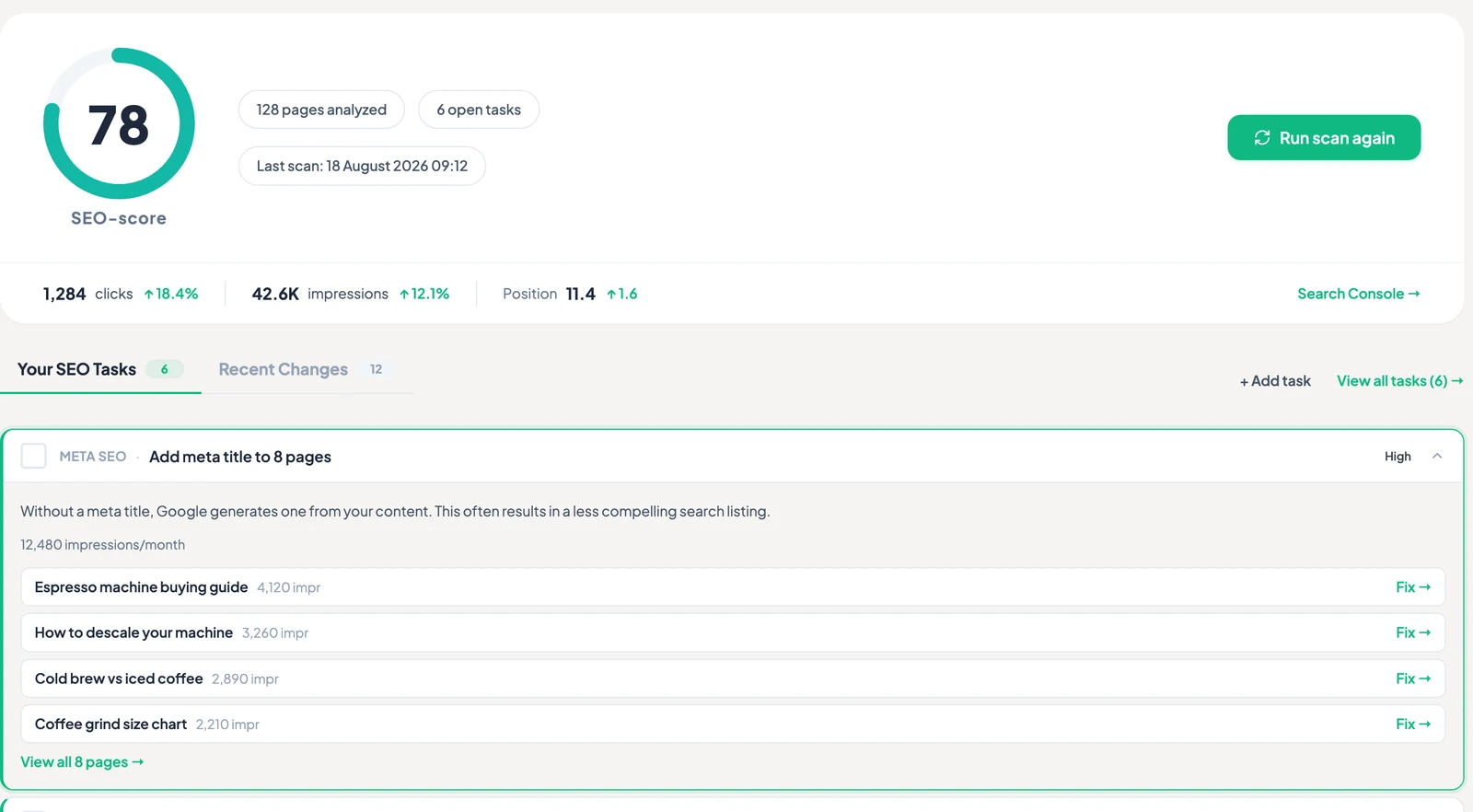
- Your assistant reads the same work queue as your TamRank dashboard, in the same order.
- Signals, such as a ranking drop or a 404, come with the pages involved.
- For one page, it reads the saved diagnosis: Search Console clicks, impressions and position, index status, PageSpeed results, ranking stability, a before-and-after comparison and keywords.
-
Check and apply
Check the exact change, then apply it.
- Before it proposes a change to a page, it reads how important you marked that page: standard, important or money.
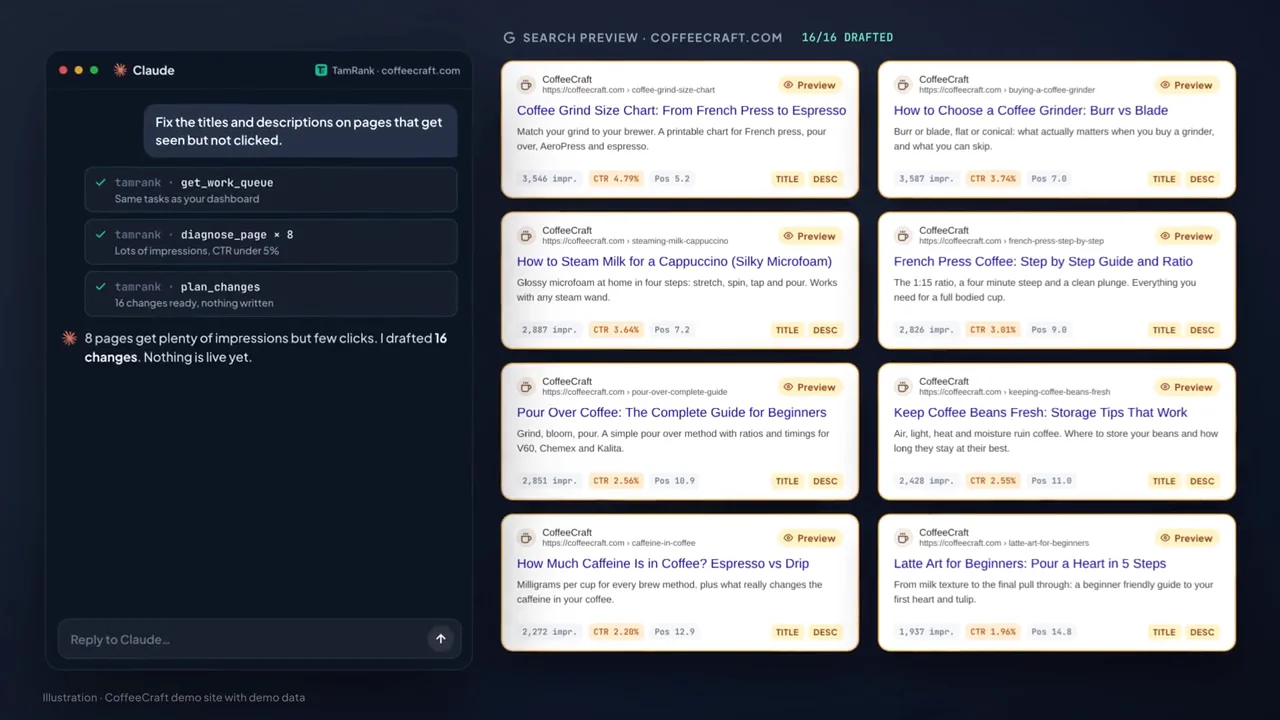
- Nothing on your site changes until you approve the exact plan in the chat: every page, the old and new value, and any warnings.
- Every plan records where it came from: a task in your work queue, or your own request in the chat.
Example on a demo site. Not a customer result. -
See what followed
See what followed.
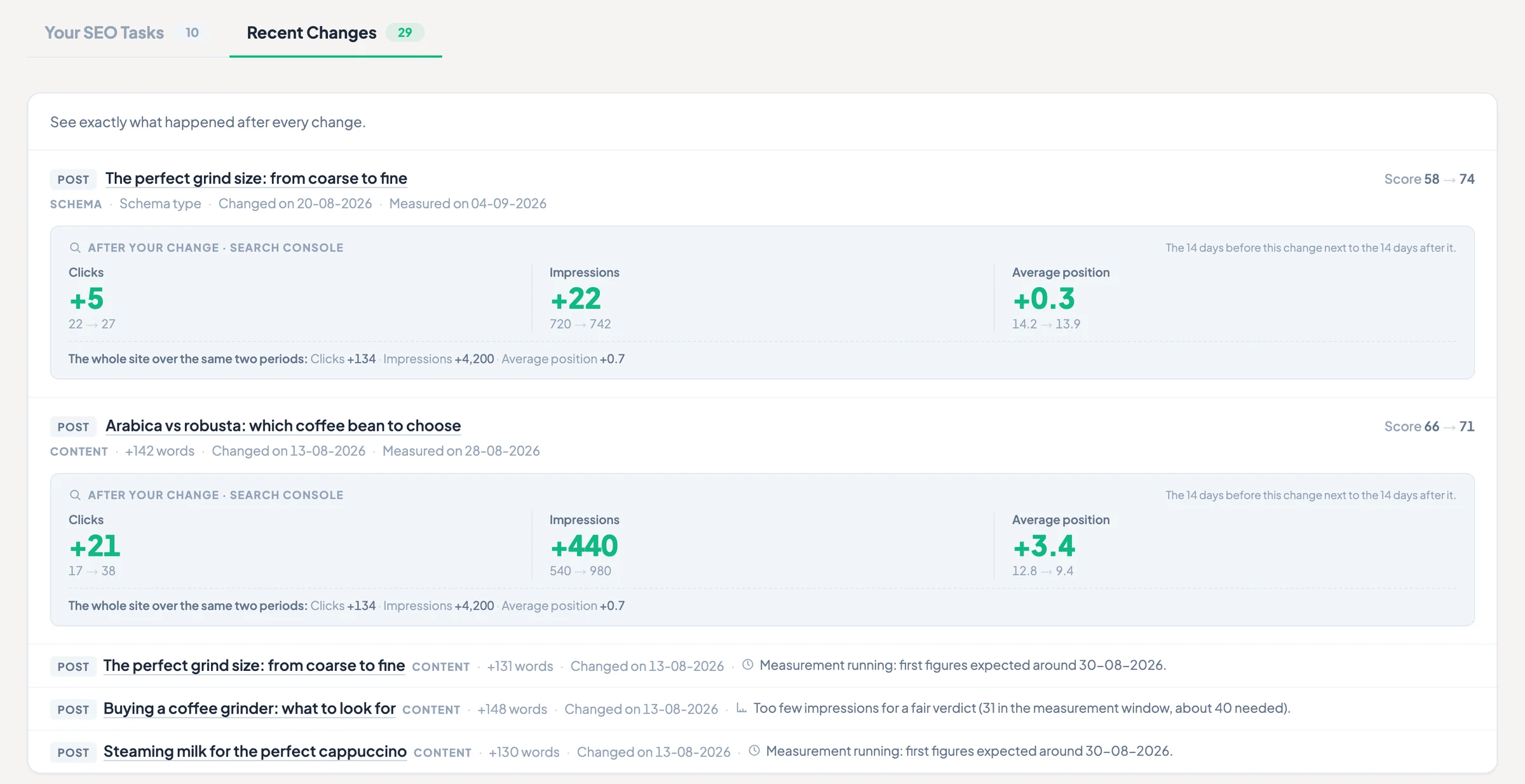
- After a change, your assistant can check the page live to confirm the change is there.
- For each change, it reads the clicks, impressions, click-through rate and average position in the 14 days before and after, next to the trend for the whole site.
- It shows what followed a change, not proof of cause.
Not only tools. A way of working.
When your assistant connects, TamRank also gives it a way of working, not only a list of tools.
-
Data before advice
Your assistant reads your site's data before it gives advice, instead of answering from general SEO knowledge.
A missing value is unknown, not zero.
-
Impact before cosmetics
It puts first what keeps pages out of Google, pages with many impressions but few clicks, near wins and pages you marked as important, before cosmetic gaps.
-
Evidence, not orders
Signals, such as a ranking drop or a 404, come with the pages involved.
They are evidence, not tasks: your assistant acts on them only when you ask.
A diagnosis describes what the data shows.
It does not prove a cause.
-
Your numbers, one next step
It explains with your site's own numbers and the period they cover.
It ends with one concrete next step, and offers a plan when TamRank can carry it out.
-
Your site, your call
Which tools your assistant sees depends on what your site offers.
When something is switched off on your site, your assistant can tell you where to switch it on.
It does not act on its own or on a schedule.
What your assistant reads, and what it can change today
It reads
- Your assistant reads the same work queue as your TamRank dashboard, in the same order.
- It can also read site-wide checks for titles and descriptions, indexing, structured data and 404 errors, plus images without alt text, your redirects and how your content covers its topics.
- Search Console figures per page cover the last 28 days that TamRank has stored.
- Before it writes text for your site, it reads your brand tone, audience and words to avoid.
- Your assistant can list earlier changes on your site and whether each one was undone.
It can change today
- Titles, descriptions, social previews, alt text It can change meta titles, meta descriptions, social previews and image alt text, at most 25 changes at a time.
- Redirects It can add and change redirects when your site and your connection allow it.
- Work queue On your instruction, your assistant can mark tasks as done, add notes and set how important a page is.
- Index checks and PageSpeed tests Index checks and PageSpeed tests run only when you ask.
Where it stops today
Today, it cannot edit page content, page builder layouts, internal links, slugs, canonical URLs, robots settings or schema.
It cannot give keyword research, search volume, competitor data or backlink data.
It works with your own site's saved data.
You approve the plan. TamRank applies exactly that.
-
Plan
Nothing on your site changes until you approve the exact plan in the chat: every page, the old and new value, and any warnings.
A plan expires after 24 hours.
-
Approve
Your approval covers that exact plan.
Different values need a new plan and a new approval.
-
Apply
Each item in a plan is applied on its own, so a plan can end partly applied.
Every applied change is logged with the value before and after it.
-
Undo
You can undo an applied change.
The undo is a new plan that you approve again.
An undo is refused when the field was edited after TamRank changed it, so a newer edit is never overwritten.
Where undo stops
If the security keys (salts) in your wp-config.php change, earlier changes can no longer be undone from TamRank.
A fix is planned.
Connect your assistant
You add one URL to your AI assistant. There is nothing to install on your computer and no API token to copy.
https://mcp.tamrank.com/mcp
Claude
In Claude, you add TamRank as a custom connector, on the web or in Claude Desktop.
Step-by-step guide for Claude-
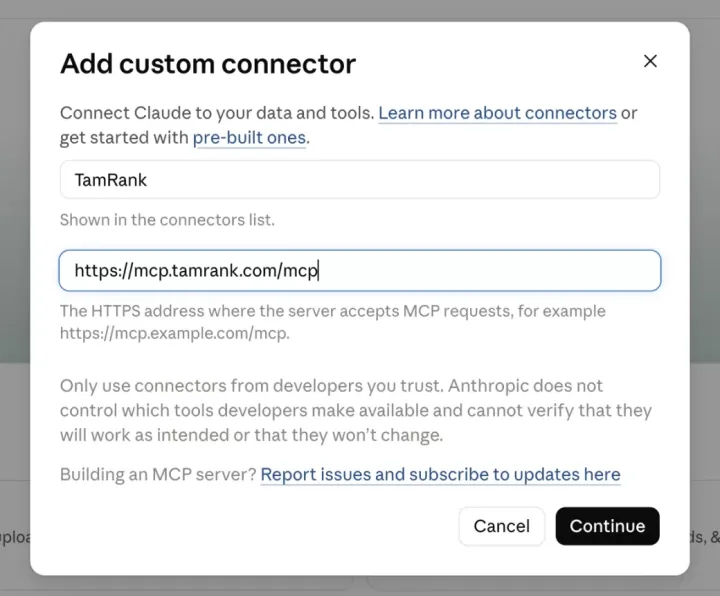
Paste the TamRank URL
You add one URL to your AI assistant.
-
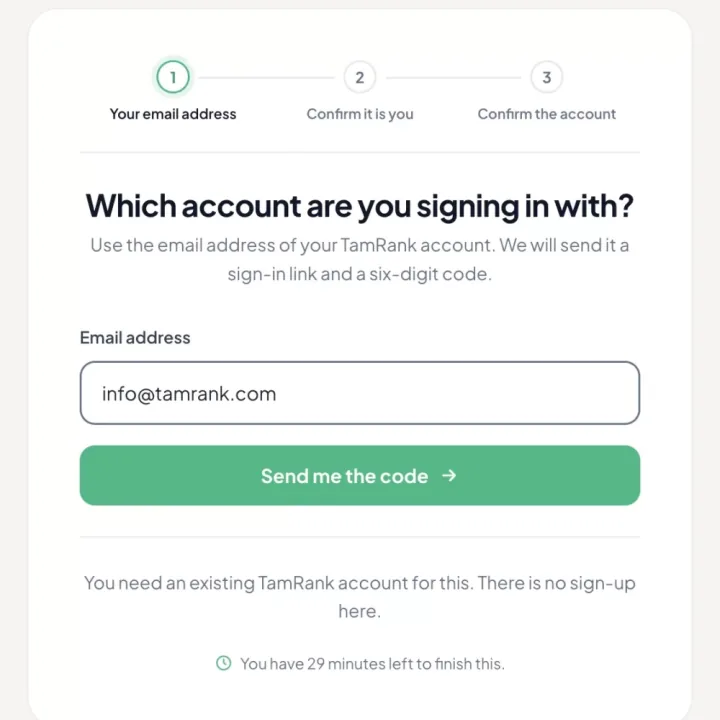
Sign in with TamRank
You sign in with your TamRank account.
Your assistant never receives your WordPress password.
-
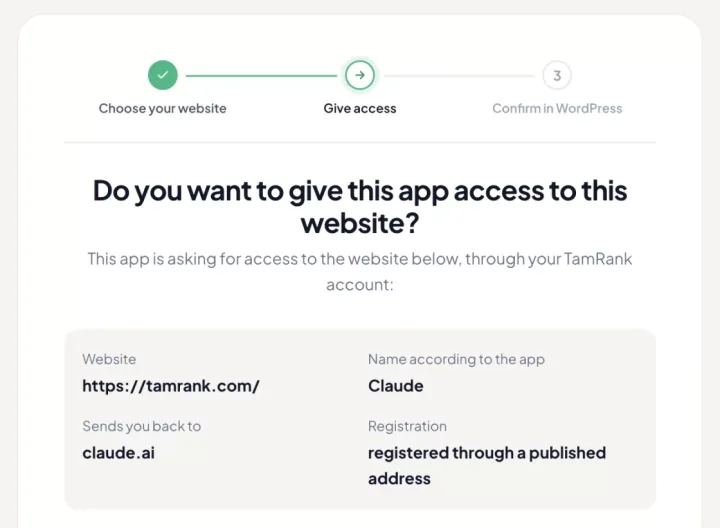
Choose your website
You choose the website you want to connect and see what your assistant asks for before you give access.

ChatGPT
In ChatGPT, you add TamRank as a custom MCP server on the web.
Not every ChatGPT plan offers custom MCP servers.
Step-by-step guide for ChatGPT-
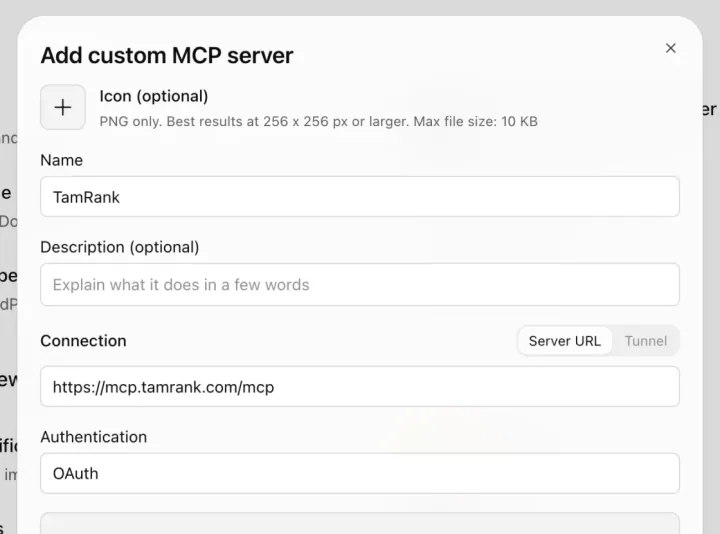
Paste the TamRank URL
You add one URL to your AI assistant.
-
Sign in with TamRank
You sign in with your TamRank account.
Your assistant never receives your WordPress password.
-
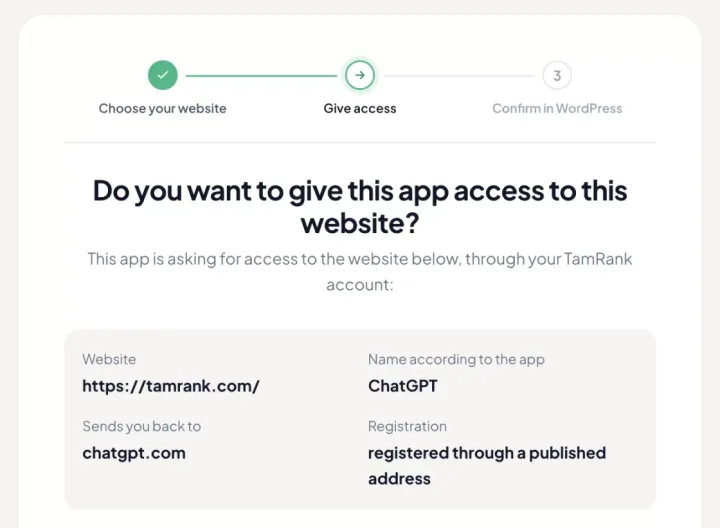
Choose your website
You choose the website you want to connect and see what your assistant asks for before you give access.
Other assistants
It works with AI assistants that support remote MCP servers with OAuth sign-in.
We have not tested Cursor or Claude Code yet.
- The first time you connect a site, you approve the connection once in your WordPress admin.
- You can see and revoke connected assistants at mcp.tamrank.com/account.
What you need
- MCP access needs TamRank PRO on every site you connect.
- MCP access is included in every TamRank PRO plan at no extra cost.
- TamRank PRO starts at €99 per year, excluding VAT.
- Solo covers 1 site, Studio covers 5 sites and Agency covers 20 sites.
- One connection can reach up to 10 of your sites.
- Your assistant names the site on every call, and every call acts on exactly one site.
- You use your own Claude or ChatGPT account.
- Any charges from that provider are separate from TamRank.
TamRank MCP or the WordPress MCP Adapter?
| TamRank MCP | WordPress MCP Adapter | |
|---|---|---|
| What it is | It is a hosted server for TamRank PRO sites. | The WordPress MCP Adapter is a free developer tool from the WordPress project. |
| How it works | When your assistant connects, TamRank also gives it a way of working, not only a list of tools. | It turns abilities that WordPress and plugins register into tools an AI client can call. |
| Setup | You add one URL to your AI assistant. | With the Adapter, you or your developer decide which abilities are exposed, and you host and secure the connection yourself. |
| Before a write and undo | Nothing on your site changes until you approve the exact plan in the chat: every page, the old and new value, and any warnings. | With the Adapter, a preview before a write and an undo depend on the abilities and the client you use. |
| Which SEO fields | TamRank writes to its own SEO fields, not to the fields of Yoast SEO or Rank Math. | With the Adapter, an ability writes to the fields of the plugin that registered it. |
The Adapter is the better fit when
- you are a developer and want to expose your own abilities,
- you want to keep Yoast SEO or Rank Math as your SEO plugin,
- or you want your assistant to work on content today.
TamRank fits when
- you want your assistant to start from your work queue and your own Search Console figures,
- you want to check every change before anything is written,
- and you want to see what followed in Search Console.
Questions about WordPress and MCP
What is a WordPress MCP server?
MCP (Model Context Protocol) is an open standard that lets an AI assistant use tools from another service. TamRank runs a hosted MCP server at https://mcp.tamrank.com/mcp. When your assistant connects, TamRank also gives it a way of working, not only a list of tools.
How does my assistant know what to fix first?
Your assistant reads the same work queue as your TamRank dashboard, in the same order. It puts first what keeps pages out of Google, pages with many impressions but few clicks, near wins and pages you marked as important, before cosmetic gaps.
Is TamRank the same as the WordPress MCP Adapter?
TamRank is not built on the Adapter. It is a hosted server for TamRank PRO sites. The WordPress MCP Adapter is a free developer tool from the WordPress project.
Do I need the Abilities API or the MCP Adapter for TamRank?
You do not need the WordPress MCP Adapter or the Abilities API to use TamRank. You add one URL to your AI assistant.
How do I connect Claude to my WordPress site?
In Claude, you add TamRank as a custom connector, on the web or in Claude Desktop. You sign in with your TamRank account. MCP access needs TamRank PRO on every site you connect.
Does it work with ChatGPT?
We have tested it with Claude and ChatGPT. In ChatGPT, you add TamRank as a custom MCP server on the web. Not every ChatGPT plan offers custom MCP servers.
Does it work with Cursor or Claude Code?
It works with AI assistants that support remote MCP servers with OAuth sign-in. We have not tested Cursor or Claude Code yet.
What can my assistant change on my site today?
It can change meta titles, meta descriptions, social previews and image alt text, at most 25 changes at a time. It can add and change redirects when your site and your connection allow it. Today, it cannot edit page content, page builder layouts, internal links, slugs, canonical URLs, robots settings or schema.
Can I undo a change?
You can undo an applied change. The undo is a new plan that you approve again. An undo is refused when the field was edited after TamRank changed it, so a newer edit is never overwritten. If the security keys (salts) in your wp-config.php change, earlier changes can no longer be undone from TamRank.
Can I see what a change did?
For each change, it reads the clicks, impressions, click-through rate and average position in the 14 days before and after, next to the trend for the whole site. The first result comes about 17 days after the change. That comparison needs the Change Tracker switched on and Search Console connected.
Is the MCP server free?
MCP access needs TamRank PRO on every site you connect. MCP access is included in every TamRank PRO plan at no extra cost. TamRank PRO starts at €99 per year, excluding VAT.
How many sites can one connection reach?
One connection can reach up to 10 of your sites. Your assistant names the site on every call, and every call acts on exactly one site. There are no changes across all sites at once.
Does my assistant get my WordPress password?
You sign in with your TamRank account. Your assistant never receives your WordPress password.
What data leaves my site?
Data your assistant reads from your site passes through mcp.tamrank.com to your AI provider. The TamRank MCP server logs which tool was called and with what outcome, not the content of the call. Every change made through MCP is marked in your site's change history with the connection that made it.
Know what needs attention. Stay in control of changes. See what followed.
Built for people who do SEO work in WordPress and already use Claude or ChatGPT.
Needs TamRank PRO, from €99 per year.

