You can connect TamRank to ChatGPT as a custom MCP server and ask about your WordPress site in plain language: what needs attention this week, which pages lost clicks, which titles are missing. It takes a few minutes, and you need no local server or API token.
In short
- In ChatGPT, open Plugins, click Add and choose Add custom MCP server.
- Name it TamRank, paste
https://mcp.tamrank.com/mcpunder Connection and click Create as a plugin. - Click Continue to TamRank, sign in with your TamRank account, pick your website and click Give access.
- In a new chat, type @, pick TamRank and ask your first question.
Before you connect
You need a TamRank account and a WordPress site running TamRank PRO. Custom MCP servers work in ChatGPT on the web, and not every ChatGPT plan offers them. OpenAI lists them for Business and Enterprise/Edu, and we connected TamRank on a ChatGPT Pro account. On a Business workspace, only admins and owners can add a custom MCP server. On Enterprise/Edu, an admin can also allow selected members. If you do not see Add custom MCP server, your plan or workspace does not offer it.
How to connect
- Add a custom MCP server. Open Plugins in ChatGPT. Click Add at the top right, then Add custom MCP server.
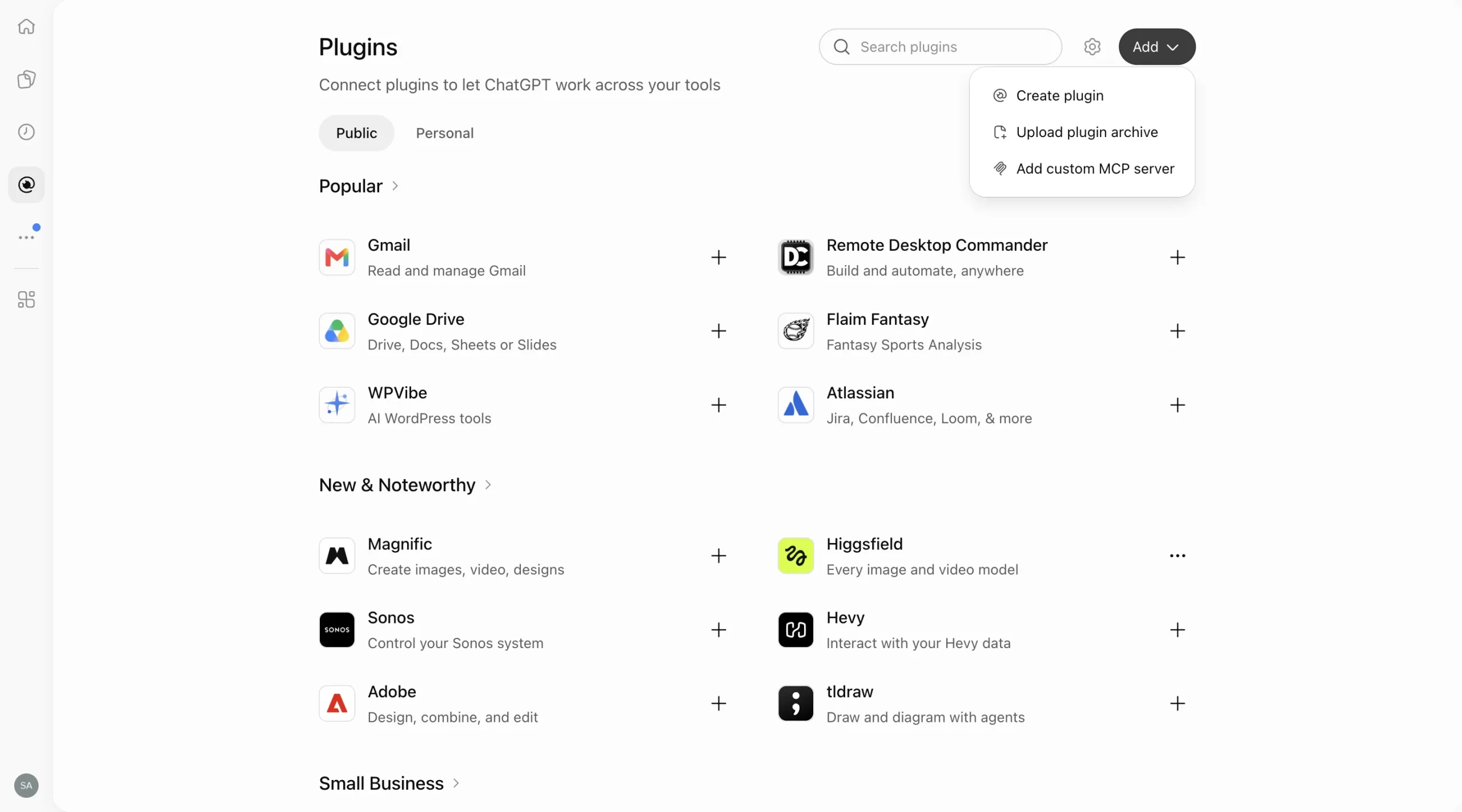
Under Plugins, click Add and choose Add custom MCP server. - Paste the TamRank URL. Enter TamRank as the name. Under Connection, keep Server URL selected and paste:
https://mcp.tamrank.com/mcpAuthentication shows OAuth. Leave the advanced OAuth settings as they are. Read the risk warning, tick I understand and want to continue and click Create as a plugin.
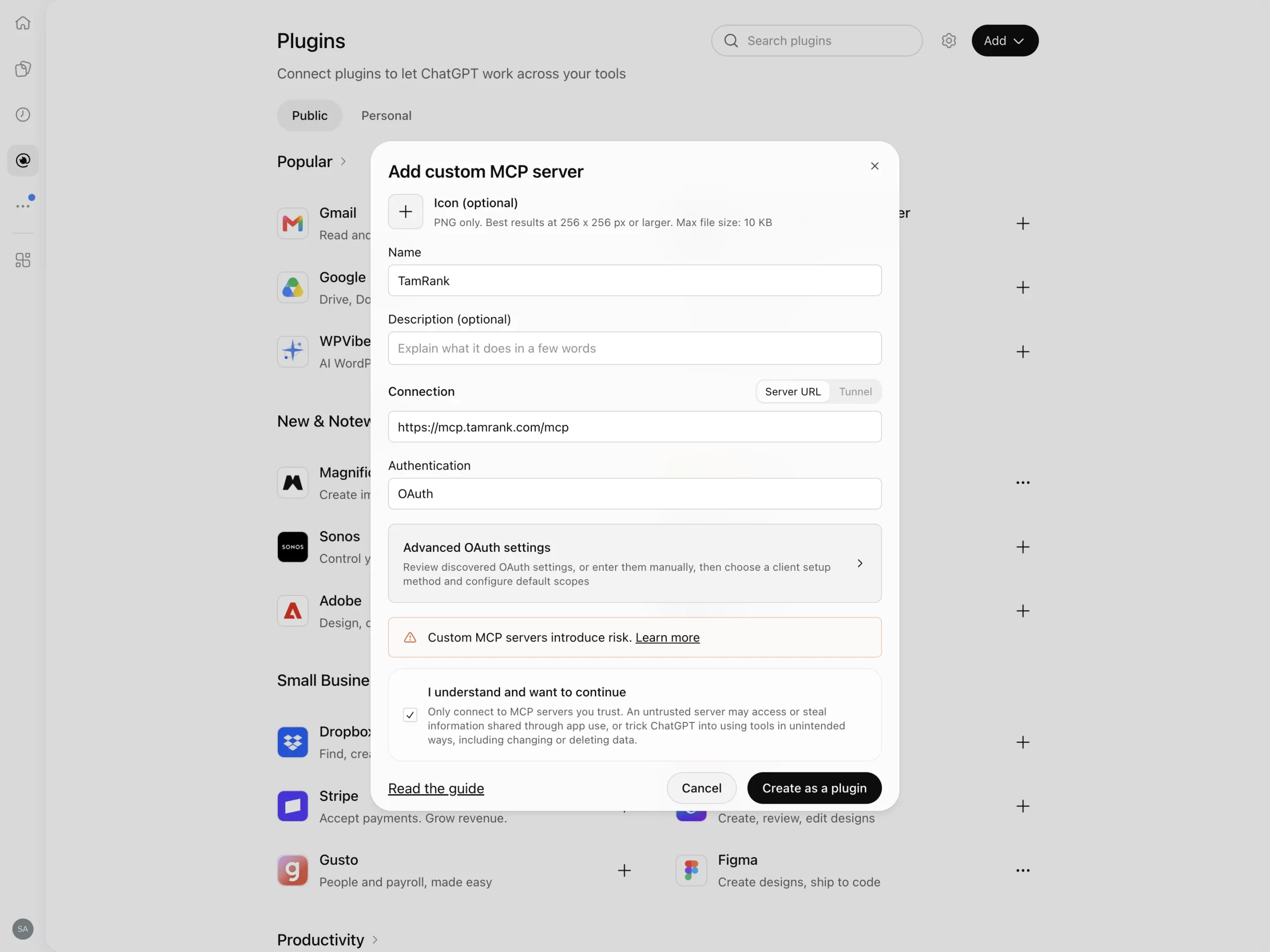
Name it TamRank, paste the server URL, tick the checkbox and click Create as a plugin. - Sign in with TamRank. ChatGPT shows what connecting means. Click Continue to TamRank. Enter the email address of your TamRank account and click Send me the code. Type the six-digit code from the email, or click the sign-in link in it. If you are already signed in to TamRank, you only confirm the account with Continue with this account. Then choose the website you want to connect and click Give access. You see the site address and what ChatGPT may do before you confirm.
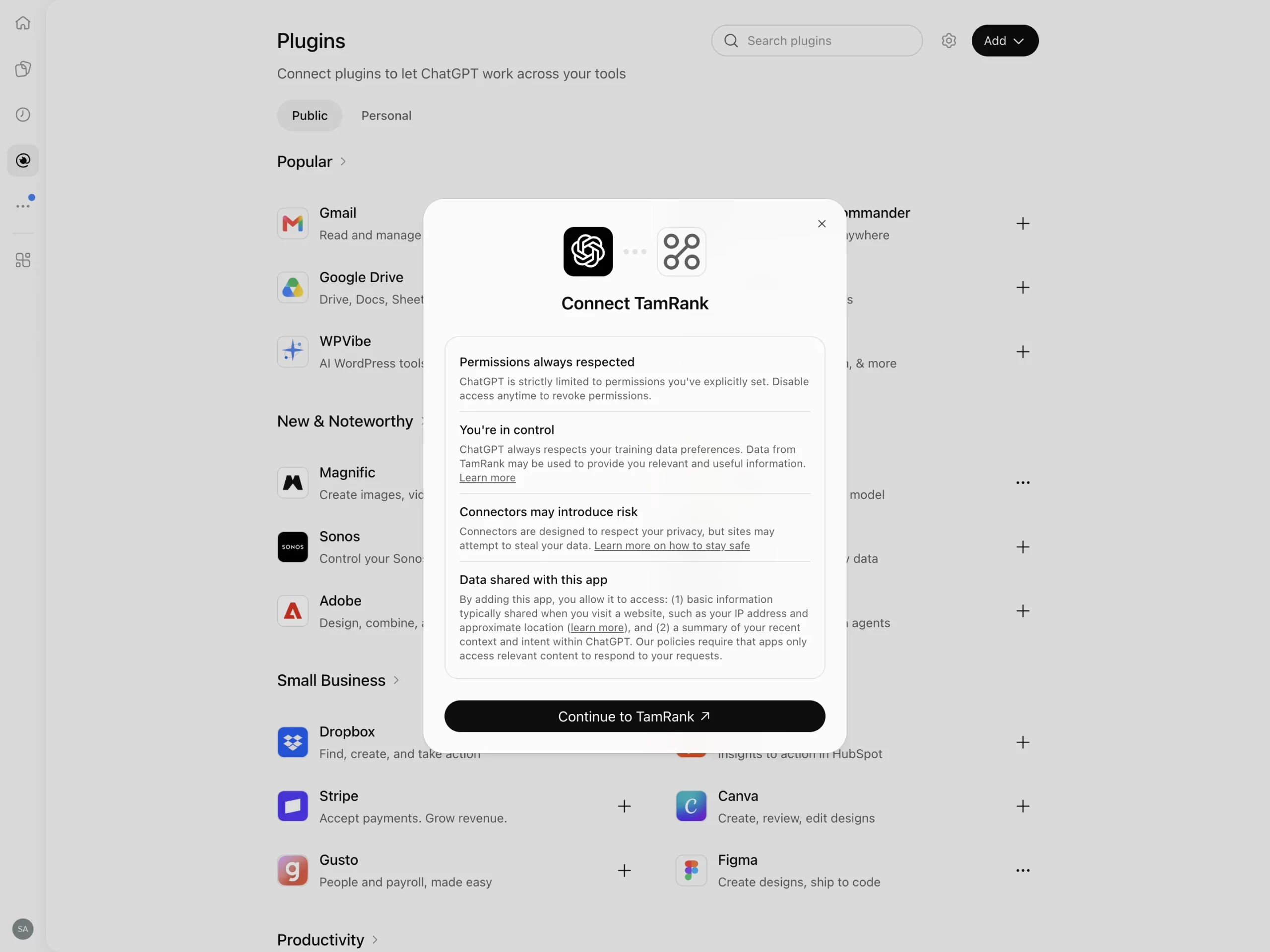
ChatGPT explains what connecting means. Click Continue to TamRank. 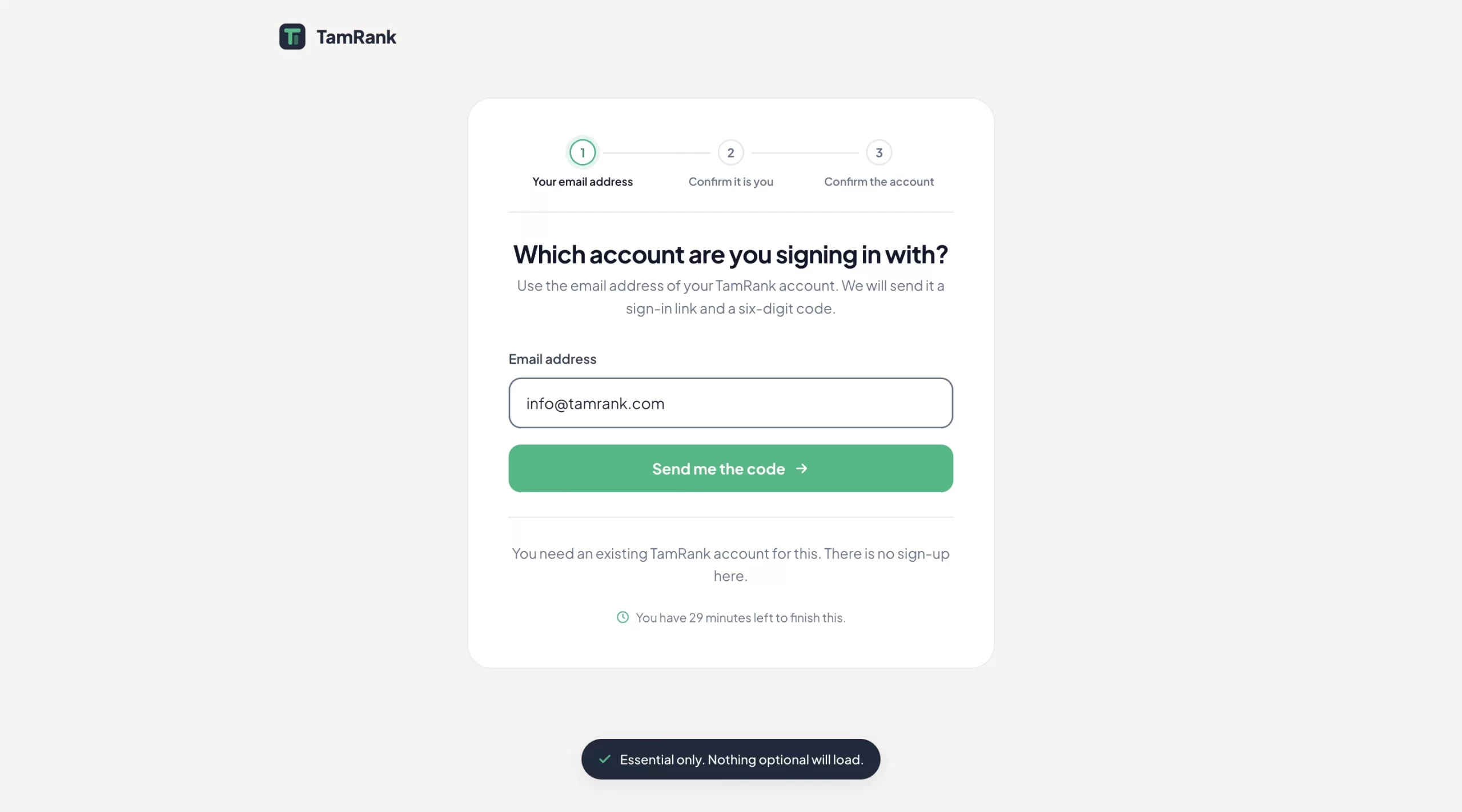
Enter the email address of your TamRank account and click Send me the code. 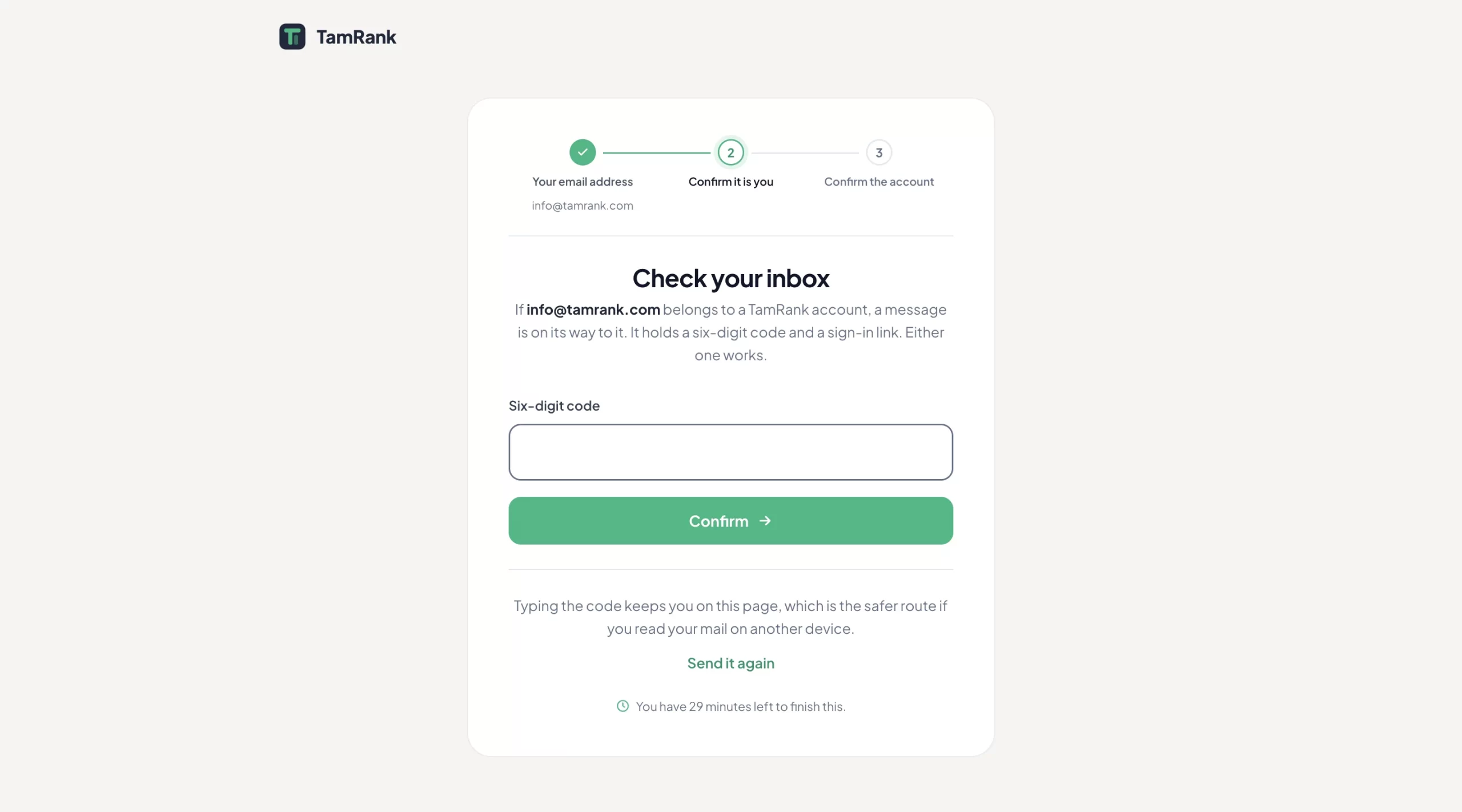
Type the six-digit code from the email, or click the sign-in link in it. 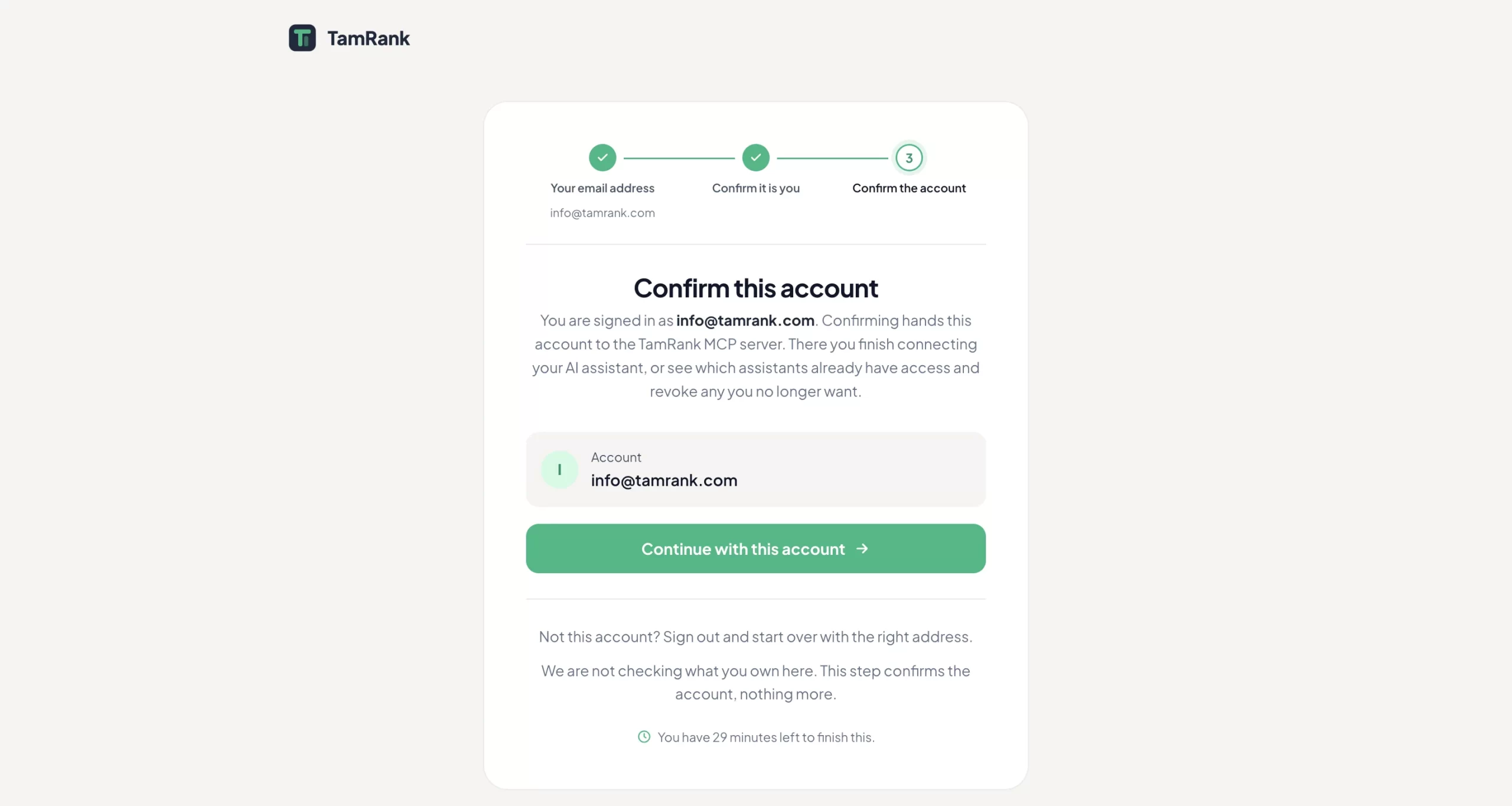
Already signed in to TamRank? Then you only confirm the account. 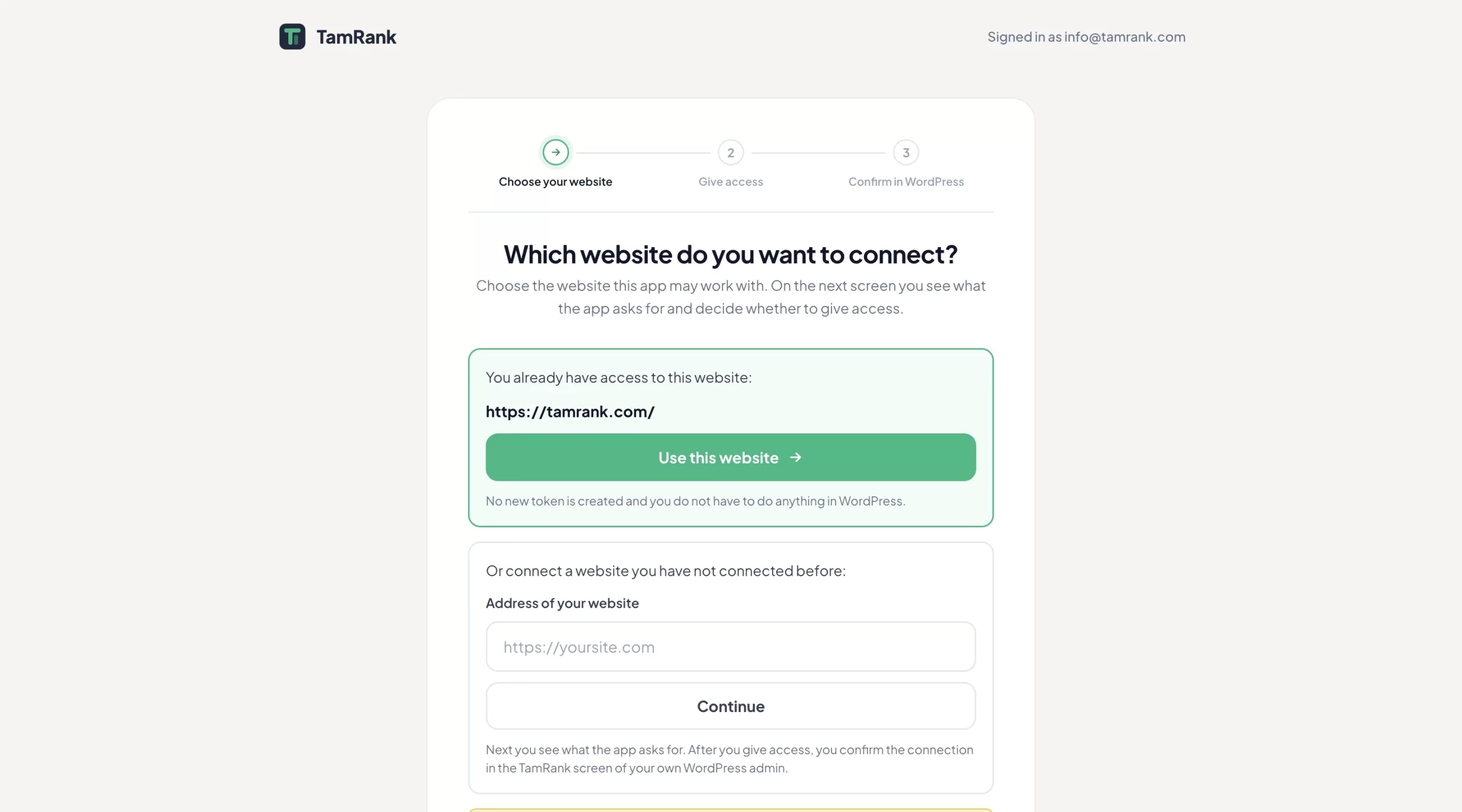
Choose the website. A site you connected before is listed with Use this website. 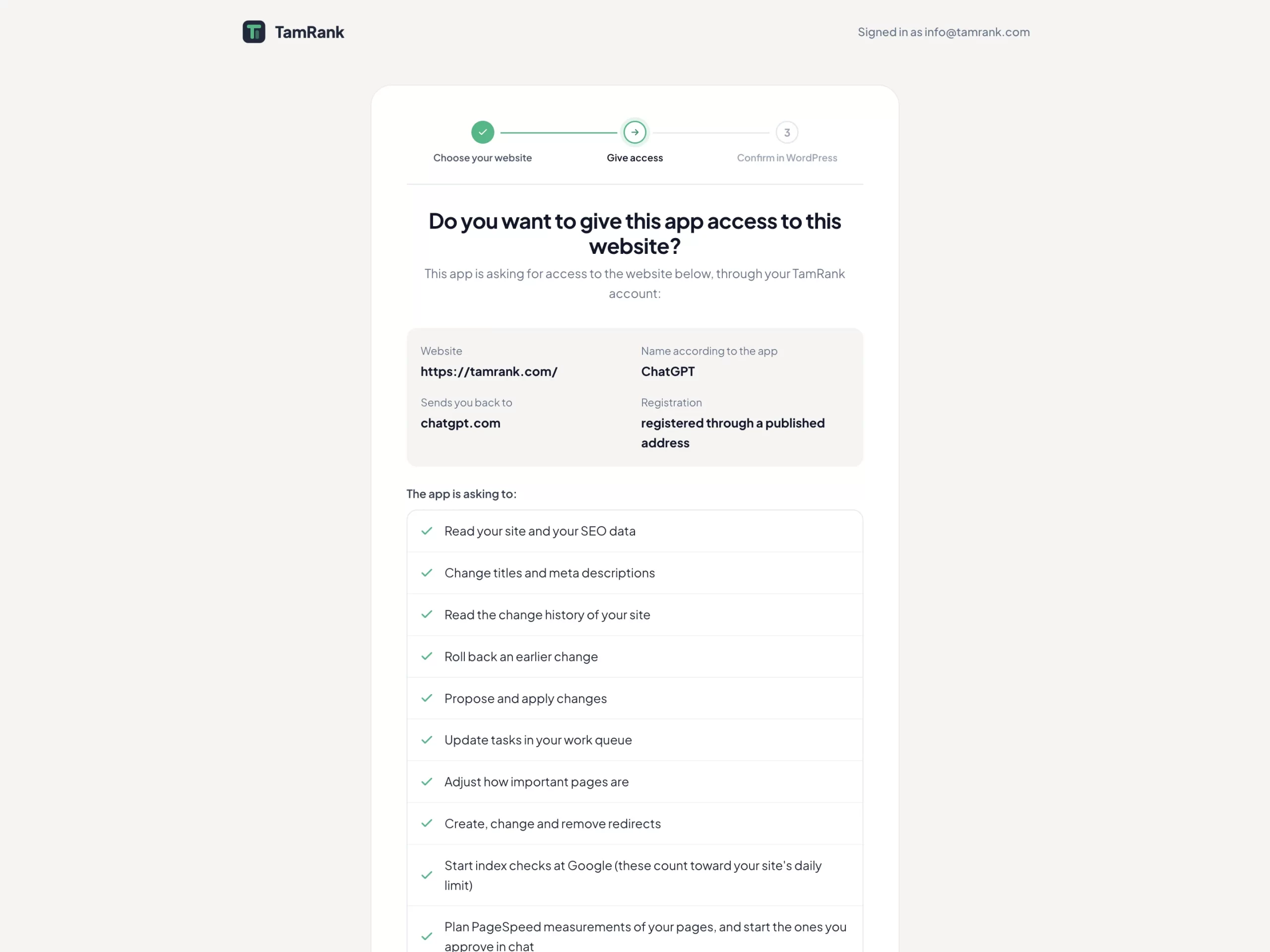
Check the website and what ChatGPT asks for, then click Give access. - Approve the site in WordPress (first time only). If this site was never connected before, TamRank asks you to approve the connection once in your WordPress admin. A site that is already connected skips this step.
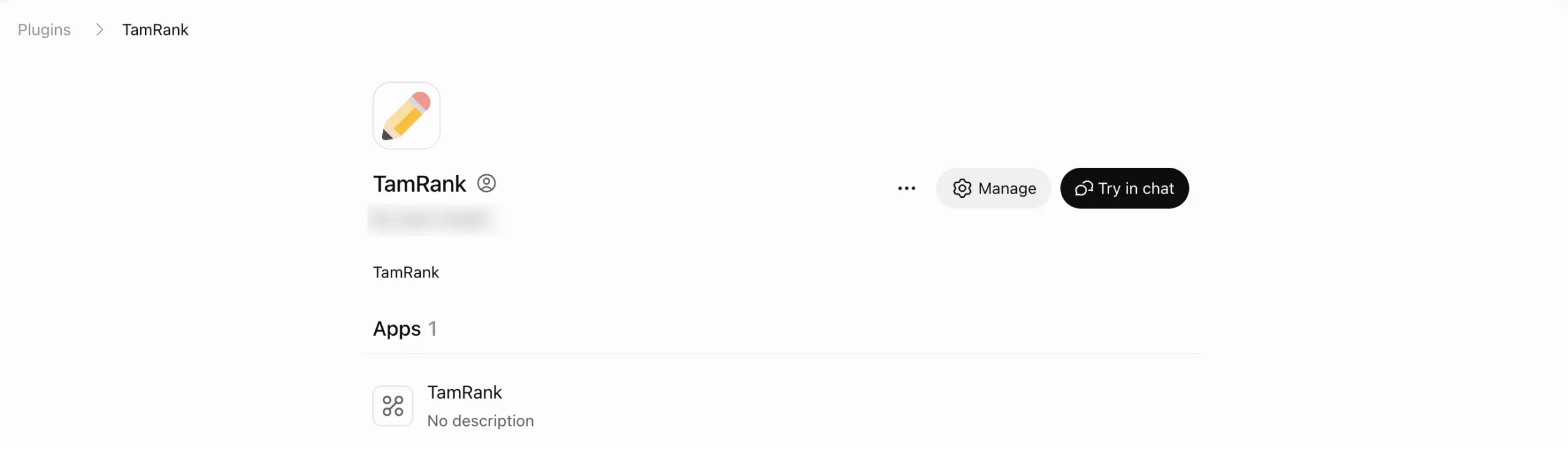
Back in ChatGPT, TamRank now has its own page under Plugins. There is nothing to install.
Ask your first question
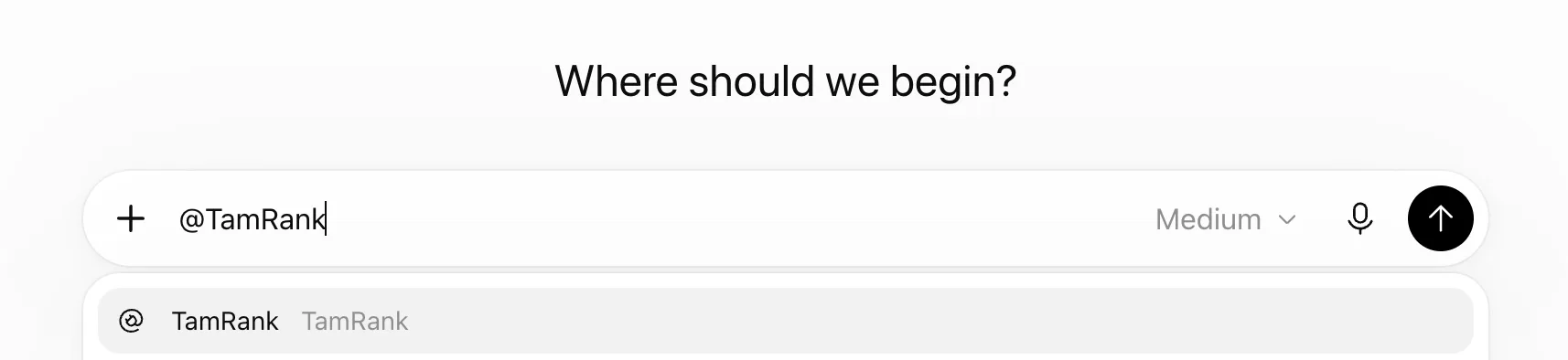
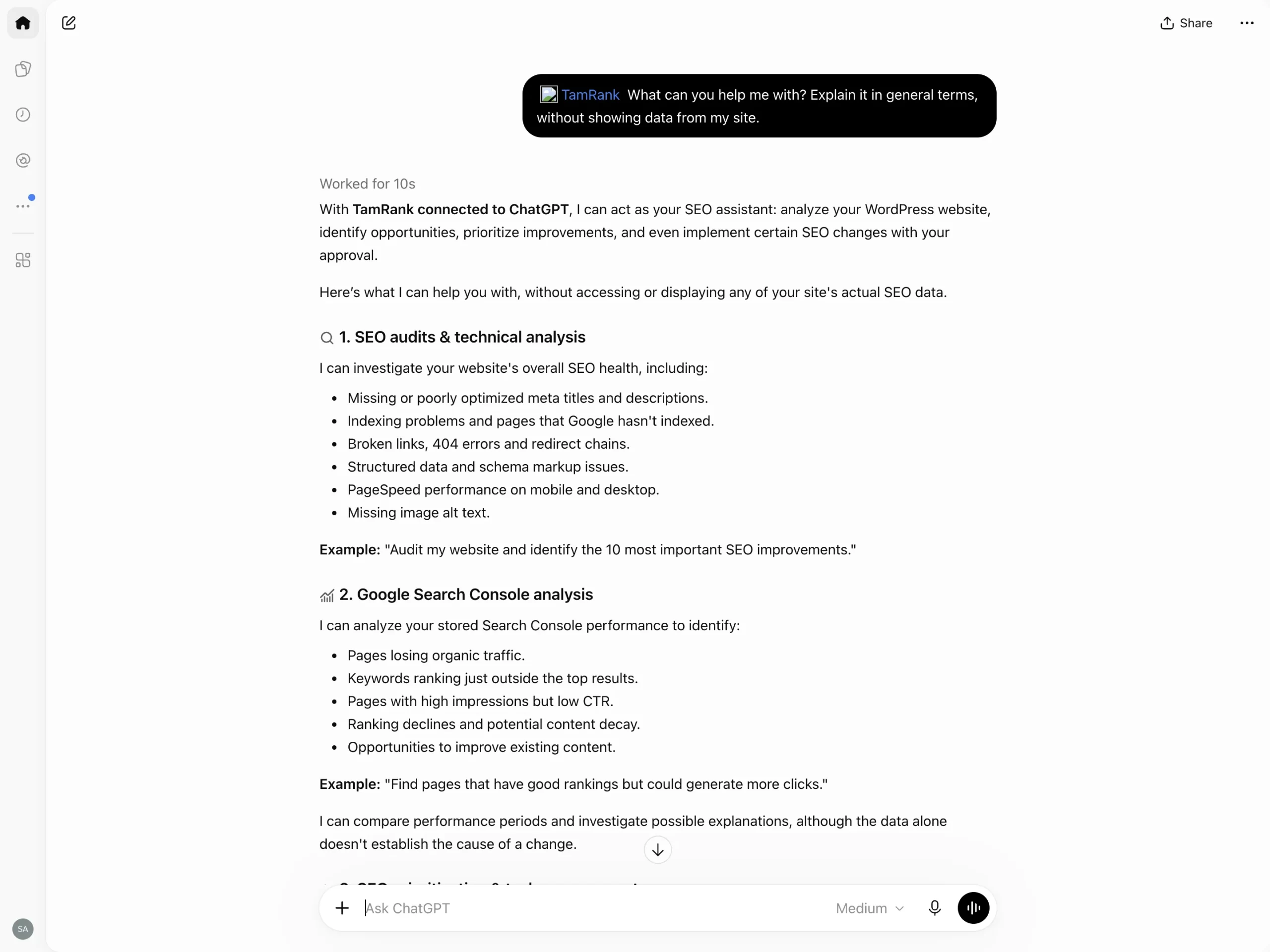
Start a new chat, or click Try in chat on the TamRank page. Type @ in the prompt box and pick TamRank. Then ask:
What should I improve on my site this week?ChatGPT reads your TamRank work queue, signals and Search Console data and answers from those. Pick TamRank again with @ when a follow-up needs fresh data from your site. If you have more than one site connected, say which one.
Changes always need your OK
For a change, TamRank first shows an exact plan with every page, the old and new values and any warnings. Nothing is written until you approve that plan in the chat, and every change is logged and can be rolled back. ChatGPT may also ask you to confirm an action itself.
Disconnect or manage access
In ChatGPT, you manage the plugin from its page under Plugins. You can see and revoke connected assistants on mcp.tamrank.com/account.
Source for the ChatGPT steps: OpenAI Help Center, connecting custom MCP servers and OpenAI, connect and test your plugin.

