WordPress hands you a robots.txt file that is three lines long. Most sites want about eight. That small gap, three lines against eight, is where a surprising number of WordPress sites quietly bleed search visibility: some block a directory they badly need crawled, others miss a rule that would have saved their crawl budget. We run into both most weeks.
This guide walks through what that file actually contains, how to edit it without breaking your site, a configuration that works for most sites in 2026, and how to handle AI crawlers, which went from a footnote to a real decision in about the space of a year. It sits under the technical SEO guide for WordPress.
What is robots.txt in WordPress?
A robots.txt file is a plain text file that sits at the root of a website and tells crawlers which paths they may and may not visit. Search engines like Google, and AI crawlers like GPTBot and ClaudeBot, check it before they start crawling. If a path is marked Disallow, well-behaved crawlers skip it.
Here is the one thing to fix in your head before you touch the file, because it causes more robots.txt confusion than anything else. According to Google’s own documentation, Disallow rules prevent crawling but not indexing. A page you block in robots.txt can still turn up in Google’s results as a bare URL with no snippet, as long as another site links to it. To keep a page out of search altogether you need a noindex meta tag on the page itself, not a Disallow line. I have watched that one misunderstanding send a lot of site owners chasing the wrong fix for weeks.
WordPress’s default robots.txt: what it contains
WordPress does not ship a physical robots.txt file. It builds one on request, through a PHP filter called robots_txt. Ask for yourdomain.com/robots.txt and WordPress assembles the answer in the moment, from its own defaults plus whatever your plugins contribute.
The default output is short:
User-agent: *
Disallow: /wp-admin/
Allow: /wp-admin/admin-ajax.php
Line by line: the wildcard User-agent points the rules at every crawler. The Disallow blocks your WordPress admin area, which is correct, because admin pages belong in nobody’s search results. The Allow exception for admin-ajax.php matters because some plugins lean on that endpoint for logged-out requests, and blocking it quietly breaks features on the front end.
That is the whole default. No sitemap line, no defence against the usual duplicate-content sources, nothing about AI crawlers. It works, but it is bare bones, and most sites gain from a few extra rules.
One consequence of the virtual file is worth holding onto. Upload a physical robots.txt to your site’s root and it overrides WordPress’s virtual version completely, which means any rules your SEO plugin was quietly adding, sitemap declarations, AI crawler blocks, stop appearing. A physical file gives you full control and the full job of maintaining it by hand. Most sites are better off editing through a plugin’s robots.txt editor, which changes the virtual file and stays in sync with your plugin settings on its own.
How to access and edit robots.txt in WordPress
Three ways to edit it, in the order we would reach for them on most WordPress sites:
Method 1: Via your SEO plugin’s robots.txt editor (recommended). Most WordPress SEO plugins include a robots.txt editor in their tools or settings area. In Yoast SEO: go to Yoast SEO, then Tools, then File Editor. In Rank Math: go to Rank Math, then General Settings, then Edit robots.txt. In TamRank: go to TamRank, then Technical SEO, then robots.txt. Editing through the plugin modifies the virtual file, keeps your changes in step with the plugin’s own rules, and needs no FTP access. The editor is part of the free plugin, alongside the rest of the technical SEO tools.
Method 2: Via FTP or the hosting file manager. Download and edit the robots.txt file directly in the root of your server, the same directory as wp-config.php. As noted above, a physical file overrides the virtual one entirely. Reach for this only if you have a specific reason to manage the file outside WordPress, or if your host insists on it.
Method 3: Via the robots_txt filter in functions.php (for developers). WordPress exposes the virtual file’s content through a filter, which lets you add rules in code. This is the cleanest route for developers who run several sites or want their robots.txt configuration under version control.
A practical WordPress robots.txt for 2026
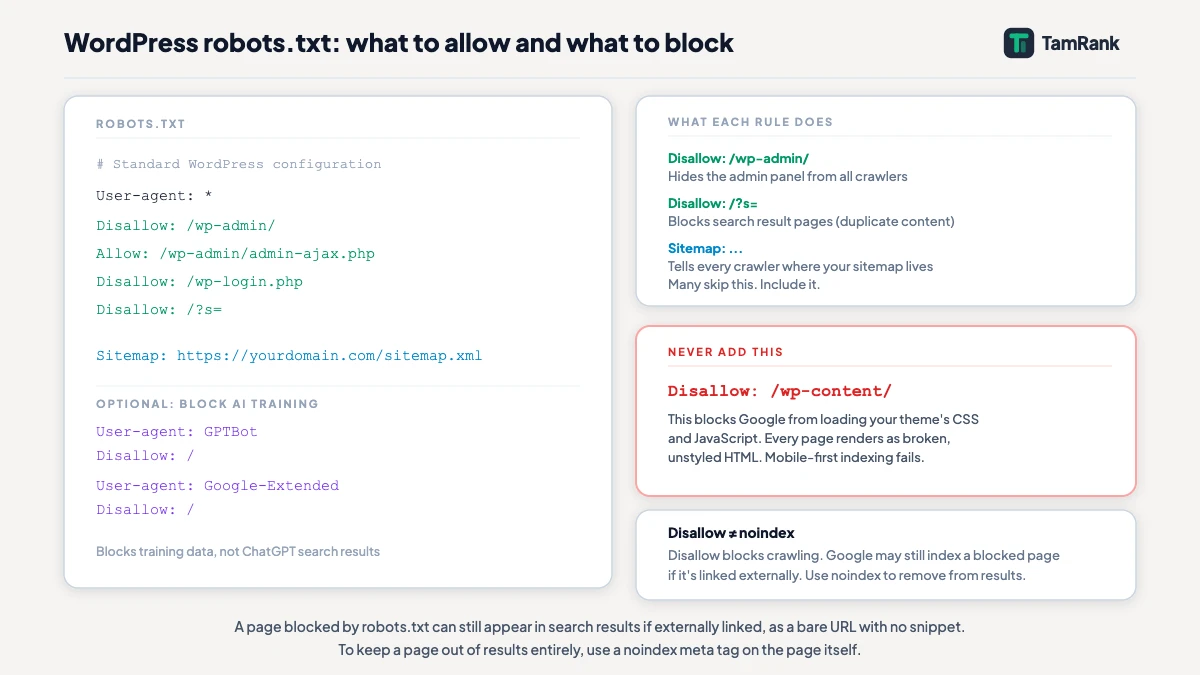
Here is a configuration that works for most WordPress sites, annotated rule by rule:
User-agent: *
Disallow: /wp-admin/
Allow: /wp-admin/admin-ajax.php
Disallow: /wp-login.php
Disallow: /?s=

Sitemap: https://yourdomain.com/sitemap.xml
What each line does:
Disallow: /wp-admin/: blocks crawlers from your admin area. Correct and necessary.Allow: /wp-admin/admin-ajax.php: overrides the above for this specific endpoint. Necessary for some plugin features.Disallow: /wp-login.php: blocks the login page from being crawled. This page adds nothing to search results and the URL carries no ranking value.Disallow: /?s=: blocks WordPress’s internal search results. Search result pages are thin, session-specific content that creates duplicate-content patterns when crawled. Blocking them keeps crawl budget on your real pages.Sitemap:: declares your sitemap URL to every crawler that reads this file. Many crawlers use this as their primary guide to your site’s content. Replace the URL with your actual sitemap location, which you can confirm by visiting yourdomain.com/sitemap.xml.
What is deliberately absent: /wp-content/, /wp-includes/, or any broad Disallow rule covering large sections of the site. That omission is not an oversight, it is the whole point, and the next section explains why.
What you should never block in WordPress robots.txt
The single most damaging robots.txt mistake on WordPress sites is blocking /wp-content/. It usually arrives one of two ways: a configuration carried over from a staging environment, or a well-meaning “privacy” rule added by someone who did not know what the directory holds.
/wp-content/ is where your theme’s CSS stylesheets, JavaScript files, images, and plugin assets live. Block it and Google’s crawler cannot load your site’s visual layout, so every page renders as unstyled, broken HTML. That trips mobile-first indexing. Your pages can still be indexed, but Google judges them the way a visitor would see them if the server stopped serving CSS: a wall of bare text and missing images. It is like inviting an inspector to view a house, then cutting the power just before they arrive. Every room is there. They are grading a dark, empty shell.
If you have blocked it by accident, the fix is to remove the Disallow rule and request recrawling in Search Console for the affected pages. Recovery usually takes two to four weeks, as Google re-renders and re-evaluates each page.
The same warning covers /wp-includes/, which holds WordPress core JavaScript and other shared resources, and a sitewide Disallow: /, which shuts every crawler out of every page. That last rule turns up in staging robots.txt files now and then, and it should never reach a live site.
Does robots.txt affect SEO? The indexing confusion explained
The question comes from a real mix-up between two separate mechanisms: robots.txt Disallow rules and noindex meta tags. They sound alike, SEO advice often treats them as interchangeable, and they do genuinely different jobs.
A Disallow rule in robots.txt tells a crawler not to visit a URL at all. If Google honours it, it will not crawl the page, so it cannot read any noindex tag sitting on that page either. But if an external site links to the URL, Google may still list it in results as a bare URL with no description. You have blocked the crawl, not the indexing. The guide to how Google crawls WordPress walks through the separation between crawling and indexing in full.
A noindex meta tag on the page itself tells Google: “crawl me, but don’t include me in your index.” That needs Google to actually reach the page and read the tag, which means the page must not be blocked in robots.txt. The result is a clean exclusion from search results, with no bare-URL loophole.
So the working rule is straightforward. Use robots.txt Disallow for pages you would not mind appearing as bare URLs if someone links to them: admin pages, login pages, internal utilities. Use noindex meta tags for pages you genuinely want kept out of search: thin archives, confirmation pages, private content.
Managing AI crawlers in 2026
AI crawler management turned into a real robots.txt question over the past year, and it asks for something more considered than “block all” or “allow all”. Different AI crawlers do different jobs, and blocking each one costs you something different.
The two distinctions that matter:
Training crawlers collect content to train AI models. Block them and your content stays out of training datasets. Allow them and it may go in. The primary training crawlers are: GPTBot (OpenAI’s training crawler), Google-Extended (Google’s AI training crawler, separate from Googlebot), ClaudeBot (Anthropic’s training crawler), and anthropic-ai.
Search/citation crawlers collect content to power real-time AI search results: ChatGPT’s web search mode, Google’s AI Overviews, Perplexity. Blocking these crawlers prevents your content from appearing in AI-generated answers. The primary search crawlers are: OAI-SearchBot (OpenAI’s real-time search crawler, distinct from GPTBot), PerplexityBot, and standard Googlebot (which Google also uses for AI Overviews).
The distinction is the whole game, because plenty of site owners want to block AI training whilst still allowing AI search to cite them. Those are separate user-agents. A blanket Disallow: / under User-agent: GPTBot stops OpenAI’s training crawler, yet does nothing to OAI-SearchBot, the one that actually shapes ChatGPT search results.
An example configuration that blocks AI training crawlers while leaving AI search access open:
# Block AI training crawlers
User-agent: GPTBot
Disallow: /

User-agent: Google-Extended
Disallow: /

User-agent: ClaudeBot
Disallow: /

User-agent: anthropic-ai
Disallow: /

# Allow AI search/citation crawlers (OAI-SearchBot, PerplexityBot follow standard rules above)
User-agent: *
Disallow: /wp-admin/
Allow: /wp-admin/admin-ajax.php
Disallow: /wp-login.php
Disallow: /?s=

Sitemap: https://yourdomain.com/sitemap.xml
If you would rather allow all AI crawlers, training and search alike, simply add no AI-specific user-agent blocks. The default wildcard User-agent rule already covers every crawler you do not name.
One caveat worth stating plainly: robots.txt is a voluntary standard. Well-run crawlers from reputable companies obey it. Poorly-run scrapers, and bots that impersonate legitimate crawlers, do not. Robots.txt is not a security barrier. It is a polite instruction that trustworthy crawlers choose to respect.
How to test your robots.txt
Once you have made a change, check it in two places before you trust it.
First, open yourdomain.com/robots.txt in a browser and confirm the file holds exactly the rules you meant to set. Because WordPress serves a virtual file, what you see at that URL is the current combined output of WordPress and your SEO plugin, which is the version crawlers actually get.
Second, use the robots.txt tester in Google Search Console. Go to Settings, then Crawl stats, then Open Report, and look for the robots.txt link. Enter specific URLs and it tells you whether your rules allow or block them as expected. This is the quickest way to confirm that /wp-content/ paths are still reachable after any configuration change.
Then give it a few days before you read anything into Search Console’s coverage data. Crawl changes do not show up straight away.
Frequently asked questions
How do I add robots.txt in WordPress?
WordPress generates a virtual robots.txt file automatically. You don’t need to create one from scratch. To customise it, use your SEO plugin’s built-in robots.txt editor (available in Yoast, Rank Math, TamRank, and most others). Changes made through the plugin editor modify the virtual file without requiring FTP access or file uploads.
What is the default robots.txt file in WordPress?
WordPress’s default virtual robots.txt allows all crawlers to access everything except /wp-admin/, with a specific Allow exception for /wp-admin/admin-ajax.php. There is no sitemap declaration in the default. Most SEO plugins extend this with a sitemap line and any additional rules you configure through the plugin.
Should I block /wp-content/ in robots.txt?
No. /wp-content/ contains your theme’s CSS and JavaScript. Blocking it prevents Google from rendering your site’s visual layout, which causes mobile-first indexing failures. This is the most consequential robots.txt mistake on WordPress sites. Leave /wp-content/ fully open.
What is the difference between robots.txt Disallow and noindex?
Disallow in robots.txt prevents crawling: the crawler skips the URL. A noindex meta tag on the page prevents indexing: the crawler can visit the page but must not include it in search results. A page blocked by robots.txt can still appear in search results as a bare URL if other sites link to it. A page with noindex will not appear at all, once Google processes the tag. Use noindex for clean content exclusion; use Disallow for pages that don’t need to be visited at all.
How do I block AI training crawlers without blocking AI search?
OpenAI uses two separate user-agents: GPTBot for training and OAI-SearchBot for ChatGPT’s real-time search. Add User-agent: GPTBot / Disallow: / to block training while OAI-SearchBot continues to access your content. Similarly, User-agent: Google-Extended / Disallow: / blocks Google’s AI training crawler without affecting standard Googlebot, which powers both organic search and AI Overviews.
Robots.txt rewards a light touch. Set the handful of rules your site genuinely needs, leave /wp-content/ open, make a deliberate call on AI crawlers, and then leave the file alone. To edit it without FTP and see what crawlers actually get, install TamRank free.
Sources
- Create and submit a robots.txt file, Google Search Central, 2026
- Introduction to robots.txt, Google Search Central, 2026
- GPTBot user agent documentation, OpenAI, 2026
- robots_txt filter, WordPress Developer Reference, 2026

