Many WordPress site owners stay with an SEO plugin they no longer enjoy using. Not because it is still the best fit, but because switching feels risky.
That concern makes sense. Your SEO plugin may hold years of page titles, descriptions, canonical URLs, robots settings, schema choices and redirects. Rebuilding everything by hand takes time. Missing one important setting can also change what search engines see.
You can switch without starting over. The key is to treat it as a controlled migration, not as a simple plugin replacement.
This guide gives you a practical process that works whether you are moving away from Yoast SEO, Rank Math, AIOSEO or another WordPress SEO plugin.
What can go wrong when you change SEO plugins?
Changing the plugin itself is easy. Preserving its output is the real job.
The most common problems are:
- Custom titles and descriptions are not transferred.
- Canonical URLs disappear or change.
- Noindex settings are missed.
- Redirects stop working.
- Two plugins output conflicting titles, sitemaps or schema at the same time.
- Cached pages make the old output appear after the migration.
- Sitewide settings are assumed to be identical when the plugins use different models.
This does not mean that switching is unsafe. It means that you need a preview, a clear report and a way back if the result is not what you expected.
A safe four step migration plan
1. Record what matters before you switch
Make a normal backup of the website. Then choose a small set of representative pages to check later.
Include a page with a custom title, a page with a custom canonical, a noindex page and a page with custom social settings if you use them. Also note a few important redirects.
This gives you a practical checklist. You do not need to inspect every page manually.
2. Review the migration before anything changes
A good migration tool should show which source plugin it found, what kinds of data are available and how many items can be imported. It should also let you leave out categories you do not want to move.
The screenshots below show a migration from Yoast SEO, but the same guided process is available for Rank Math and AIOSEO.
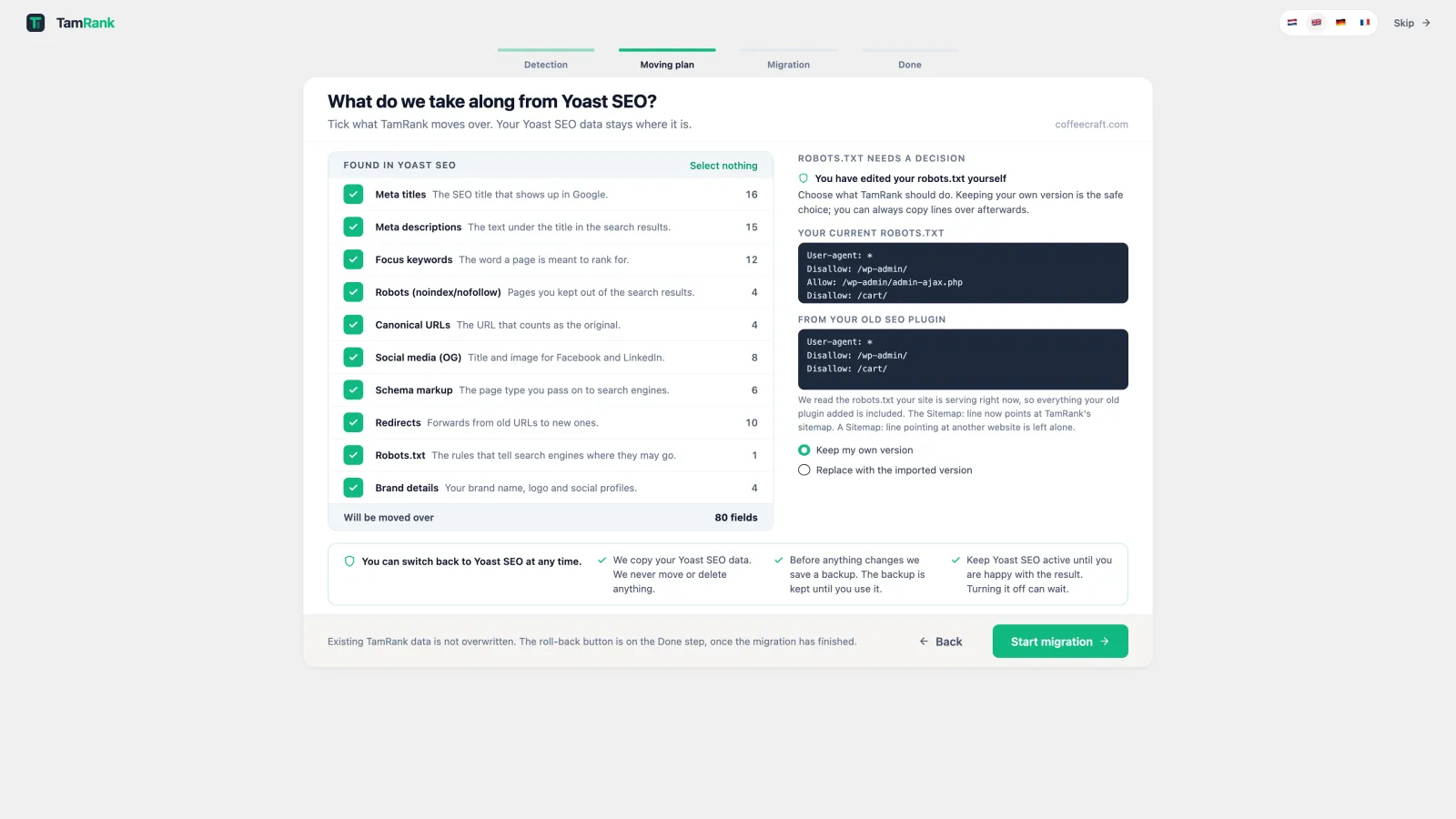
Pay extra attention to canonicals, robots rules, redirects and sitewide settings. These can affect more than one page.
If the new plugin already contains values, it should not silently overwrite them. TamRank keeps existing TamRank values and only fills fields that are still empty.
3. Run the migration and read the report
A green success message is not enough. You need to know what moved, what was skipped and what still needs your attention.
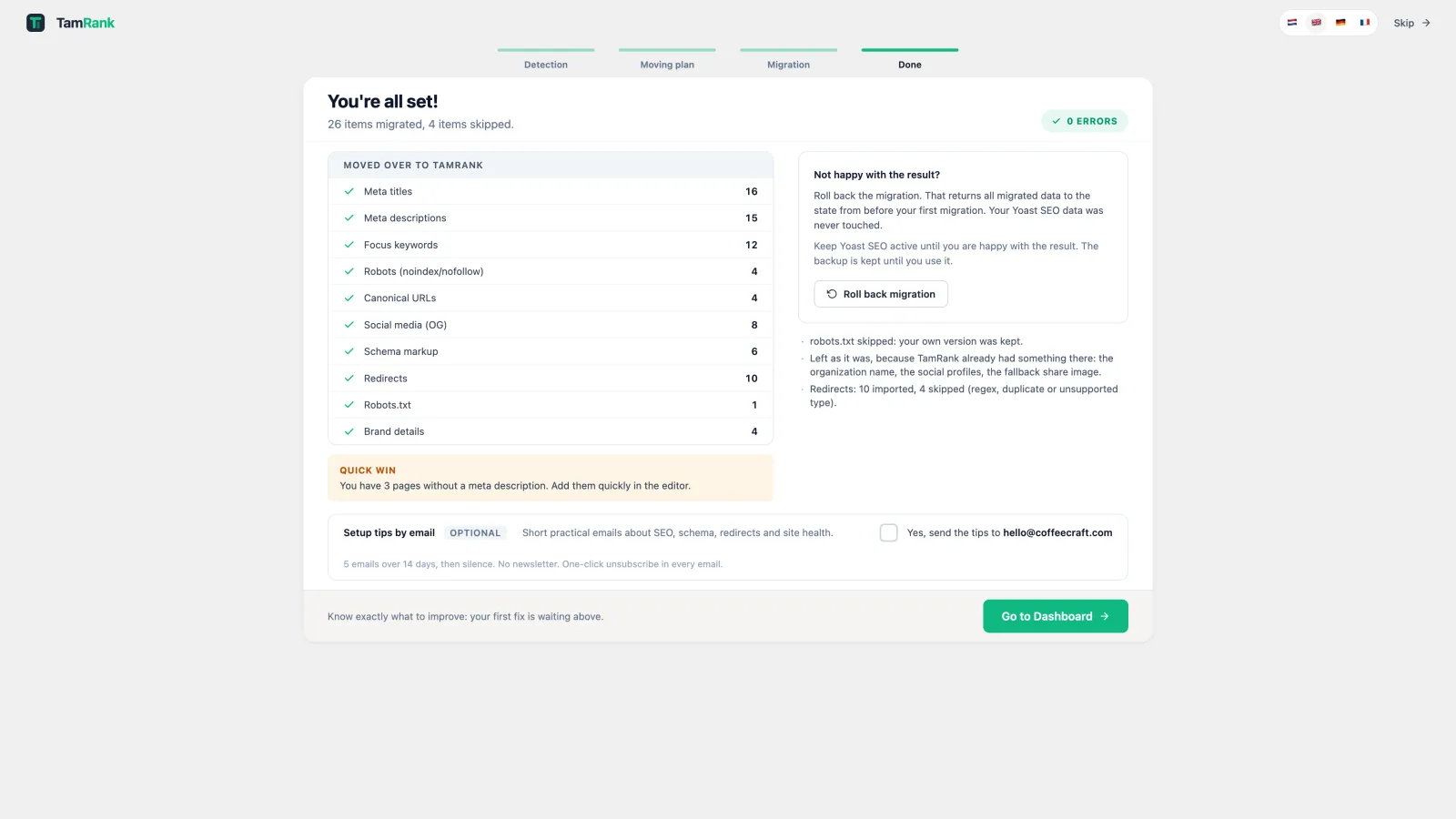
A skipped item is not always a problem. The new plugin may already have a value, a redirect may already exist or a source setting may not have a safe equivalent. The report should make that distinction clear.
4. Verify the output before removing the old plugin
Check the representative pages you selected earlier. Review the title, description, canonical URL, robots setting, schema and social data inside WordPress.
Then deactivate the old SEO plugin. Clear the site cache, server cache and CDN cache if applicable. Inspect the public pages again and confirm that only the new plugin produces the SEO output.
Test your important redirects and open the sitemap. Keep the old plugin installed but inactive until you are satisfied with the result.
What should a migration preserve?
The exact options differ by plugin, but a useful migration should consider more than titles and descriptions.
- Page and post titles
- Meta descriptions
- Focus keywords
- Canonical URLs
- Index and follow settings
- Social titles, descriptions and images
- Schema choices
- Category and taxonomy SEO data
- Redirects
- robots.txt rules
- Sitemap settings
- Site identity details
Not every source supports every category. For example, Yoast Free does not include a redirect manager. A trustworthy migration tool reports the limitation instead of claiming that everything moved.
Why rollback matters
A rollback makes it easier to test the result without feeling trapped. It should restore the values that existed in the new plugin before the migration and remove redirects created by that migration.
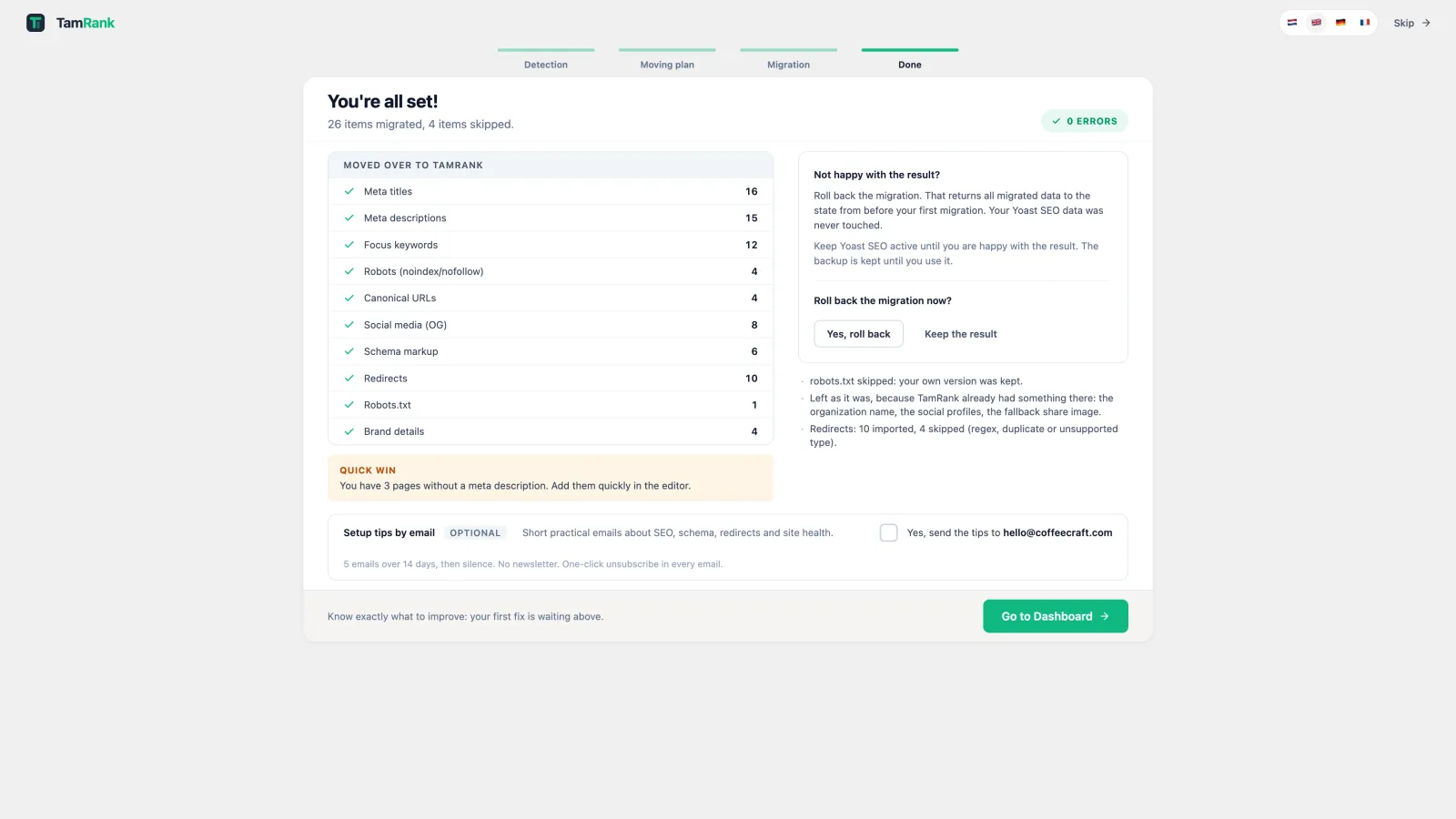
Rollback is not a full website backup. It does not restore unrelated content, theme changes or files. Keep your normal backup as well.
How TamRank handles the switch
TamRank Free includes a migration wizard for Yoast SEO, Rank Math and AIOSEO. It detects the available data, creates a plan, imports the categories you approve and shows a final report.
The original source data stays in WordPress. TamRank also creates a rollback point for the values and redirects it writes.
Supported redirects from Rank Math and Yoast Premium can move into TamRank’s redirect manager. AIOSEO redirects are not imported at this time, so review and transfer those separately before disabling their source.
You can see the exact process in the short migration documentation or visit the migration overview.
When should you not switch yet?
Postpone the migration if you do not have a current backup, if your website is in the middle of another large technical change or if you cannot verify the result afterwards.
Also take extra care when custom theme code changes titles, canonicals or schema. In that situation, use a staging site first.
Switch when the new workflow is worth it
The purpose of changing an SEO plugin is not the migration itself. It is getting a workflow that fits how you want to work after the switch.
TamRank keeps the migration controlled, then helps you continue from real search data inside WordPress. You can start with TamRank Free on WordPress.org and review the migration plan before committing to the switch.
If you are still comparing options, read TamRank compared with Yoast or TamRank compared with Rank Math.

