Your meta title and description are the headline and summary that show up for your page in Google’s search results. In TamRank you write both in the SEO box on any page, with a live preview and character counts, so you can see how the page will look before you publish. This page shows how to write meta titles and descriptions that read well and help your score.
In short
- Open a post or page and find the TamRank SEO box.
- Write your Meta Title (aim for 30 to 60 characters) and Meta Description (aim for 120 to 160).
- Watch the Google Preview update as you type.
- Put your focus keyword in both, and check the Improvements list.
Where to write them
The TamRank SEO box sits at the top of the editor on every post and page, whether you use Gutenberg, the Classic editor, or Divi. Open the SEO tab, which is the one shown by default, and you will find the Meta Title and Meta Description fields there, one above the other.
The box does not appear on media or attachments. If it is missing on a normal page, check TamRank → Settings → General and make sure Enable meta boxes is on.
Writing the meta title
The meta title is the clickable headline in search results. A few things make a good one:
- Aim for 30 to 60 characters. The counter under the field moves as you type, and the Improvements list flags a title that is too short or too long.
- Include your focus keyword, ideally near the front.
- Write a real headline: clear, specific, and worth a click.
If you leave the field empty, TamRank falls back to your post title. That works, but a title you write yourself usually reads better in search than the one you gave the page in the editor.
Writing the meta description
The meta description is the short summary under the title. It does not decide your ranking, but it decides whether people click.
- Aim for 120 to 160 characters.
- Say what the page delivers and include your focus keyword.
- Write for a person. This is your one line to earn the click, not a place to list keywords.
Leave it empty and search engines will pick their own snippet from your page, which is rarely the line you would have chosen.
The Google Preview
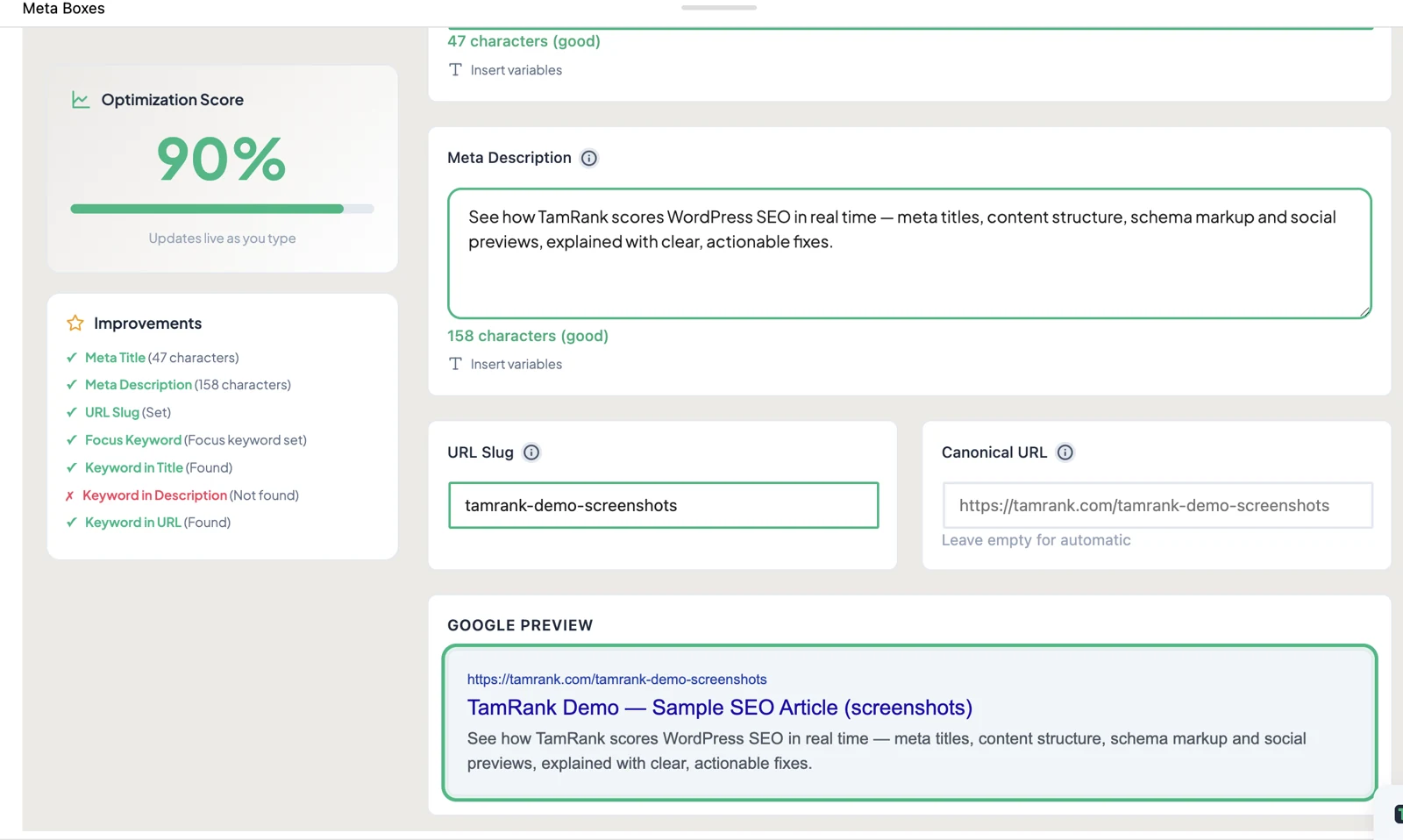
Right under the fields, the Google Preview shows your page the way it will appear in results: the web address, the title, and the description. It updates live as you type, so you can shorten a title that is running long or rewrite a description that would get cut off, all before you save.
Insert variables for templated titles
If you would rather build a title or description from page data, use the Insert variables button under either field. It drops in placeholders that fill themselves in when the page loads:
- %title%: the page or post title
- %sitename%: your site name
- %excerpt%: the excerpt or summary
- %date%: the publication date
- %category%: the primary category
- %tag%: the primary tag
This is handy when you want every post to end with your site name, for example, without typing it on each one.
Getting your keyword in
Set a Focus Keyword at the top of the SEO tab, and the Improvements checklist starts telling you whether that keyword appears in your title, your description, and your URL. If it is there, the check passes; if it is missing, the list says so. Getting your keyword into both the title and the description is one of the easiest ways to lift a page. Setting the keyword itself is covered in Focus keywords, and how all of this rolls up is in How your SEO score works.
That said, do not force it. If the only way to fit the keyword in makes the title or description read awkwardly, leave it natural. TamRank flags a missing keyword as a suggestion, not a rule, and a snippet a person actually wants to click beats one that ticks every box but reads like it was written for a machine. Aim for the green check where the keyword fits cleanly, not at the cost of a clumsy sentence.
What TamRank does with them
Once you save, TamRank writes your title and description into the page’s head, replacing whatever your theme or another SEO plugin would have output. That is what Google reads.
Your social title, description, and image are a separate thing. Those live in the Social tab and control how the page looks when it is shared, not how it looks in search. They are covered in Social and Open Graph previews.
Tip: read your preview out loud
The clearest test of a title and description is to read the Google Preview out loud as if you were the person searching. If it tells them exactly what they will get and sounds like a page worth opening, it is doing its job. Getting the length right matters, but sounding useful matters more.
Troubleshooting
My title shows something I did not write. When the Meta Title field is empty, TamRank uses your post title. Fill the field to control it.
Google shows a different description than mine. Search engines sometimes write their own snippet, especially when your description does not match what the person searched for. A focused, relevant description makes them more likely to use yours.
The counter says my title is too long. Bring it back under 60 characters. Past that, Google trims the end, so put your most important words first.
The fields are missing. The box does not show on media or attachments, and it can be switched off under TamRank → Settings → General. Check that Enable meta boxes is on.
Frequently asked questions
How long should a meta title be?
Aim for 30 to 60 characters. Long enough to be clear, short enough that Google does not cut it off.
How long should a meta description be?
Aim for 120 to 160 characters. Enough room to summarize the page and earn the click.
Do I have to fill these in for every page?
No. TamRank falls back to your post title and lets search engines pick a snippet. Writing your own simply gives you control over how the page reads in search.
Does my keyword have to be in the title and description?
It is not required, but it helps, and TamRank checks for it in both. Do not force it though: if working the keyword in makes the line read awkwardly, keep it natural. A clear, clickable snippet matters more than a perfect check.
Where do social titles go?
In the Social tab, not here. The meta title and description are for search results; the social fields are for how a shared link looks.
Related
- Set your keyword: Focus keywords
- How it affects your score: How your SEO score works
- For shared links: Social and Open Graph previews
- The bigger picture: The complete WordPress SEO guide
- Back to Documentation

